Send a WhatsApp broadcast to a segment
An approved template, a segment from your contacts, a send held to the hours somebody can reply — and every answer landing in the shared inbox.
A broadcast is one message to many people, now. It is the right tool for an offer, an announcement, a reminder — anything where the message is the point and the reply is a bonus. Where it differs from a broadcast tool is what happens to that reply: it lands in the shared inbox on the WhatsApp channel, answered by a bot at once or by your team, with the whole history beside it.
Three decisions: the template, the audience, the timing. The third is the one people skip and then regret at 9pm.
Before you start
- A connected WhatsApp channel.
- An approved template — everyone a broadcast reaches is outside the 24-hour window.
- A segment in Contacts, filtered on open stages so DND is excluded.
- Broadcast timings set on the channel to when a reply can actually be answered.
Steps
Pick the approved template
Only approved templates can be sent to people outside the 24-hour window, which is everybody a broadcast reaches. If the one you need is still pending, wait — approvals and rejections appear in your notification feed. Fill each variable from a contact attribute or a fixed value.

Build the audience from Contacts
The same filter builder as everywhere else: stage, source, last activity, any attribute. Filter on open stages so DND, Not interested and Wrong number are excluded automatically. Check the count, then open three of the matched contacts — a plausible number with the wrong people in it is the expensive mistake.
Check the broadcast timings on the channel
A send scheduled outside them waits. Set them to when a reply will actually be read — not your opening hours, and in the customer's timezone. A broadcast at 9pm produces replies at 9pm, and if nobody is answering then you have manufactured a queue of irritated people for the morning.

Check what answers the channel
Replies arrive as conversations on the WhatsApp channel, answered by whatever it is pointed at. If it is pointed at your agents, somebody must be watching the queue when the replies come in. If it is pointed at a bot, read the bot's first message with a broadcast reply in mind — it should make sense as an answer to "yes, tell me more".
Send to twenty people first
Then read the replies as they arrive and confirm each one landed in the inbox with the contact record beside it. Only then send the rest.
Read the results per person, not only the totals
Sent, delivered and replied on the broadcast. Then open a handful of contacts: every send is a line on the activity feed, and a reply that became a conversation is visible there too.
Check it worked
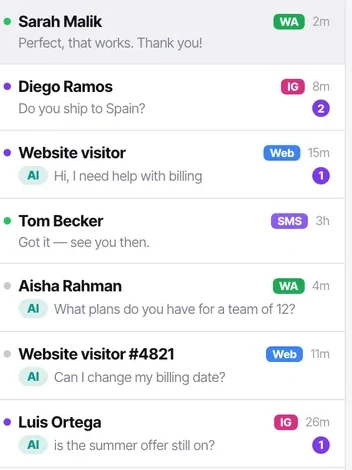
Send a broadcast to your own number as part of the twenty. Reply to it. Confirm the reply appears in the shared inbox, on the WhatsApp channel, with your contact record beside it — and that whatever the channel is pointed at actually responded.
The parts people get wrong
- Meta sets messaging limits per number that rise with quality and volume. A reported broadcast lowers them. Warm a new number up rather than sending to ten thousand people on day one.
- A reply ends the broadcast for that person and starts a conversation. You do not need to do anything for that to happen.
- For reaching each person over time across calls, WhatsApp and email, use a campaign rather than a broadcast.
The ones people actually ask
Can I send free text in a broadcast?
No. Free text is only permitted inside the 24-hour window after somebody messaged you, and a broadcast reaches people outside it by definition. Use an approved template.
The broadcast is stuck on scheduled.
It is outside the broadcast timings on the WhatsApp channel and waiting for them to open. Check the timings and their timezone.
How is this different from a campaign?
A broadcast is one message to many people, now. A campaign reaches each person over time across calls, WhatsApp and email, and stops per person when they connect. Use a broadcast for an announcement; use a campaign when the point is to reach each individual.
Some people did not receive it.
Check the delivered count against sent. Undelivered usually means a number that is not on WhatsApp, a number without a country code, or a person who has blocked business messages. Meta's messaging limit on a new number can also hold part of a large send.