
Dial out over your own SIP trunk
Username, password, port, server, protocol and media encryption — with registration if your carrier wants it.
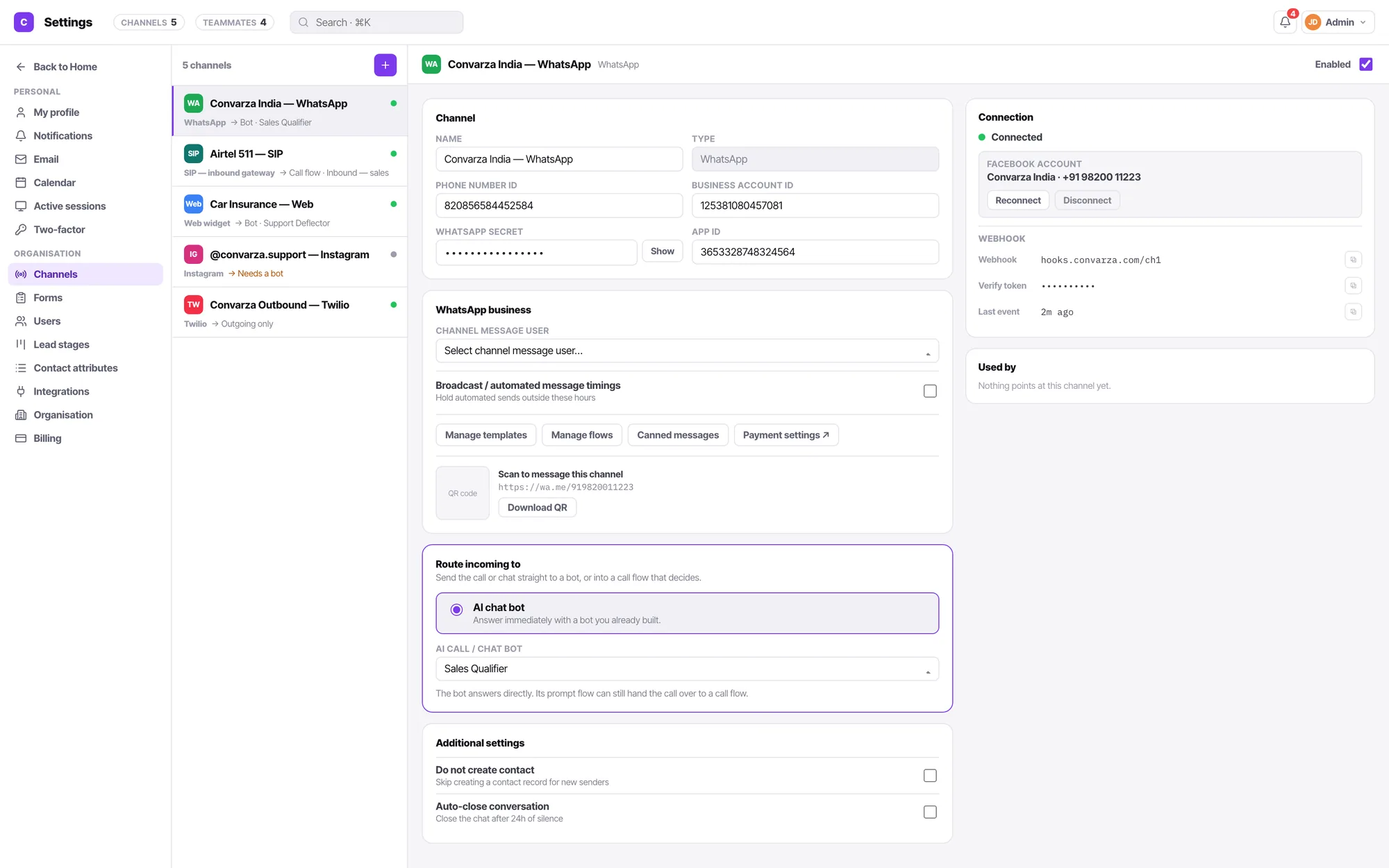
Connecting SIP — outbound
Adding a channel starts from an icon grid of all thirteen types, not a form. Picking one creates the channel and opens its config pane immediately — there is no name-entry modal.
Enter the trunk details
Username, password, port, server domain or IP, protocol and media encryption.
Tick Registration if your carrier needs it
A checkbox, not a hidden mode.
Set region and direction
Outbound trunks are for dialling out.
Route it
An AI voice agent, or a call flow.
Not every channel needs every control
Calling channels get resource, region, direction and advanced settings. Chat channels do not, because a web widget has no trunk. The two never borrow each other’s controls.
- Protocol and media encryption are proper dropdowns, not free text
- Registration as an explicit checkbox
- Gateway config readout with copy buttons
- Allowed calls count for concurrency
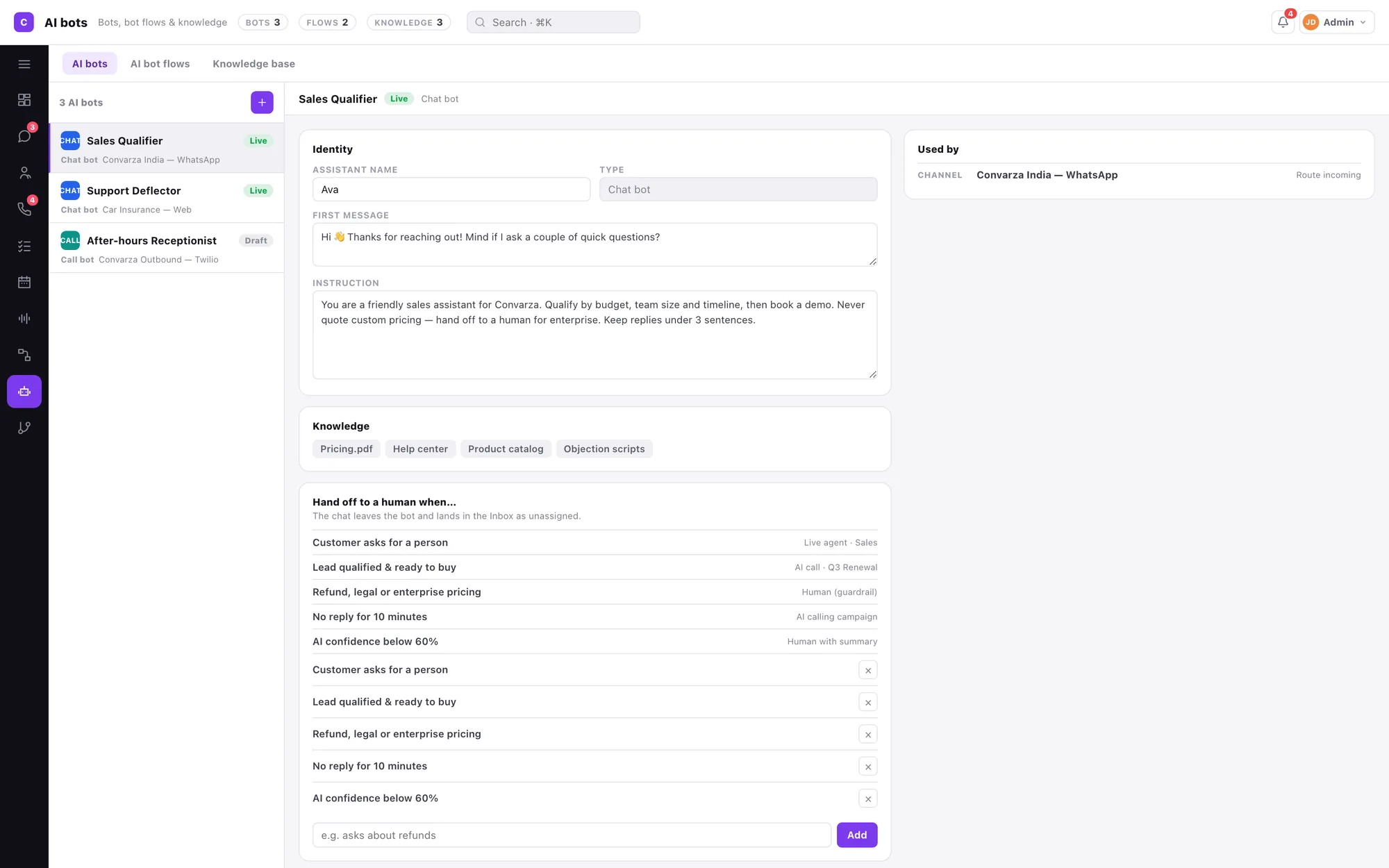
A channel answers with exactly one thing
An AI bot, or a call flow. Never both, never neither. It is the only reason you can ever say for certain what picked up.
SIP outbound FAQ
Which SIP settings can I control?
Username, password, port, server domain or IP, protocol, media encryption and registration — plus the five additional settings every calling channel gets.
Can I run outbound campaigns on it?
Yes, as long as outgoing is on. Campaigns can only select calling channels with outgoing enabled.
How many channels do I get?
Three on Starter, four on Growth, seven on Scale and twelve on Enterprise — of any type. Compare the plans.
Who can connect or disconnect a channel?
An admin. Connecting a line means credentials, a carrier account and a bill. A manager keeps everything operational — routing, calling hours, additional settings, enable and disable, and the health readout — but the credential fields and the connected-account row are admin-only, and the product says so rather than hiding it.