Create and submit a WhatsApp message template
Outside the 24-hour window a template is the only way to start a WhatsApp conversation. Here is how to write one that gets approved the first time.
WhatsApp divides every conversation into two states, and almost everything confusing about templates follows from it. Inside the 24-hour customer service window — that is, within 24 hours of the customer's last message — you can send whatever you like, in whatever words you like. Outside it, you can only send a template Meta has approved in advance.
So a template is not a convenience. It is the only way to reach someone who has gone quiet, and it is the thing standing between you and a customer you cannot follow up.
Templates are owned by your WhatsApp Business Account rather than by Convarza, which is why they live on the channel and why a wrong business account ID means an empty templates card.
Before you start
- A connected WhatsApp channel.
- The exact wording you want to send, with the variable positions decided.
- A realistic sample value for every variable.
Steps
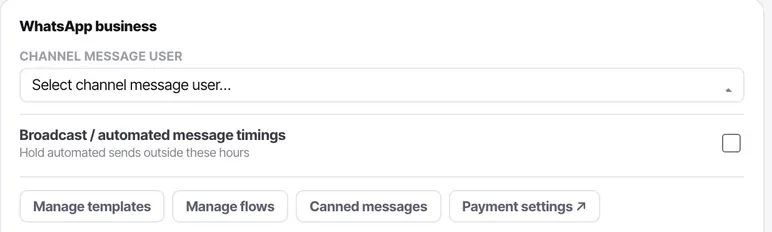
Open the WhatsApp channel and choose Manage templates
Templates live on the channel. If the card is empty on a channel that is otherwise connected, check the business account ID before assuming anything else.
Pick the category honestly
Marketing, utility or authentication.
This is the single most common reason for rejection. If the message promotes, sells, upsells or re-engages, it is marketing — even if it is dressed as an update. Categorising a promotion as a utility message wastes a submission and, repeated, affects how your number is treated.
Write the body with numbered variables
Variables appear as {{1}}, {{2}} and so on.
Two structural rules are enforced automatically: a template may not begin or end with a variable, and two variables may not sit next to each other. Put fixed text around them — "Hi {{1}}, your order {{2}} is ready" is fine; "{{1}}, {{2}}" is not.
Give every variable a realistic sample
Reviewers read the sample, not your intention. "Priya" and "14 March, 3pm" get approved. "xxx", "test" and "Name" do not, because the reviewer cannot tell what the message will say.
Add buttons only if you will use them
Quick replies and call-to-action buttons are reviewed alongside the body. An unused button is extra surface area to be rejected on, with no upside.
Submit, and watch the notification feed
Approval and rejection both appear in your Convarza notification feed, not only inside Meta. Approval is often minutes but can be considerably longer.
Use it where outbound WhatsApp is sent
Once approved, the template becomes available everywhere an automated WhatsApp goes out: a campaign's WhatsApp step, a sequence's, a marketing broadcast, and a workflow's one-off acknowledgement. Anything that assumes free-form text will silently fail for anyone outside the 24-hour window — which, for a campaign or a broadcast, is everybody.
Check it worked
Send the approved template to your own number from outside the window — wait more than 24 hours since your last inbound message, or use a number that has never messaged you. That is the only test that actually proves the template works for its real purpose.
The parts people get wrong
- Do not casually edit an approved template. An edit re-submits it for review, and until that completes you may have neither the old nor the new version available.
- Inside the 24-hour window you do not need a template at all. If you are fighting the approval process for a reply to someone who just messaged you, you are solving the wrong problem.
- Template approvals and rejections appear in your notification feed, so you do not have to keep checking Business Manager.
The ones people actually ask
Why do my templates not appear on the channel?
Templates are owned by the WhatsApp Business Account. An empty templates card on a connected channel almost always means the business account ID is wrong.
How long does approval take?
Often minutes, sometimes much longer. Both outcomes appear in your Convarza notification feed.