
GoHighLevel AI calling, with a voice agent on every line
Let GoHighLevel workflows send an AI agent to call your leads the moment they come in. Let the same agent answer every inbound call. Each call lands on the contact with its recording, transcript and summary.
About 15 minutes to set up. Follow the setup guide.
It calls out when your workflow says so. It answers when customers call.
Your funnels, pipelines and workflows stay in GoHighLevel. Convarza adds the AI voice agent and the phone line.
AI calls, from a GoHighLevel workflow
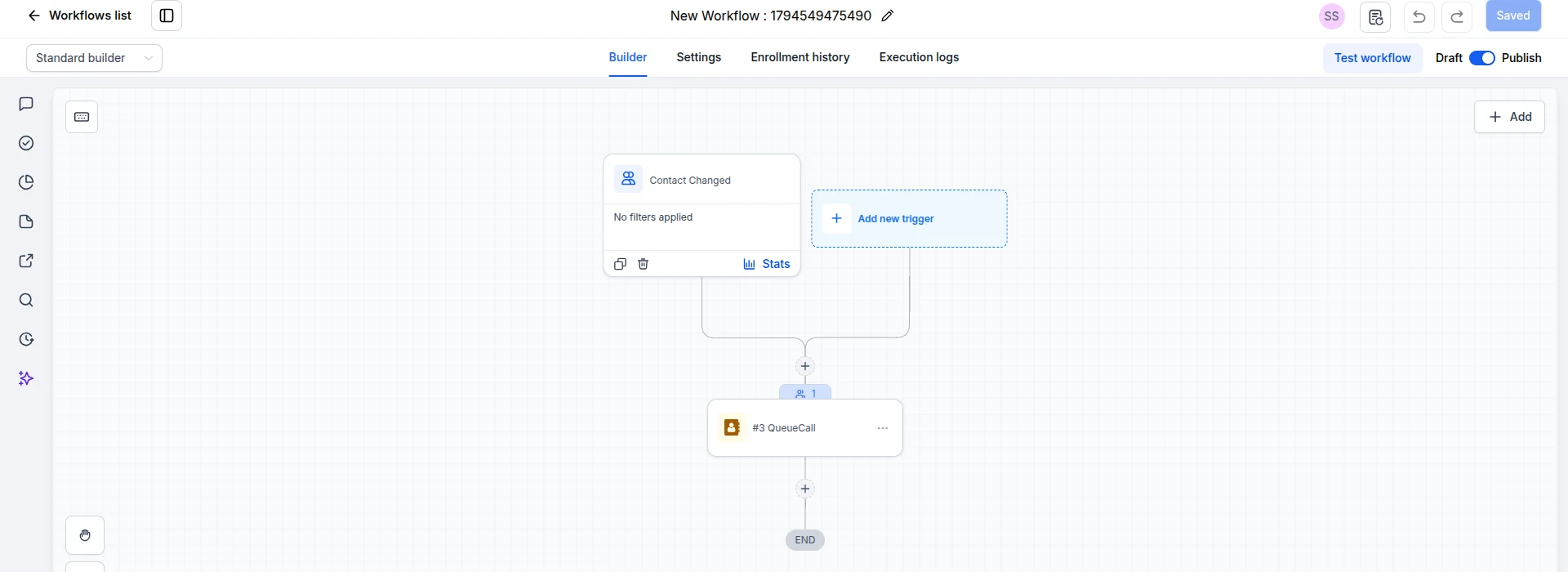
Add QueueCall to any workflow and the agent rings the contact.
- Calls a lead the moment a form comes in, a tag is added or a stage changes
- Your prompt decides what it says, asks and books
- Detects voicemail and leaves your message
- Hands outcome, summary and category back to the workflow
Inbound calls, answered automatically
Point a line at your AI agent and it picks up every call.
- Answers evenings, weekends and holidays
- Qualifies the caller, answers questions and books a slot
- Logs the call on the matching GoHighLevel contact
- Transfers to a person when the caller needs one
Calls that trigger themselves
Convarza adds a QueueCall action to GoHighLevel's workflow builder. Pick the AI agent and the line to call from. When a contact reaches the step, the agent calls them, and the result comes back to the workflow.
Use any trigger GoHighLevel offers:
- Form submitted: call while the lead is still on your site
- Contact tag added: work through a list, one AI call per contact
- Pipeline stage changed: call when an opportunity moves
- Appointment booked: call the day before to confirm
You build and publish the workflow in GoHighLevel. Nothing calls out until it is published.
From trigger to tidy record, with no one on the phone
Something happens in GoHighLevel
A contact fills in a form, gets a tag or moves stage, and your workflow reaches the QueueCall step.
The agent calls, from your number
It opens with your first line, follows your prompt, and books into your calendar if you let it.
The call is written up on the contact
Outcome, duration, recording, a transcript with who-said-what, and a summary go onto the GoHighLevel contact.
The workflow carries on with the answer
Outcome, summary and category come back to the workflow. Branch on them, update a field, move the opportunity, or create a task for your team.
An agent that does the job, not just reads a script
- Your script, written with you. Describe the call in plain words and Convarza drafts the instructions.
- Natural voices in your customers' language. ElevenLabs, Cartesia, Azure and OpenAI voices, or upload your own.
- Actions mid-call. Check availability, book, move or cancel an appointment, or call your own API.
- Phone manners. Voicemail detection, silence and interruption timing, call-length limits, and calling hours per line.
- Multi-step calls. Chain agents into a flow: one qualifies, the next books.
Everything lands where your team already looks
Every call on the contact
Inbound and outbound AI calls are logged on the GoHighLevel contact, with direction, status and duration.
Recordings
Listen to any call from the contact, without logging in to a separate phone system.
Transcripts & summaries
A speaker-labelled transcript and a written summary on every call, so you can skim ten calls in the time it takes to listen to one.
Categories you define
"Interested", "Call back", "Not the decision maker": list them once on the agent and every call is sorted automatically.
Your carrier, your numbers
Buy a number in Convarza, or connect any SIP trunk or on-premise gateway and keep the numbers customers know.
Safe to automate
Calling hours and a daily call cap per line, so a workflow never calls at midnight or runs away with your minutes.
The calls your GoHighLevel funnels are waiting on
Speed to lead
Call every funnel or Facebook lead form within seconds, while they still remember filling it in.
Book the appointment
Qualify on the call and book straight into the calendar, then move the opportunity on the outcome.
Cut no-shows
Call the day before an appointment to confirm, and reschedule on the spot if they cannot make it.
Revive old leads
Tag a cold list and let the agent work through it, one call per contact, inside your calling hours.
Never miss an inbound call
The agent answers when your team is busy or closed, and logs who called and what they wanted.
Run it for every client
Agencies install the app in each sub-account and give each client its own agent and line.
Set up Convarza in GoHighLevel, end to end
Everything from installing the app to your first AI call: connect your account, get a number, build an AI agent and put it to work.
Install the app and connect your account
Create a Convarza account
Sign up free if you do not have one. Use the workspace you want GoHighLevel calls placed from.
Install the app in GoHighLevel
Click Install in GoHighLevel and sign in to GoHighLevel if asked. Choose the sub-account that should make AI calls, review the permissions (contacts, workflows and media, which is where call recordings go) and approve.

Connect Convarza
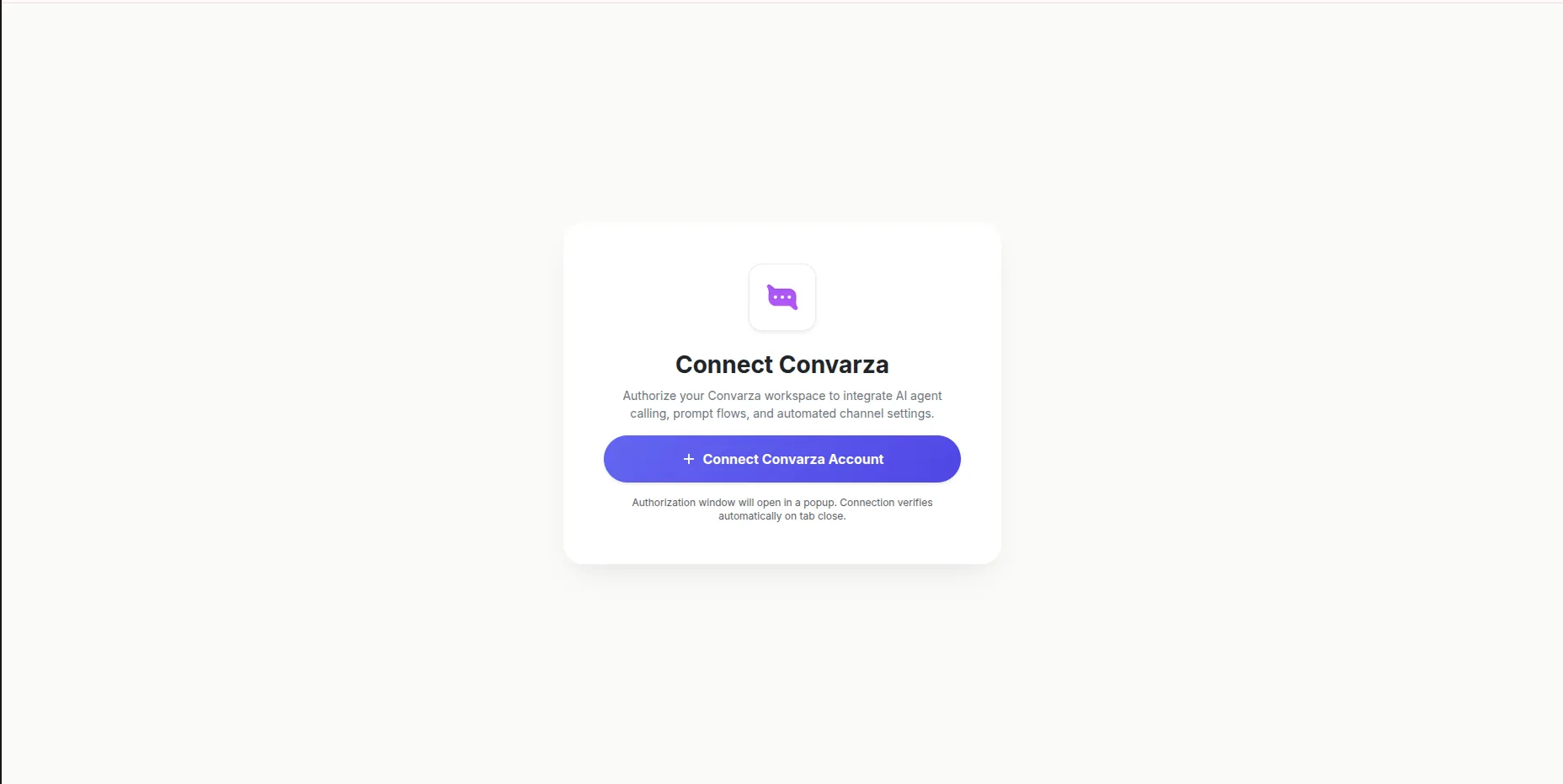
The first time you open Convarza in GoHighLevel, click Connect Convarza Account and approve in the popup. It verifies itself when the popup closes. You do this once per sub-account.
Choose where your number comes from
Every AI call goes out on a channel: a phone number Convarza calls from and answers. You can buy one or bring your own.
Buy a number from Convarza
The quickest start. Search by country, pick a local or mobile number, complete KYC and it is yours. No carrier contract to arrange.
How to buy a number →
Bring your own over SIP
Keep the numbers customers know and the rates you negotiated. Connect a SIP Outbound trunk from your carrier, or a SIP Inbound on-premise gateway.
How to connect SIP →
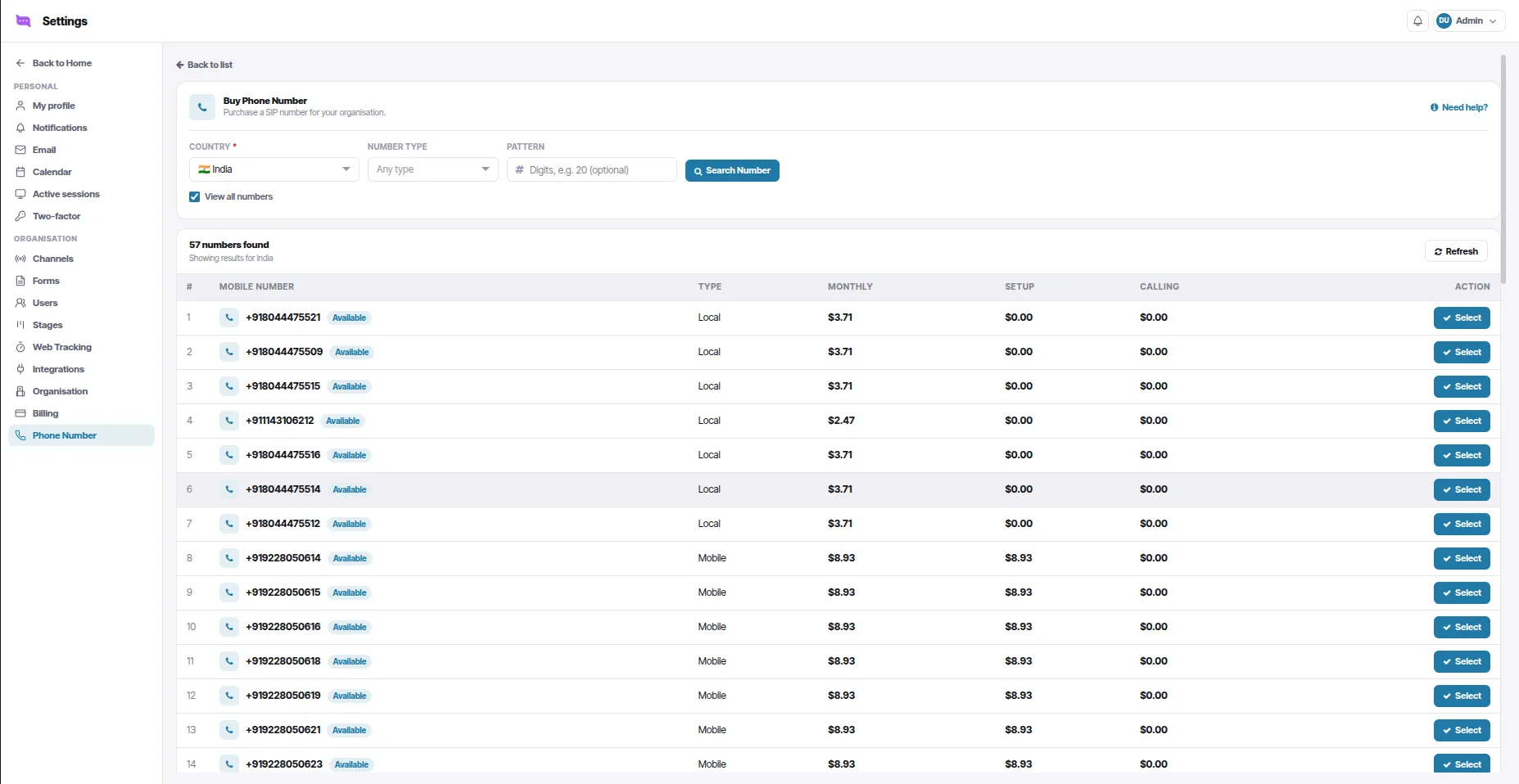
Buy a phone number
Open Phone Number
In Convarza, go to Settings → Phone Number (under Organisation) and click Buy Phone Number.
Search
Choose the Country. Optionally pick a Number type (local or mobile) and a Pattern, digits the number should contain. Click Search Number.
Select a number
Each result shows its type and its monthly, setup and calling price. Click Select on the one you want.
Complete KYC and buy
Indian numbers need identity verification first: register, verify the codes sent to your mobile and email, then add your PAN, Aadhaar and GST details. Confirm on the last step and the number is ready.
Connect your own number over SIP
Skip this part if you bought a number in part 3.
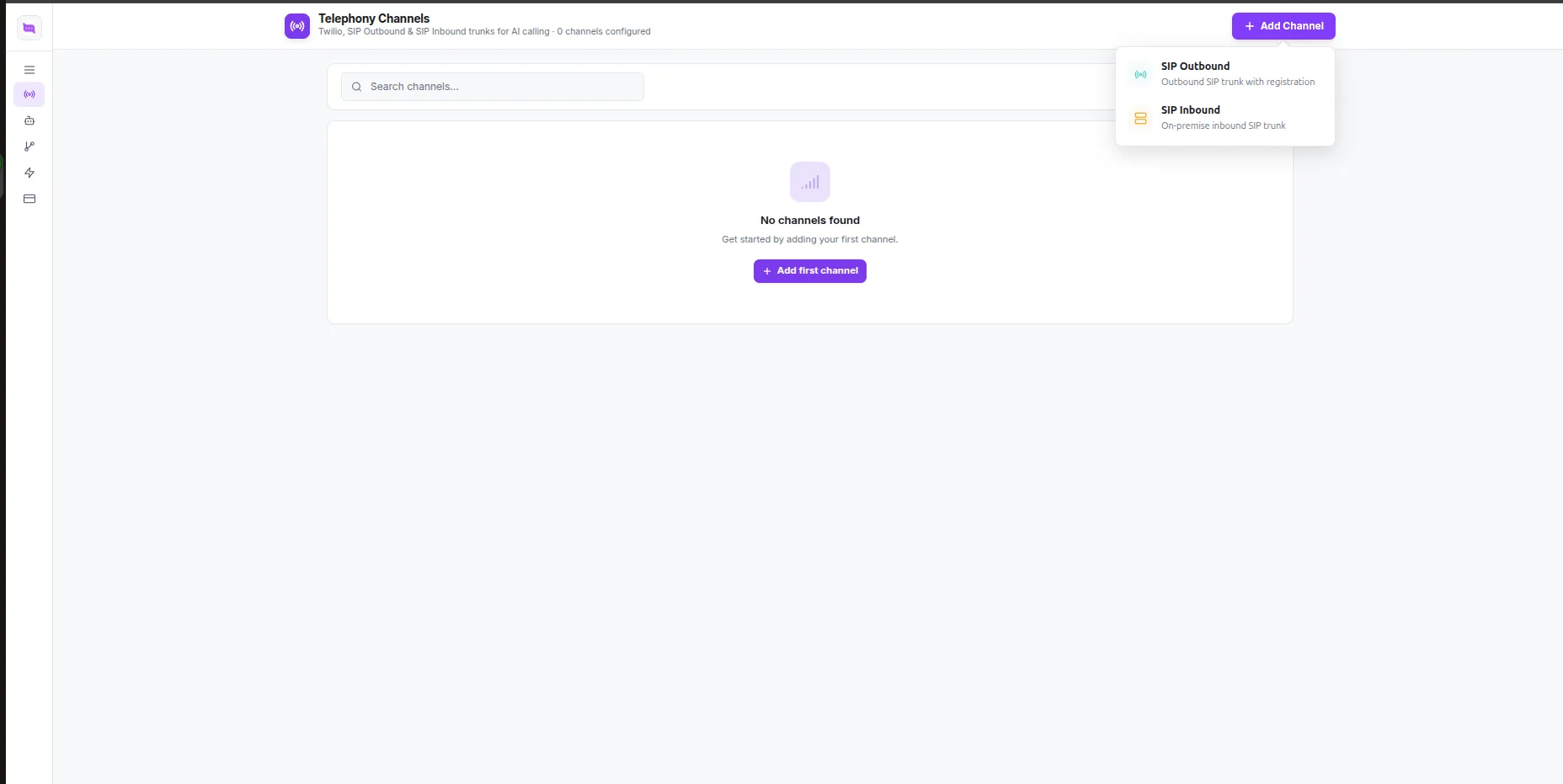
Open Telephony Channels
In the Convarza app, go to Channels and click + Add Channel.
Pick the type
SIP Outbound is a SIP trunk from your carrier that registers with a username and password. SIP Inbound is an on-premise gateway that sends calls to Convarza from its IP address.
Fill in the details and click Connect
Use the server, username, password, port and protocol your carrier gave you, and tick Incoming, Outgoing or both under Direction. See connect SIP outbound for every field.
Build your AI agent
Create the bot
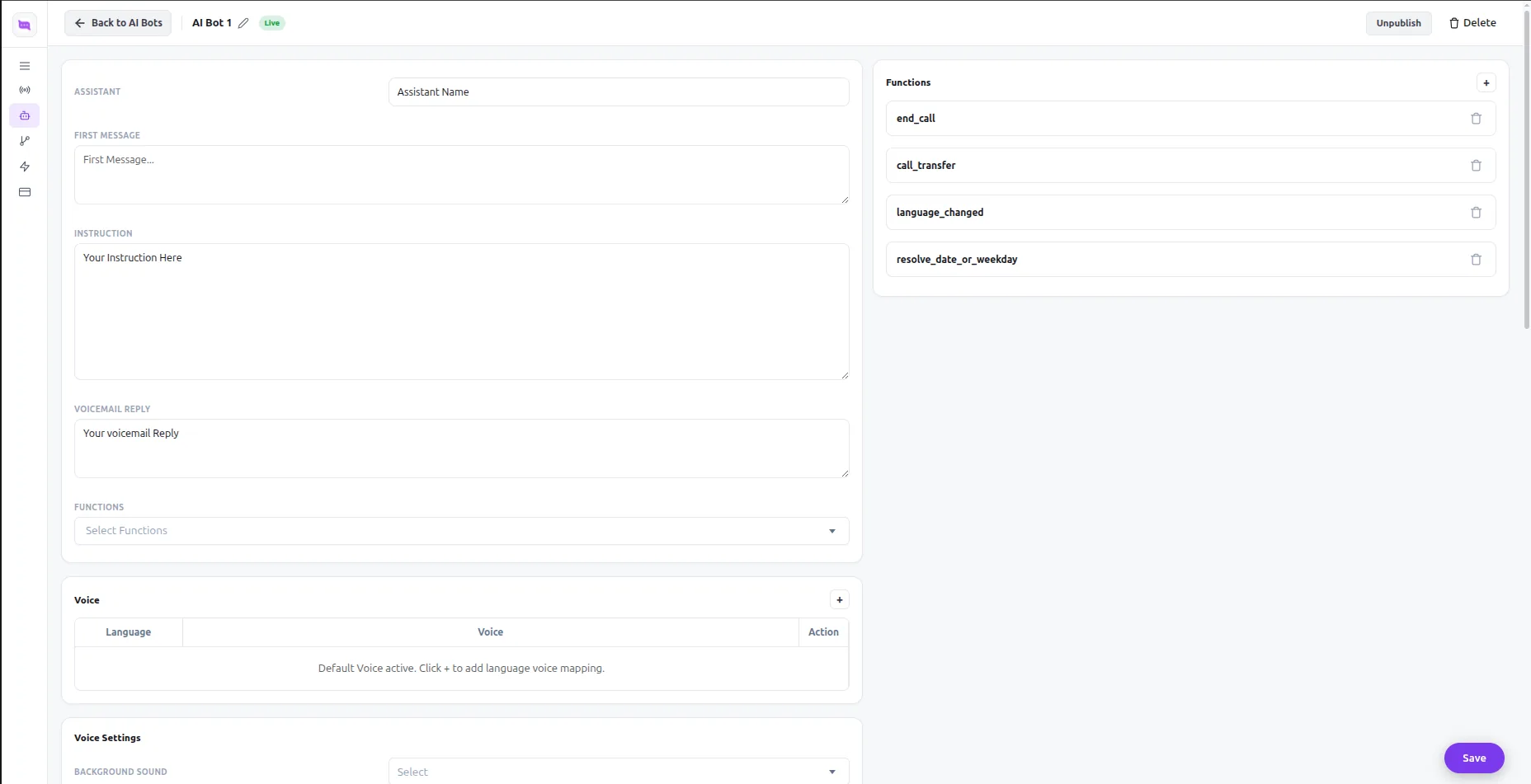
Open AI Bots → New AI Bot and give it a name.
Write what it says
First message is how it opens the call. Instruction is the job: who it is, what to ask, what counts as success, when to hand over. Voicemail reply is the message it leaves when nobody answers.
Pick the voice
Under Voice Settings, select the language first, then a voice for it, or upload your own.
Give it actions
Under Functions, let it end or transfer the call, check availability and book a meeting, or call your own API.
Tune the call and publish
Set Maximum Duration, Silence Timeout and Interrupt Delay, then Save and publish so it can be picked on a channel or in a GoHighLevel workflow.
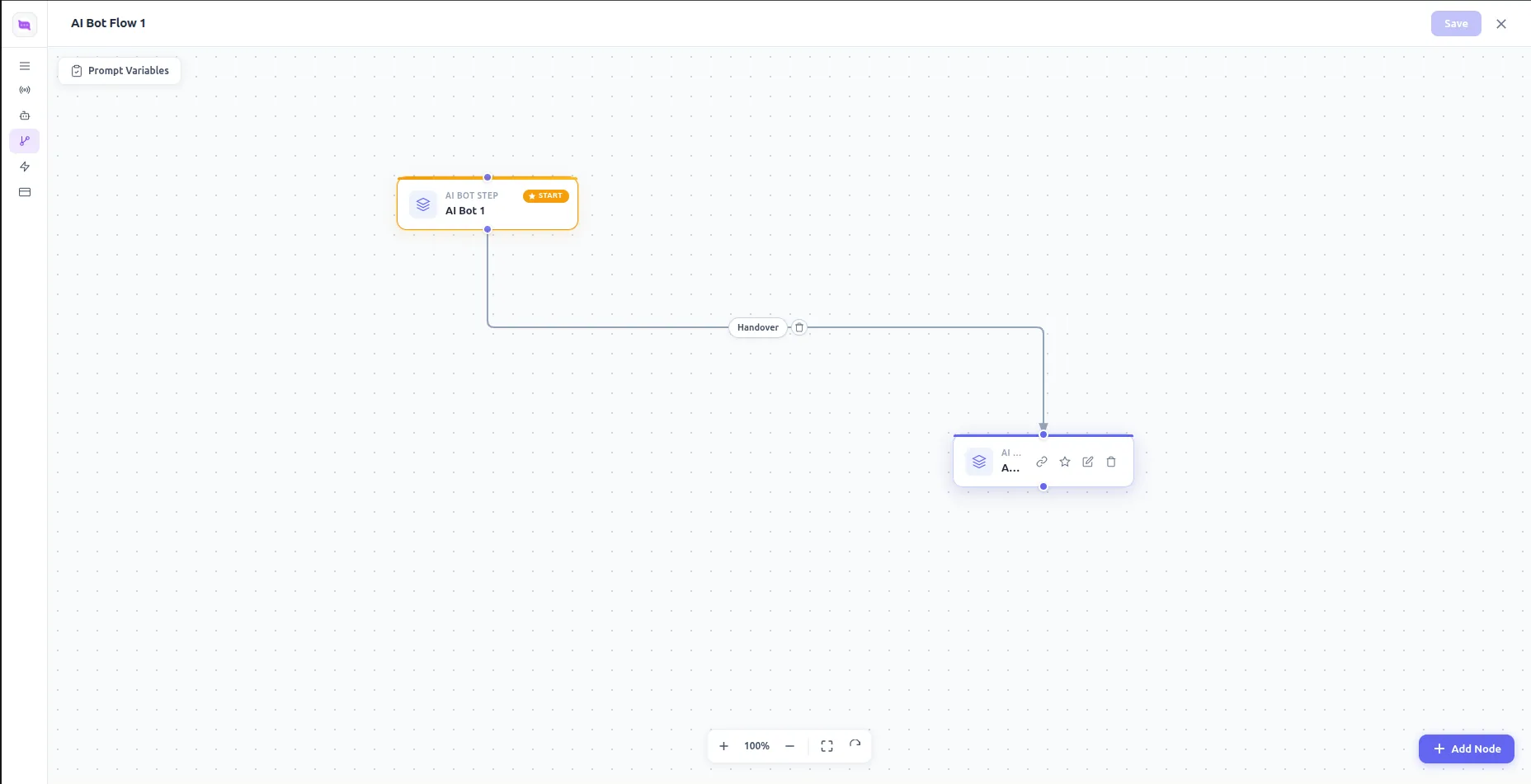
Calls with more than one stage: AI Bot Flows
When one bot should qualify and another should book, open AI Bot Flows, add an AI Bot Step for each stage and connect them with a Handover. Save the flow and use it anywhere you would pick a single bot.
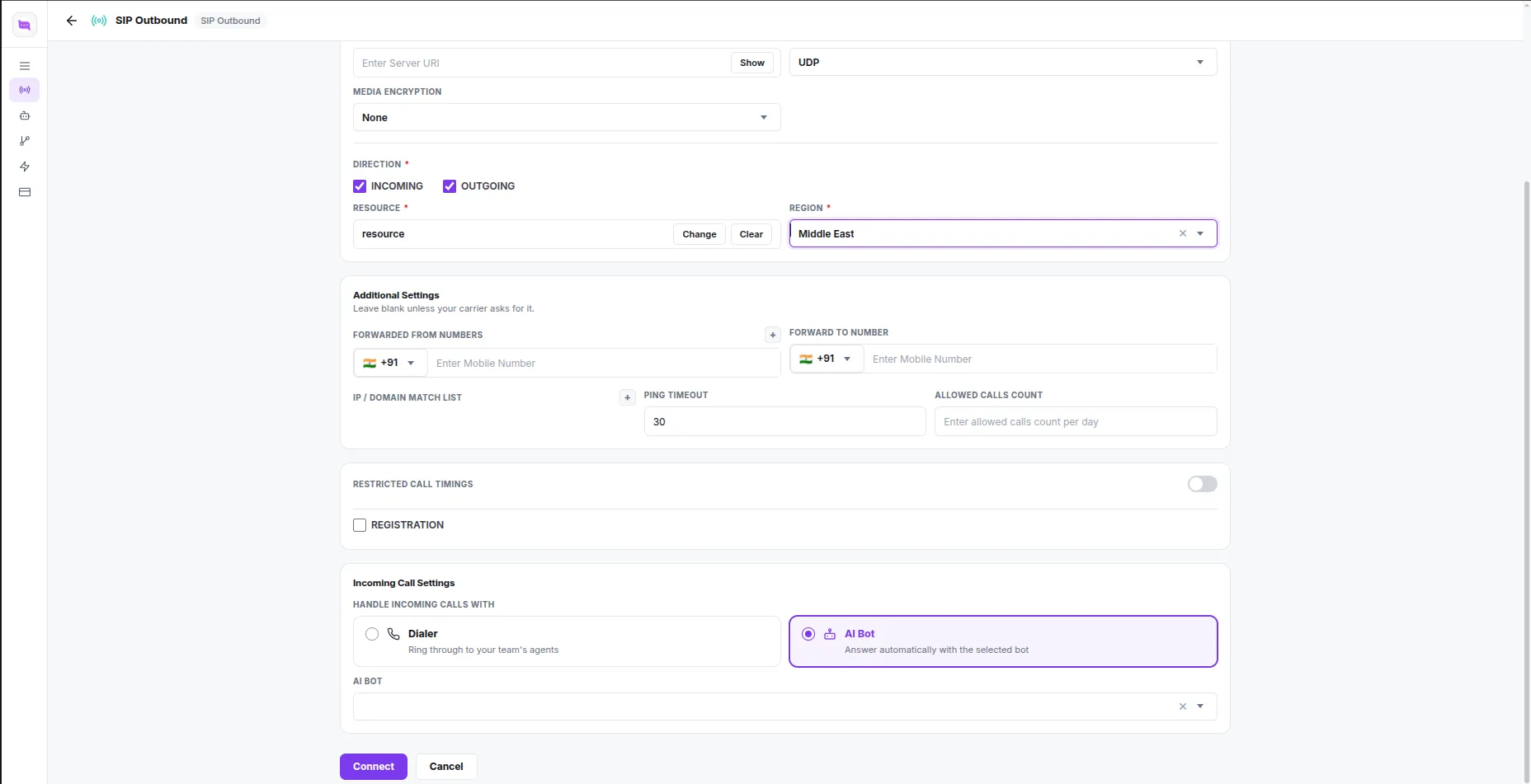
Answer inbound calls with the agent
Open the channel and scroll to Incoming Call Settings. Choose AI Bot and pick the agent from part 5. Every call to that number is now answered automatically and logged on the GoHighLevel contact.
- Restricted Call Timings. Set the hours this line may call out, so workflow calls never go out at night.
- Allowed Calls Count. A daily cap on calls from this line.
- Forwarding. Forward To Number, if some calls should move to another number.
Click Update to save.
QueueCalls from a GoHighLevel workflow
Open or create a workflow
In GoHighLevel, go to Automation → Workflows. Set the trigger, such as Form Submitted, Contact Tag or Pipeline Stage Changed.
Add QueueCall
Click +, find the Convarza QueueCall action, and choose the AI agent and the line to call from.
Use the result
Add an If/Else after it to branch on the outcome. Booked: move the opportunity. Call back: create a task. No answer: wait and queue another call.
Save and publish
Switch the workflow from Draft to Publish. Nothing calls out until you do.
Test it, and check it worked
Trigger your workflow
Submit your own form, or add the tag to a test contact with a phone number you can answer.
Answer the call
Talk to the agent the way a lead would, then hang up.
Check the contact
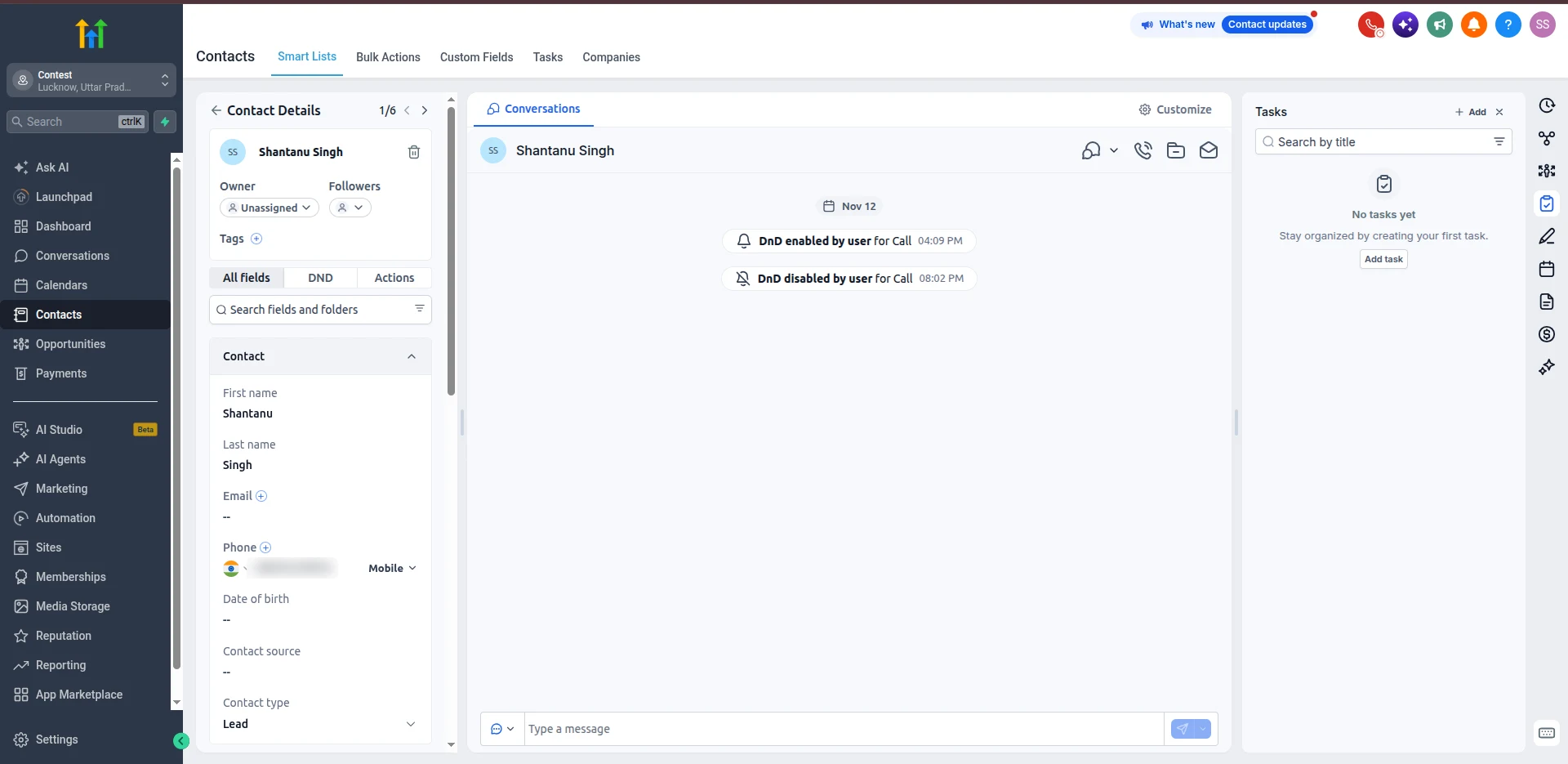
The call is logged with its duration, outcome, recording, transcript and summary, and the workflow has moved on to the next step.
Test the inbound side
Call your number from another phone. Your AI agent should answer, and the call should appear on the contact.
Stuck? Book a 30-minute setup call or write to support@convarza.com.
Prefer a webhook? Use a catch hook as well
This needs the app installed and connected first (part 1). It is an extra way to start calls, not a way around the app.
In Convarza, create a workflow with a Catch hook trigger and copy its URL. Give the workflow a step that finds or creates the contact by phone number, and a step that places the AI call. In GoHighLevel, add a Webhook action to your workflow, set it to POST, paste the URL, and send the contact's name, phone and email.
For most teams the QueueCall action is simpler, because the call and its result stay in your GoHighLevel workflow. Use the catch hook when you want a Convarza workflow to decide what happens. See catch hooks for the details.
Priced by your Convarza plan, not per GoHighLevel user
Every plan includes AI calling minutes, so an AI agent does not need a seat of its own. No setup fee, and yearly billing saves up to 50%.
Starter
Where a single team starts.
Save 50%
₹4,999 ₹2,499/monthBilled monthly Billed yearly
- 600 AI calling minutes a month
- 1,200 dialer minutes a month
- 1,200 AI messages a month
- 1 user · 3 channels
- 5k automations · 2GB storage
- All 13 channel types, AI bots, call flows & campaigns
Growth
For a second location, or a real sales desk.
Save 31%
₹12,999 ₹8,999/monthBilled monthly Billed yearly
- 2,400 AI calling minutes a month
- 4,800 dialer minutes a month
- 4,800 AI messages a month
- 7 users · 6 channels
- 15k automations · 14GB storage
- All 13 channel types, AI bots, call flows & campaigns
Scale
For a group running several branches.
Save 17%
₹29,999 ₹24,999/monthBilled monthly Billed yearly
- 7,000 AI calling minutes a month
- 14,000 dialer minutes a month
- 14,000 AI messages a month
- 20 users · 12 channels
- 50k automations · 50GB storage
- All 13 channel types, AI bots, call flows & campaigns
Enterprise
For a chain with a central call desk.
Save 17%
₹65,999 ₹54,999/monthBilled monthly Billed yearly
- 20,000 AI calling minutes a month
- 40,000 dialer minutes a month
- 40,000 AI messages a month
- Unlimited users · Unlimited channels
- 200k automations · 120GB storage
- All 13 channel types, AI bots, call flows & campaigns
GoHighLevel AI calling FAQ
How does an AI call start from GoHighLevel?
Add the QueueCall action to any GoHighLevel workflow and choose the AI agent and the line to call from. When a contact reaches that step, the agent calls them. The outcome, summary and category come back to the workflow, so the next step can branch on them.
Is there a dialer or click-to-call inside GoHighLevel?
No. The GoHighLevel app is for AI calling: calls queued from workflows, and inbound calls answered by your AI agent. If your team wants to call by hand from inside the CRM, that is available in the HubSpot calling app.
Are inbound calls answered automatically?
Yes. Set the line's Incoming Call Settings to AI Bot and pick the agent. Every call to that number is answered, day and night, and logged on the matching GoHighLevel contact.
Do I build the workflow in Convarza or in GoHighLevel?
In GoHighLevel. You use its workflow builder as usual, with whatever trigger you like, and add the QueueCall action where the call should happen. Convarza is where you set up the number and the AI agent.
Which GoHighLevel plan do I need?
One that includes Workflows, because that is where AI calls are queued. Inbound AI answering and call logging only need the app installed and connected.
How do I buy a phone number?
In Convarza, open Settings → Phone Number and click Buy Phone Number. Pick a country, optionally a number type and digits to match, then Select a number. Indian numbers need a short KYC first. If you already have numbers, connect them through a SIP trunk or an on-premise SIP gateway instead.
Can agencies use it across sub-accounts?
Yes. Install and connect the app in each sub-account that should make AI calls. Each one picks its own agent and line in its own workflows.
What languages and voices can the agent use?
You pick a language first, then a voice for it, from providers including ElevenLabs, Cartesia, Azure and OpenAI. You can also upload a custom voice. The agent can detect voicemail and leave the message you wrote.
Can I connect GoHighLevel without installing the app?
No. Installing the app is what connects your GoHighLevel sub-account to Convarza, so every option on this page needs it. Once it is installed you can also use a GoHighLevel Webhook action that posts to a Convarza catch hook. That is an extra option for teams who want a Convarza workflow to decide what happens. It does not replace the app.
GoHighLevel and HighLevel are trademarks of HighLevel, Inc. Convarza is an independent integration and is not affiliated with or endorsed by HighLevel.