HubSpot calling, with an AI voice agent on the line
Dial any contact, company or deal in one click on your own numbers. Let HubSpot workflows send an AI agent to make the calls nobody has time for. Every call lands on the record with its recording, transcript and summary.
About 10 minutes to set up. Follow the setup guide.
Your reps dial. Your workflows dial too.
Most HubSpot calling apps give a rep a better dialer. Convarza does that, and also lets a HubSpot workflow pick up the phone with no rep involved.
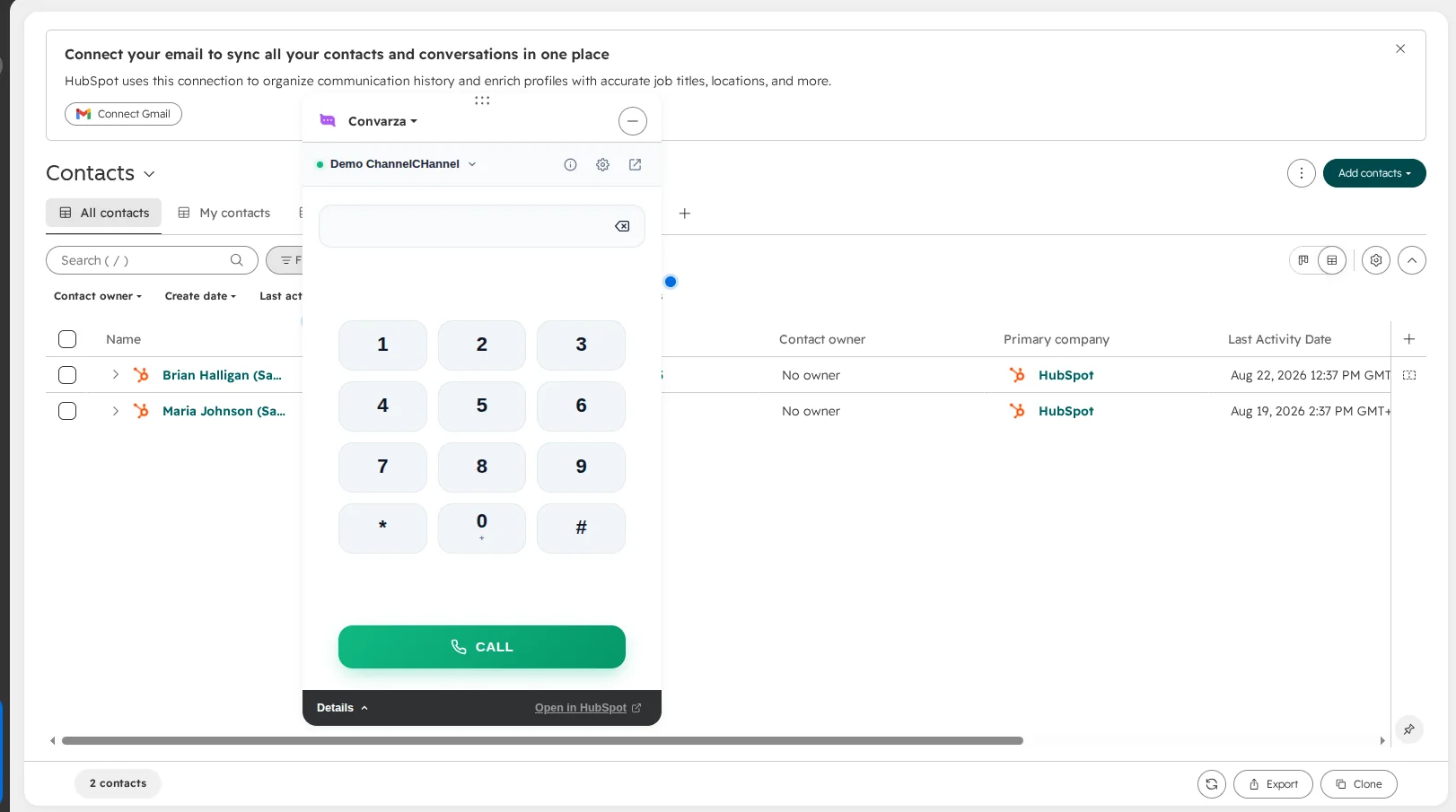
Click to call, from the record
For your team. The Convarza dialer opens inside HubSpot with the number already filled in.
- One-click dialing from contacts, companies and deals
- Inbound calls ring in the same widget, wherever you are in HubSpot
- Mute, hold, keypad and transfer to a colleague or an outside number
- Pop the dialer out to a floating window and keep working
- Recording captured, call logged. Nothing to write up afterwards.
AI calls, from a workflow
For everything else. A HubSpot workflow queues the call and an AI agent holds the conversation.
- Calls a lead the moment a form comes in, a status changes or a list fills
- Your prompt decides what it says, asks and books
- Detects voicemail and leaves your message, then retries on your schedule
- Hands outcome, summary and category back to the workflow
- Answers inbound calls too: evenings, weekends and holidays
Calls that trigger themselves
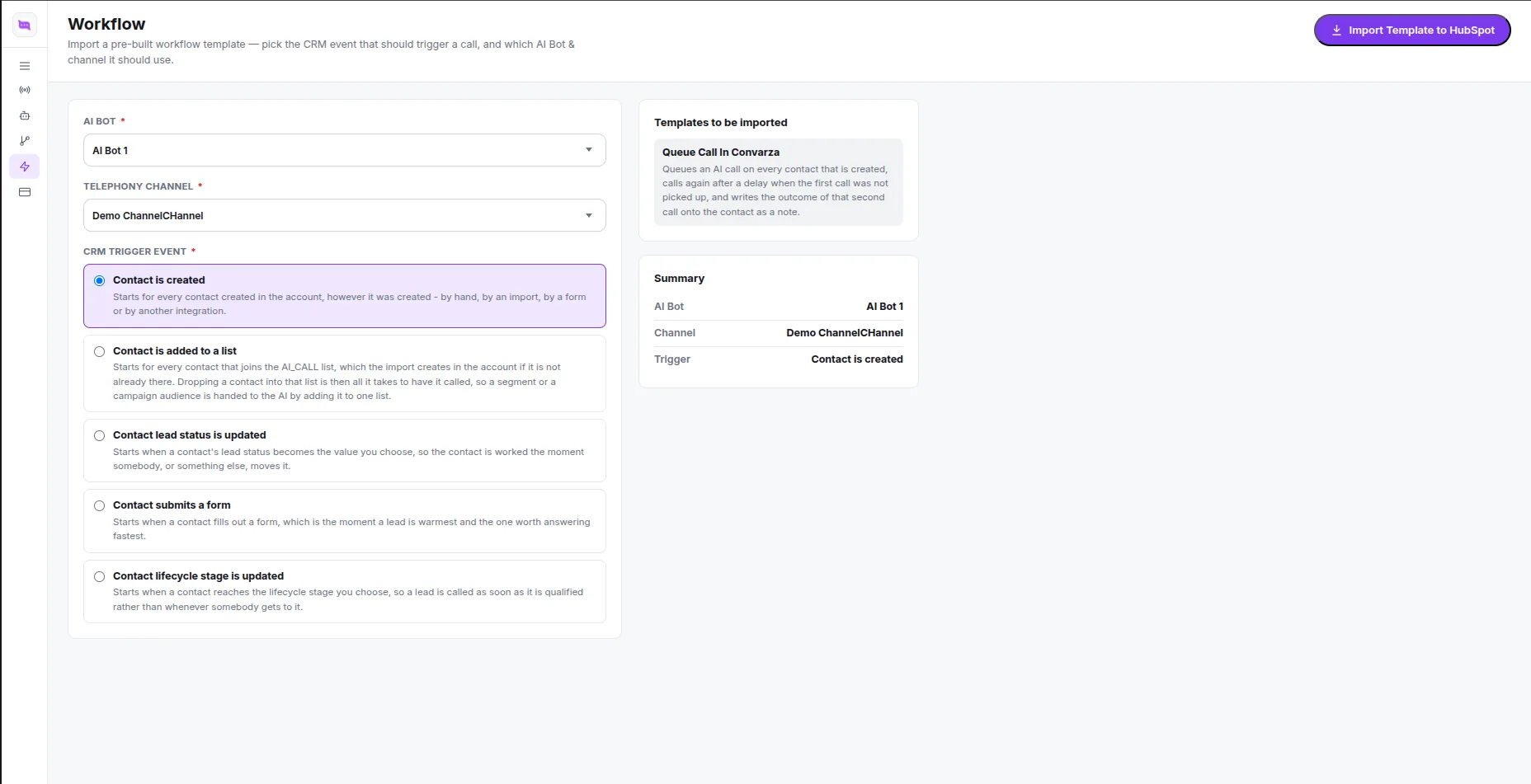
Convarza adds two actions to HubSpot's workflow builder. Queue AI call rings the contact with the agent and line you choose, and waits for the result. Analyze AI call sorts the conversation into categories you define, so the next step can branch on it.
Or skip the building. Pick a trigger and import a ready-made workflow straight into your HubSpot account:
- Contact created: call, wait 5 minutes, retry if no answer, note the outcome
- Form submitted: call straight away while the lead is still on your site
- Lead status changed: call, and try a different agent on the second attempt
- Lifecycle stage reached: call after 5 minutes, try again the next day
- Added to a list: work through a whole list, one AI call per contact
Templates are imported as drafts. Nothing calls out until you publish it in HubSpot.
From trigger to tidy record, with no one on the phone
Something happens in HubSpot
A contact fills in a form, joins a list or moves stage, and your workflow reaches the Queue AI call step.
The agent calls, from your number
It opens with your first line, follows your prompt, looks up or updates the record and books into your calendar if you let it.
The call is written up on the record
Outcome, duration, recording, a transcript with who-said-what, and a summary go onto the contact as a HubSpot call activity.
The workflow carries on with the answer
Status, outcome, summary, category, duration and recording come back as tokens. Branch on them, set a property, create a task for a rep, or call again tomorrow.
An agent that does the job, not just reads a script
- Your script, written with you. Describe the call in plain words and Convarza drafts the instructions.
- Natural voices in your customers' language. ElevenLabs, Cartesia, Azure and OpenAI voices, or upload your own.
- Actions mid-call. Look up or update a record, check availability, book, move or cancel an appointment, or call your own API.
- Phone manners. Voicemail detection, silence and interruption timing, call-length limits, and calling hours per line.
- Multi-step calls. Chain agents into a flow: one qualifies, the next books.
Everything lands where your team already looks
Full call log in HubSpot
Every call, by a rep or an agent, inbound or outbound, is a standard HubSpot call activity with direction, status, duration, owner and HubSpot's own outcomes.
Recordings that keep playing
Recordings are copied into your HubSpot file manager and played by HubSpot's own player. No carrier link that expires next week.
Transcripts & summaries
A speaker-labelled transcript and a written summary on every call, so a manager can skim ten calls in the time it takes to listen to one.
Categories you define
"Interested", "Call back", "Not the decision maker": list them once on the agent and every call is sorted automatically.
Your carrier, your numbers
Connect any SIP trunk or on-premise gateway. Keep the numbers customers know and the rates you already negotiated.
Safe to automate
No double-dialing when HubSpot retries a step, calling-hour limits per line, and every template lands as a draft until you publish it.
How Convarza compares with other HubSpot calling apps
Every app here dials from a HubSpot record and logs the call. The difference is who makes the call. The others are built for reps, priced per seat, with AI added on. Convarza is built so a HubSpot workflow can make the call with an AI agent.
| Convarza | Aircall | JustCall | Kixie | Dialpad | |
|---|---|---|---|---|---|
| Click-to-call and call logging in HubSpot All five have a HubSpot app that dials from the record and logs the call. | ✓ | ✓ | ✓ | ✓ | ✓ |
| Buy a phone number inside the app Convarza also connects any SIP trunk or on-premise gateway, so you can keep the numbers you have. | ✓ | ✓ | ✓ | ✓ | ✓ |
| How you pay Aircall needs at least 3 seats and JustCall at least 2. With Convarza, minutes come with the plan, so an AI agent does not need a seat of its own. | Per plan | Per seat | Per seat | Per seat | Per seat |
| Transcript and summary on every call Aircall includes AI Assist on Professional but charges for it on Essentials. Kixie does not publish its prices. | ✓ | Add-on | ✓ | Varies | ✓ |
| AI voice agent that holds the whole call Aircall bills AI agent minutes on top of seats. JustCall includes agents on Pro Plus and sells minutes on other plans. Dialpad uses prepaid AI Agent credits. Kixie's AI detects voicemail and IVRs, but does not talk to the customer. | ✓ | Per minute | Top plan | — | Credits |
| A HubSpot workflow places an AI call and branches on the result Convarza's Queue AI call action returns outcome, summary and category as tokens. Kixie dispositions can trigger HubSpot workflows, but a rep makes the call. | ✓ | — | — | Partial | — |
| Ready-made AI calling workflows for HubSpot Five templates (contact created, form submitted and more), imported into HubSpot as drafts. | ✓ | — | — | — | — |
Based on each vendor's public pricing and help pages as of October 2026: Aircall, JustCall, Kixie and Dialpad. Plans and add-ons change often, so check each vendor's current pricing before you decide.
When a per-seat phone system is the better fit
If every call is made by a rep and you need a full phone system, with IVR menus, call-centre wallboards and desk phones, Aircall, JustCall or Dialpad may suit you better. Convarza is the better fit when you want calls made without a rep: leads called the minute they arrive, lines answered at night, and the result fed back into your HubSpot workflows.
The calls your team never gets round to
Qualify leads in seconds
Call every form fill while they are still on your site, ask your qualifying questions and route the good ones to a rep.
Confirm appointments & deliveries
Cut no-shows with a call the day before, and reschedule on the spot if the slot no longer works.
Chase renewals & payments
Polite, consistent reminders on the date your workflow decides, with the answer logged on the contact.
Reactivate cold lists
Drop a list into a workflow and let an agent work through it. Only the interested ones come back to your team.
Follow up after support
Check the fix worked and categorise the answer, so unhappy customers reach a person fast.
Cover the hours you do not staff
Put an AI agent on the line for evenings, weekends and holidays. Every call is still logged in HubSpot by morning.
Set up Convarza in HubSpot, end to end
Everything from installing the app to your first AI call: get a number, connect it as a channel, build an AI agent and put it to work. Click-to-call works after part 4. The rest is optional.
Install the app and connect your account
Create a Convarza account
Sign up free if you do not have one. Use the workspace you want HubSpot calls placed from.
Install from the HubSpot App Marketplace
Open the Convarza listing and click Install app. You need permission to manage calling integrations. Then open HubSpot's calling settings and pick Convarza as your calling provider, so the dialer appears on every record.
Connect Convarza
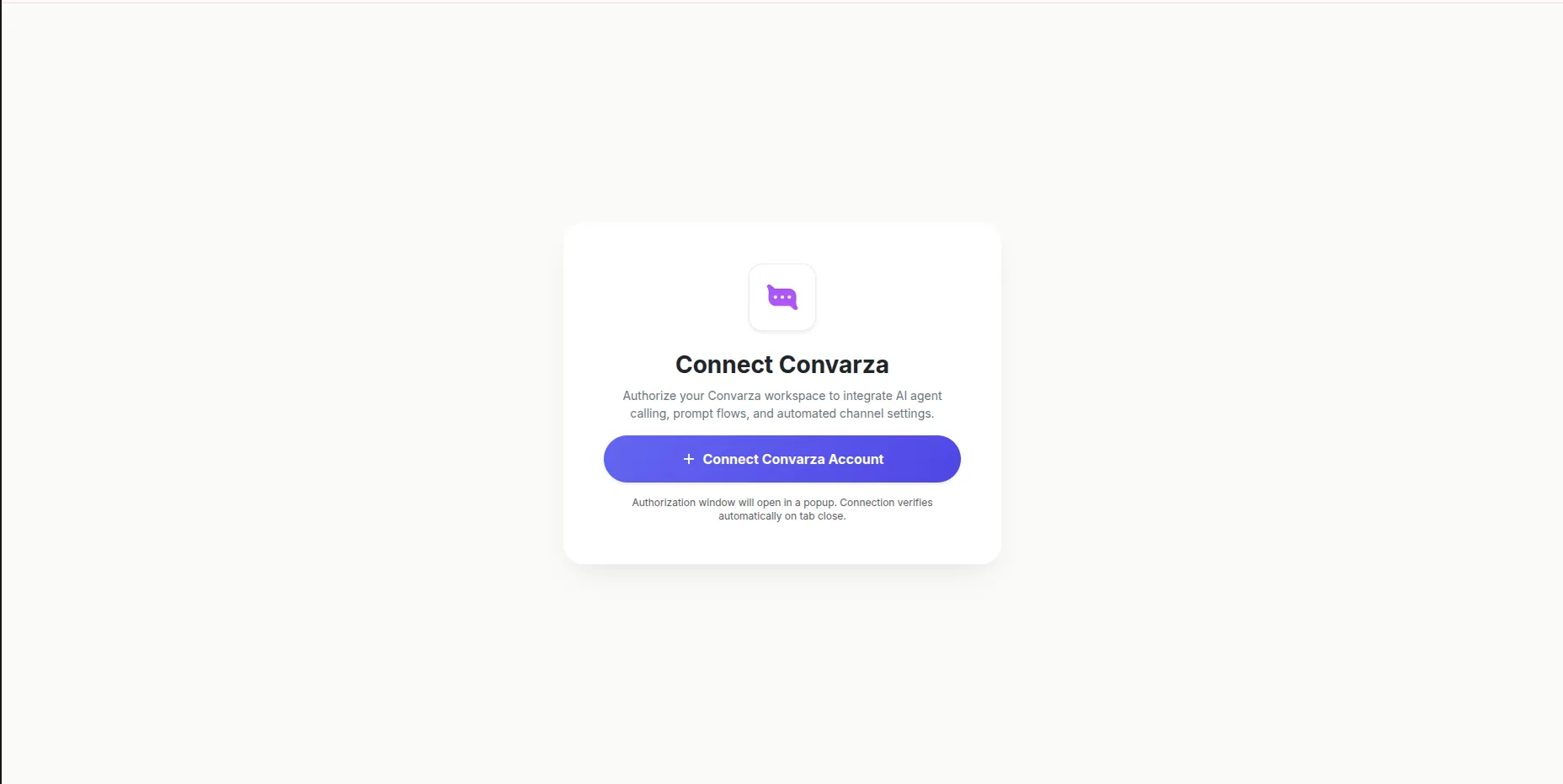
The first time Convarza opens in HubSpot, click Connect Convarza Account and approve in the popup. It verifies itself when the popup closes. You do this once per HubSpot account.
Choose where your number comes from
Every call goes out on a channel: a phone number Convarza dials from and answers. You can buy one or bring your own.
Buy a number from Convarza
The quickest start. Search by country, pick a local or mobile number, complete KYC and it is yours. No carrier contract to arrange.
How to buy a number →
Bring your own over SIP
Keep the numbers customers know and the rates you negotiated. Connect a SIP Outbound trunk from your carrier, or a SIP Inbound on-premise gateway.
How to connect SIP →
Buy a phone number
Open Phone Number
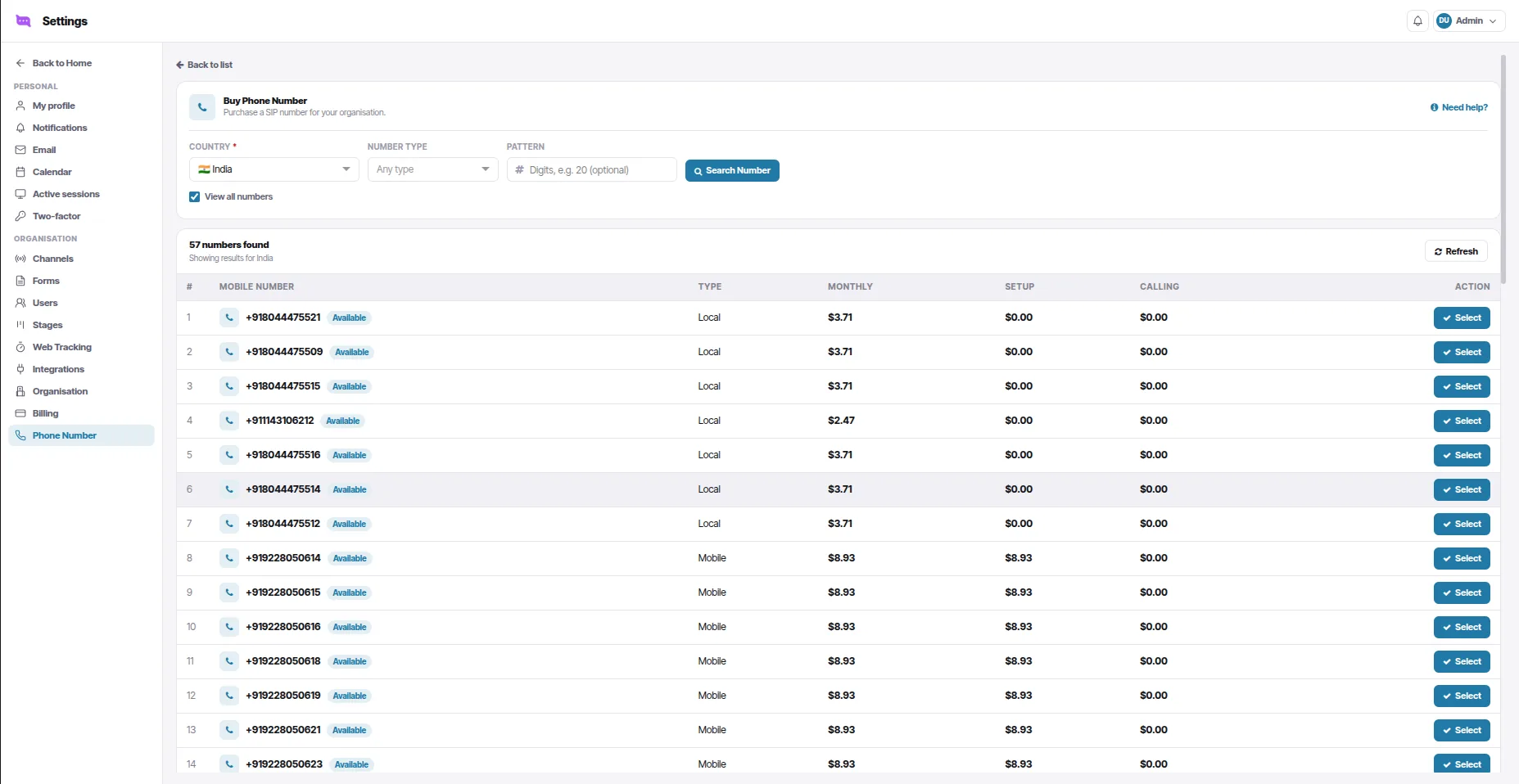
In Convarza, go to Settings → Phone Number (under Organisation). It lists your Purchased Phone Numbers. Click Buy Phone Number, or Find available numbers if you have none yet.
Search
Choose the Country. Optionally pick a Number type (local or mobile) and a Pattern, digits the number should contain. Click Search Number.
Select a number
Each result shows its type and its monthly, setup and calling price. Click Select on the one you want.
Complete KYC
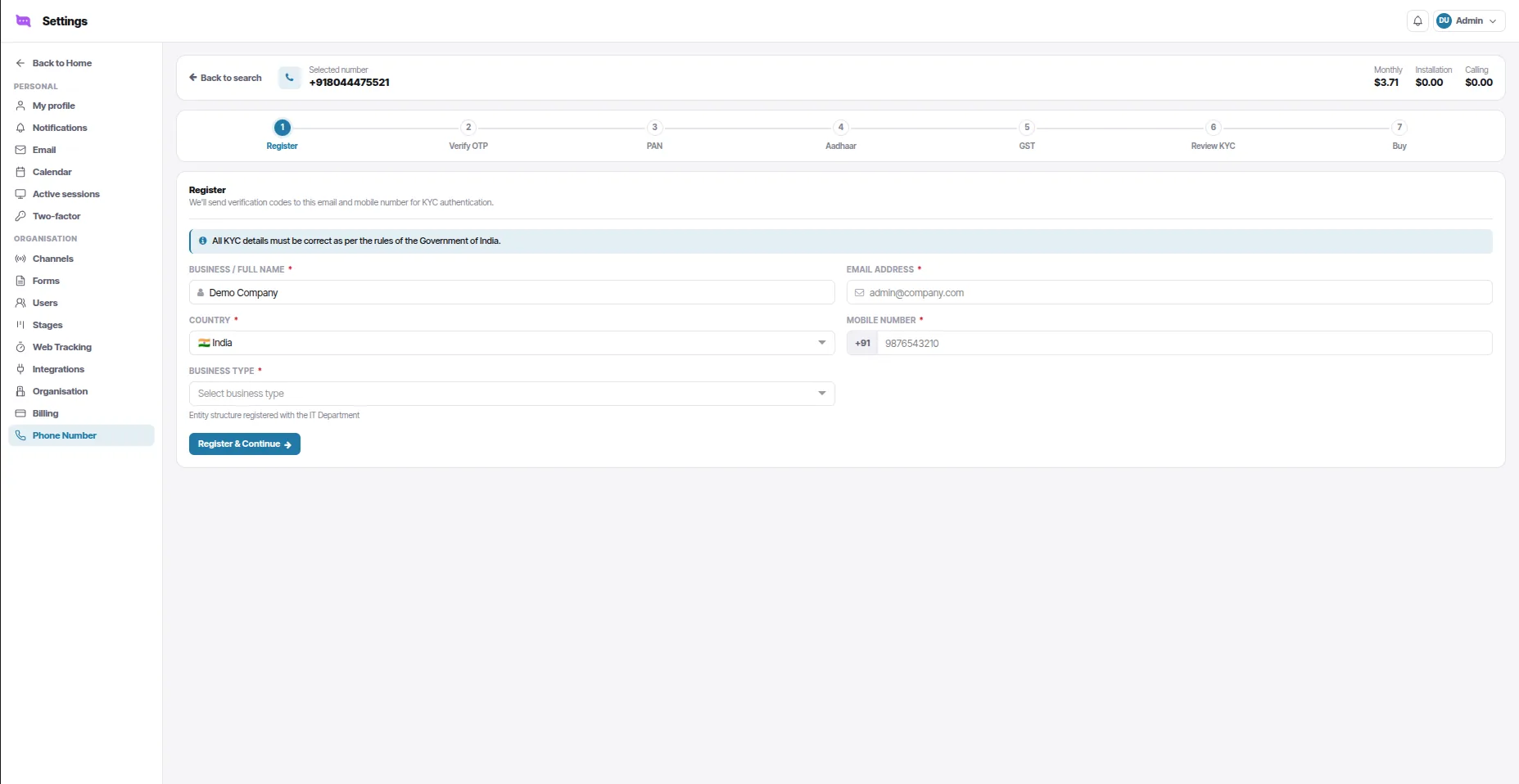
Indian numbers need identity verification, as Indian telecom rules require. The wizard runs in order:
- Register: business or full name, email, mobile number and business type
- Verify OTP: the codes sent to that mobile and email
- PAN, Aadhaar and GST details
- Review KYC: check everything matches your government records
Buy
Confirm on the last step. The number appears under Purchased Phone Numbers, ready to call from. Then set it up in part 5.
Have your PAN, Aadhaar and GST details to hand before you start.
Connect your own number over SIP
Open Telephony Channels
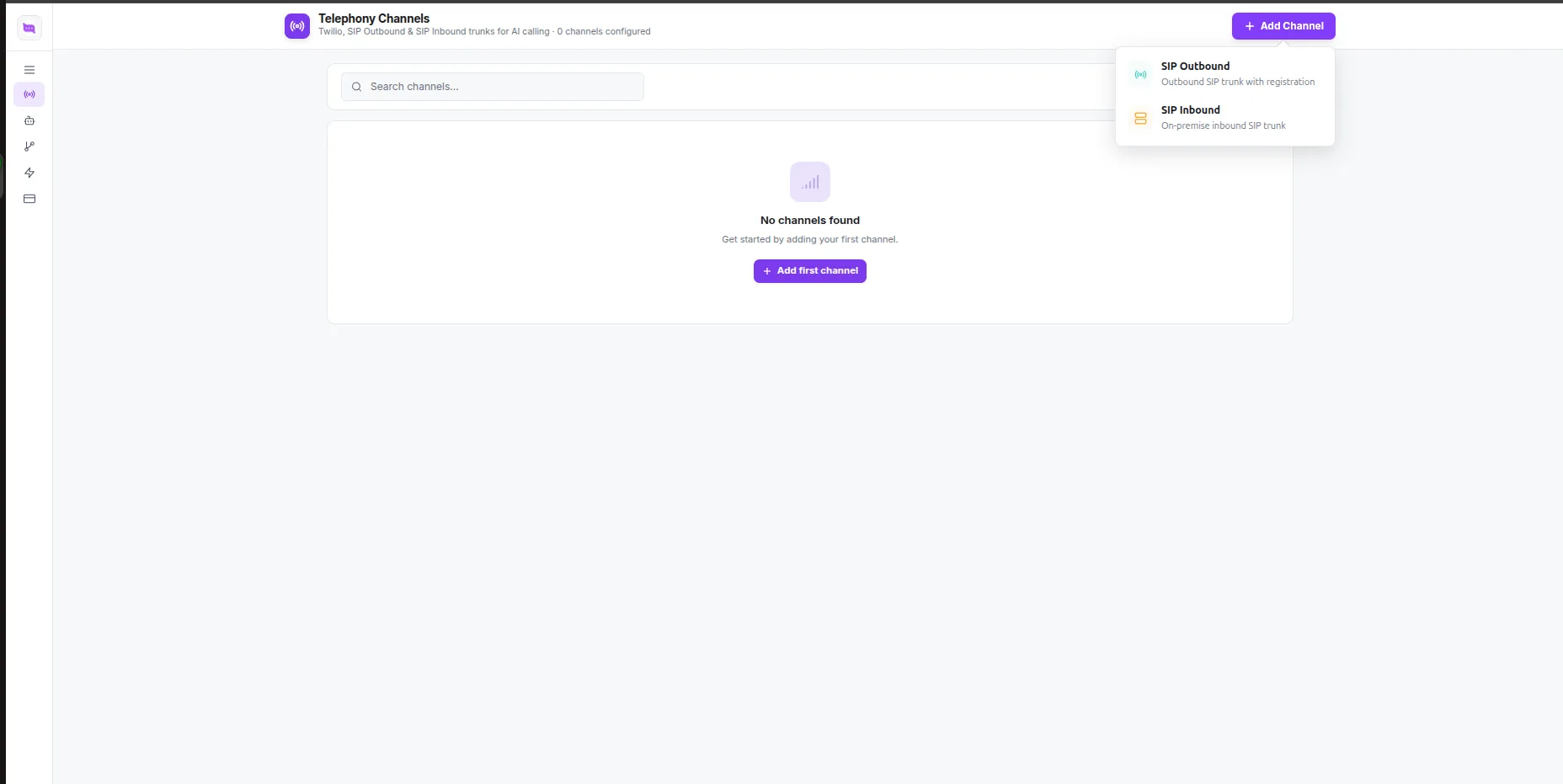
Open Convarza in HubSpot, go to Channels, and click + Add Channel.
Pick the type
SIP Outbound is a SIP trunk from your carrier that registers with a username and password. SIP Inbound is an on-premise gateway that sends calls to Convarza from its IP address.
Fill in the details and click Connect
Use the values your carrier or gateway gave you (see the table below). The channel then shows in your list with In and Out tags. Click-to-call works from here.
| Field | SIP Outbound | SIP Inbound | What to enter |
|---|---|---|---|
| Channel name | Required | Required | A name your team will recognise in the dialer, such as "Sales line UK". At least 3 characters. |
| Mobile number | Required | Required | The phone number on this line, with its country. |
| Server domain / IP | Required | — | Your carrier's SIP server, for example sip.yourcarrier.com. |
| Username & password | Required | — | The SIP credentials from your carrier. |
| Port number | Required | — | The SIP port your carrier gave you, often 5060 (or 5061 for TLS). |
| IP / domain of server/gateway | — | Required | The IPv4 address your gateway sends calls from. |
| Protocol | Required | Required | UDP, TCP or TLS, as your carrier or gateway uses. |
| Media encryption | Optional | — | None, or SDES if your carrier encrypts call audio. |
| Direction | Required | Required | Outgoing to call out, Incoming to receive calls, or both. |
| Resource & region | Required | Required | Pick from the lists: the calling capacity and region the line runs on. |
Not sure about a value? Ask your carrier for "SIP trunk registration details", or book a call and we will connect it with you.
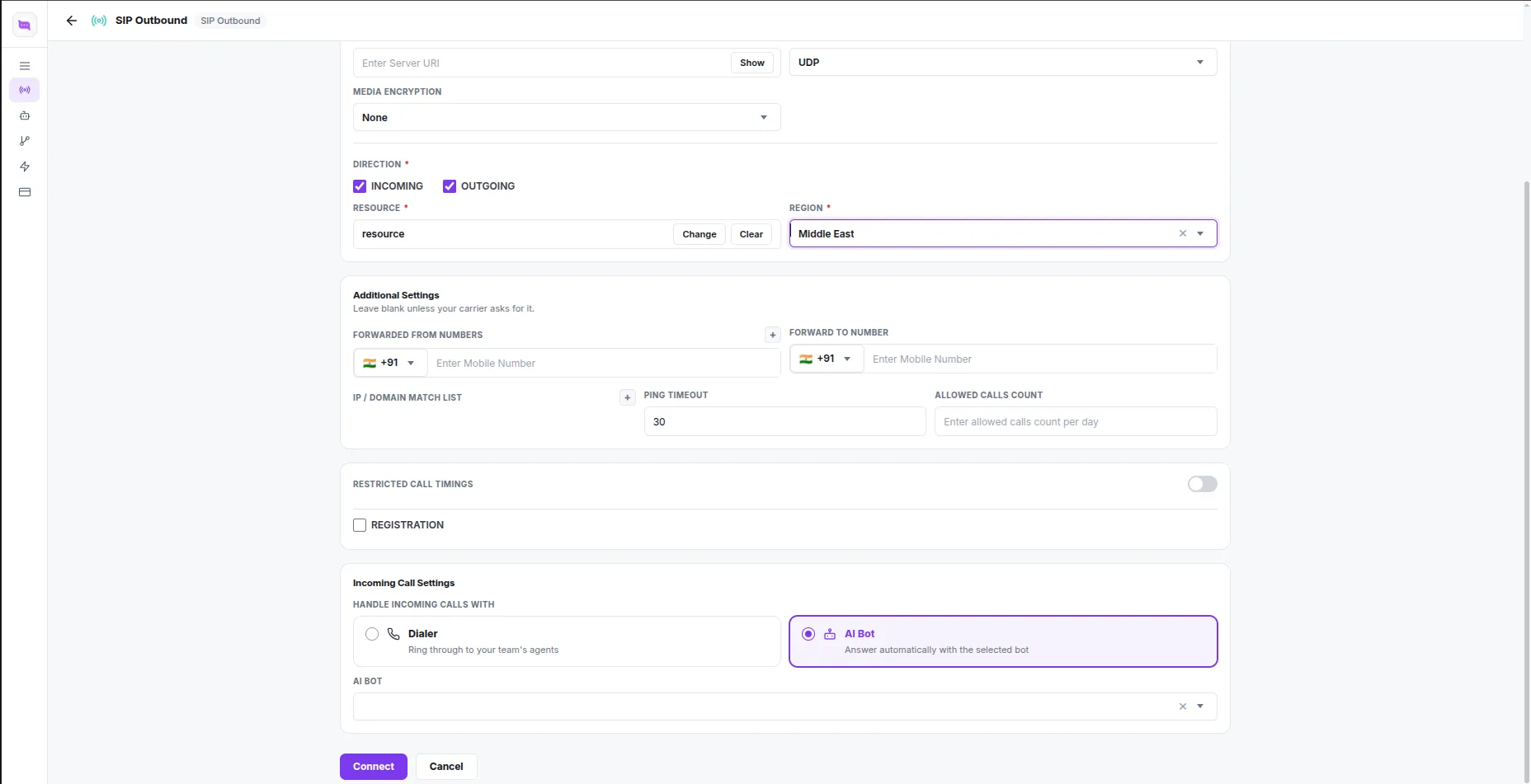
Decide who answers, and when the line may call
Open a channel to change how it behaves. This applies to bought numbers and SIP lines alike.
- Incoming Call Settings. Dialer rings calls through to your team in HubSpot. AI Bot answers them with the bot you pick. Start on Dialer and switch once your bot is ready.
- Restricted Call Timings. Turn it on and set the hours this line may call, so automated calls never go out at night.
- Allowed Calls Count. A daily cap on calls from this line.
- Forwarding. Forwarded From Numbers and Forward To Number, if calls should arrive from or move to another number.
- IP / Domain Match List, Ping Timeout and Registration. Leave these blank unless your carrier asks for them.
Click Update to save.
Build your AI agent
Skip this part if only your team will be on the phone.
Create the bot
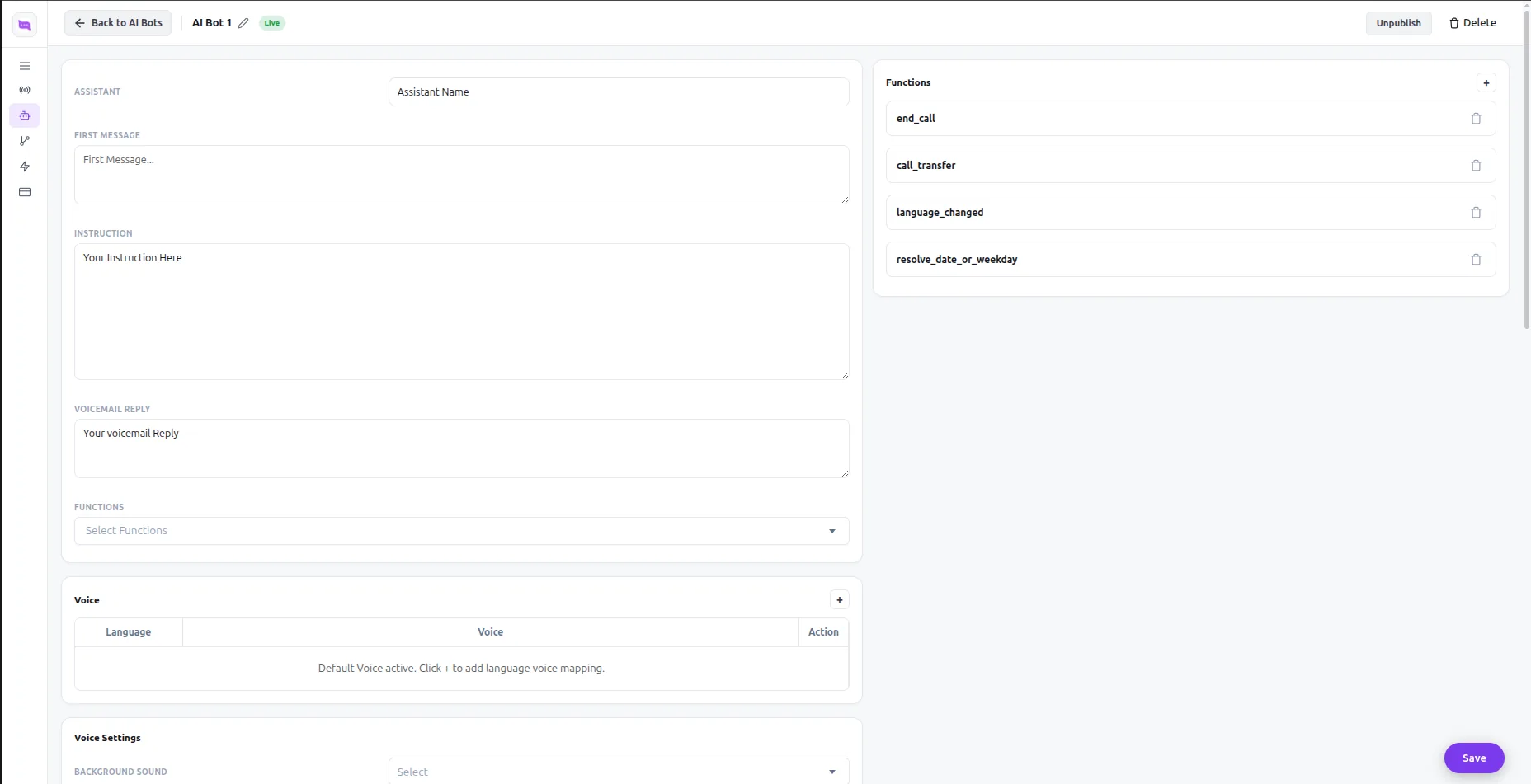
Open AI Bots → New AI Bot and give it a name.
Write what it says
First message is how it opens the call. Instruction is the job: who it is, what to ask, what counts as success, when to hand over. Describe the call in plain words and Convarza drafts the instructions with you. Voicemail reply is the message it leaves when nobody answers.
Pick the voice
Under Voice Settings, select the language first, then a voice for it, or upload your own.
Give it actions
Under Functions, let it end or transfer the call, look up or update the HubSpot record, check availability and book a meeting, or call your own API.
Tune the call and publish
Set Maximum Duration, Silence Timeout and Interrupt Delay to suit your callers, then Save and publish so it can be picked on a channel or in a workflow.
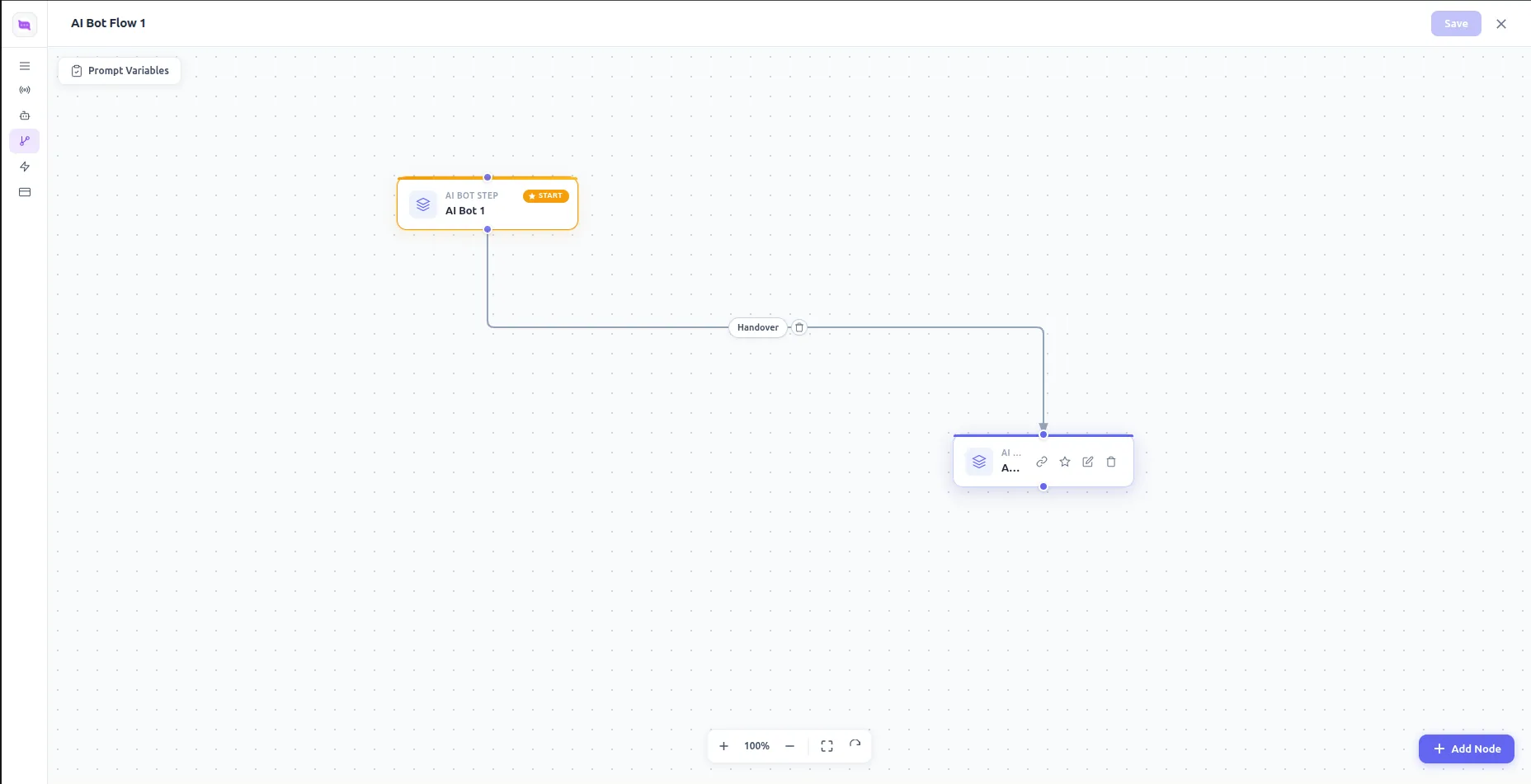
Calls with more than one stage: AI Bot Flows
When one bot should qualify and another should book, open AI Bot Flows, add an AI Bot Step for each stage and connect them with a Handover. Save the flow and use it anywhere you would pick a single bot.
Put the agent to work
Answer calls
Open the channel, set Incoming Call Settings to AI Bot and choose your bot. Every call to that number is now answered, day and night.
Call out from a HubSpot workflow
Open Workflow
Pick the AI Bot, the Telephony Channel to call from and the CRM Trigger Event: contact created, form submitted, lead status changed, lifecycle stage reached or added to a list.
Import Template to HubSpot
The workflow is created in your HubSpot account, with the AI call and its retries already set up.
Publish it in HubSpot
Templates arrive as drafts. Review it in HubSpot and click Publish. Nothing calls out until you do.
Building your own workflow instead? Add the Queue AI call action, and Analyze AI call to branch on the result.
Call from HubSpot, and check it worked
Make a test call
Open a contact with a phone number you can answer and click to call. The Convarza dialer opens with the number filled in; pick your channel and call.
Check the record
Hang up and look at the contact's timeline: the call is logged with its duration, outcome, recording, transcript and summary.
Test the inbound side
Call your number from another phone. On Dialer it rings in HubSpot; on AI Bot your agent answers.
Stuck? Book a 30-minute setup call or write to support@convarza.com.
Priced by your Convarza plan, not per HubSpot seat
Every plan includes AI calling minutes and dialer minutes, so an AI agent does not need a seat of its own. No setup fee, and yearly billing gives you two months free.
Starter
Where a single team starts.
₹2,499 ₹24,990per month, billed monthly per year — that is ₹2,083 a month
- 600 AI calling minutes a month
- 1,200 dialer minutes a month
- 1,200 AI messages a month
- 1 user · 3 channels
- 5k automations · 2GB storage
- All 13 channel types, AI bots, call flows & campaigns
Growth
For a second location, or a real sales desk.
₹8,999 ₹89,990per month, billed monthly per year — that is ₹7,499 a month
- 2,400 AI calling minutes a month
- 4,800 dialer minutes a month
- 4,800 AI messages a month
- 3 users · 4 channels
- 15k automations · 14GB storage
- All 13 channel types, AI bots, call flows & campaigns
Scale
For a group running several branches.
₹24,999 ₹2,49,990per month, billed monthly per year — that is ₹20,833 a month
- 7,000 AI calling minutes a month
- 14,000 dialer minutes a month
- 14,000 AI messages a month
- 10 users · 7 channels
- 50k automations · 50GB storage
- All 13 channel types, AI bots, call flows & campaigns
Enterprise
For a chain with a central call desk.
₹54,999 ₹5,49,990per month, billed monthly per year — that is ₹45,833 a month
- 20,000 AI calling minutes a month
- 40,000 dialer minutes a month
- 40,000 AI messages a month
- 20 users · 12 channels
- 100k automations · 120GB storage
- All 13 channel types, AI bots, call flows & campaigns
HubSpot calling FAQ
How is Convarza different from Aircall or JustCall?
Aircall and JustCall are phone systems for teams of reps, priced per seat, with AI voice agents billed by the minute or kept for the top plan. Convarza is priced per plan and built around the AI agent: a HubSpot workflow can send it to call a contact and branch on what was said, and it can answer any line you choose. Your reps still get click-to-call from every record.
How do I buy a phone number?
In Convarza, open Settings → Phone Number and click Buy Phone Number. Pick a country, optionally a number type and digits to match, then Select a number from the list, which shows its monthly, setup and calling price. Indian numbers need a short KYC first: register, verify the codes sent to your mobile and email, then add your PAN, Aadhaar and GST details. Once bought, you can call from it in HubSpot. If you already have numbers, connect them instead through a SIP trunk or an on-premise SIP gateway.
Which HubSpot plan do I need?
Click-to-call, inbound calls in HubSpot and automatic call logging work wherever HubSpot's calling toolbar is available to you. The Queue AI call and Analyze AI call workflow actions, and the one-click workflow templates, need a HubSpot plan that includes workflows.
Do I have to use the AI agent?
No. A channel is all click-to-call needs. Leave every line on Dialer and Convarza is simply a HubSpot dialer on your own carrier. Add an AI agent to one line, or one workflow, when you are ready.
Which numbers and countries can I call from?
A number you buy in Convarza, or one you already have. Existing numbers connect through an outbound SIP trunk or an on-premise inbound gateway. On your own carrier you can call wherever it lets you, and you keep your existing rates.
Where do recordings end up?
Inside your HubSpot account. Each recording is copied into your HubSpot file manager and attached to the call, so HubSpot's own player can play it. The link does not expire after a few days, as carrier recording links often do.
Can a workflow call the same contact twice by mistake?
No. The Queue AI call action recognises HubSpot's own retries and will not dial the contact again. Retries you do want, such as calling again in 30 minutes if there was no answer, are built into the templates.
What languages and voices can the agent use?
You pick a language first, then a voice for it, from providers including ElevenLabs, Cartesia, Azure and OpenAI. You can also upload a custom voice. An agent can detect voicemail and leave the message you wrote.
Does it work with HubSpot workflows that trigger on deals or tickets?
The AI call actions run in contact-based workflows. Triggers include a contact being created, added to a list, changing lead status or lifecycle stage, or submitting a form. Calls placed by hand can be logged against contacts, companies, deals and tickets.
HubSpot and the sprocket logo are trademarks of HubSpot, Inc. Convarza is an independent HubSpot App Marketplace integration and is not affiliated with or endorsed by HubSpot.