Add a channel: the icon grid, not a form
Pick a type from a grid of thirteen icons and its config pane opens immediately. Learn the pattern once and all thirteen channels are the same shape.
There are thirteen channel types and they share one anatomy. Once you have connected a single channel, the other twelve differ only in what goes into the connection card — a Facebook sign-in, a token you generate, or carrier credentials.
Every channel, without exception, has: a connection card holding credentials and health, a routing decision naming the one thing that answers it, and a set of extras that depend on whether it carries chats or calls. Nothing else.
Before you start
- Admin access. Credential fields and the connected-account row are admin-only.
- A free channel slot: 3 on Starter, 4 on Growth, 7 on Scale, 12 on Enterprise.
Steps
Open Channels and choose Add
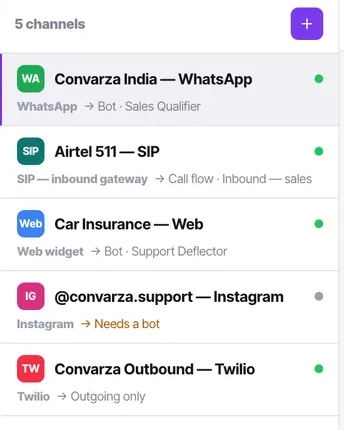
You get an icon grid of all thirteen types rather than a dropdown. Nine chat types — WhatsApp, Instagram, Facebook, Telegram, Viber, LINE, web widget, SMS and email — and four calling types: Twilio, Maqsam, SIP outbound and SIP inbound.
The grid is deliberate. A dropdown of thirteen names makes you read; a grid of logos lets you point at the thing you already recognise.
Pick a type — the channel is created immediately
There is no name-entry modal first. Picking a type creates the channel and opens its config pane, so you are always configuring something real rather than filling in a form that might be rejected at the end.
A consequence worth knowing: an abandoned setup leaves a half-configured channel in the list. It will show as not connected. Delete it rather than leaving it, or it will confuse the next person and consume a channel slot.
Fill in the connection card
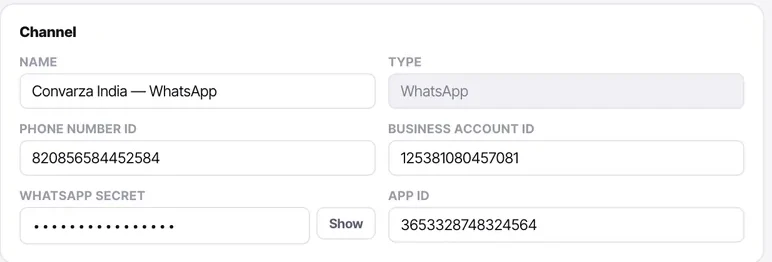
This is the only admin-only part of a channel. Secrets are masked with a Show toggle so you can check a paste without leaving them on screen.
Notice what is not a free text box. Anything that has to match a value on the provider's side exactly — a Twilio resource, a SIP protocol — is a picker with Change and Clear. You cannot typo a value that would fail silently three days later.
Name it for the humans who will read the list
"Convarza India — WhatsApp" and "Airtel 511 — SIP" tell the next person what they are looking at. "WhatsApp 2" does not, and by the time you have six channels it matters.
Include the market or the purpose if you run more than one of a type. You will be reading these names in campaign setup and in call flows.
Set what answers it
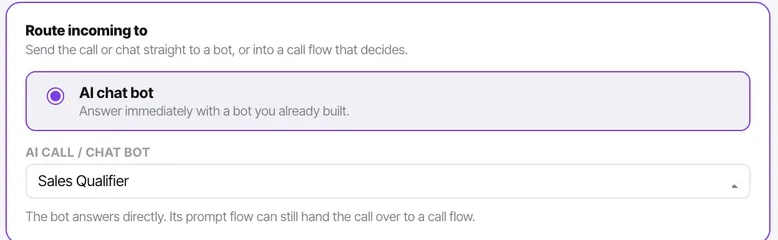
One control, one choice, and it is the setting most likely to be forgotten. A channel with nothing routed still accepts conversations — they arrive unassigned, where your agents cannot see them.
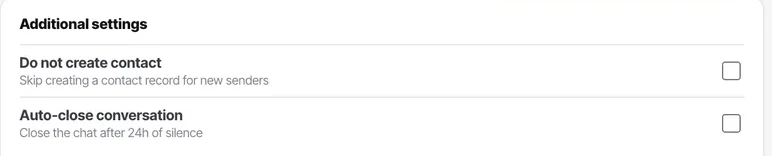
Set the type-specific extras
A chat channel offers contact creation and auto-close. A calling channel instead offers resource, region, direction, restricted timings and the advanced block.
The two sets never borrow each other's controls. A web widget has no trunk and a chat has no calling hours, so those controls are absent rather than disabled.
Confirm it is enabled
There is an Enabled checkbox at the top of the channel. Disabling is how you take a channel out of service without deleting its configuration — useful during an incident, and very easy to leave switched off after testing.

Check it worked
Look at the channel row in the list. It should show a green dot, the type, and what answers it by name. If it says something like "Needs a bot", the channel is connected but unrouted — conversations will arrive and nothing will pick them up.
The parts people get wrong
- All thirteen types are on every plan. Only how many you may connect at once changes.
- A manager can operate a channel — routing, hours, additional settings, enable and disable, and the health readout — but cannot see or change credentials. The product shows those fields rather than hiding them, so a manager knows what to ask for.
- One bot can serve many channels. Reuse runs that way round, never one channel with several bots.
The ones people actually ask
I picked the wrong type by mistake. How do I undo it?
Delete the channel. Picking a type creates it immediately rather than after a form, so an abandoned setup leaves a half-configured channel showing as not connected. Delete it rather than leaving it — it consumes a channel slot and confuses whoever looks next.
Why is there no name field before the type?
Because you are always configuring something real rather than filling in a form that might be rejected at the end. Name it afterwards, and name it for the humans who will read the list: Convarza India — WhatsApp tells the next person what they are looking at; WhatsApp 2 does not, and by six channels that matters.
Are all thirteen types available on my plan?
Yes, on every plan. Only how many channels you can connect at once changes: 3 on Starter, 4 on Growth, 7 on Scale and 12 on Enterprise.