Set up Convarza calling in HubSpot
Install Convarza as a calling provider, connect your account, and add a channel. That is the whole setup for click-to-call — an AI voice agent on the line is optional, and layered on afterwards.
Convarza adds itself to HubSpot's own calling toolbar, so a call placed or received through it looks, to the rest of your team, like any other HubSpot call — started from a contact record, logged to that record's timeline, with duration and outcome.
What differs from HubSpot's built-in dialer is what answers the line: your team, or, on any channel you choose to configure that way, an AI voice agent from Convarza. See everything the HubSpot app does.
Before you start
- A Convarza account — free to create if you do not have one.
- A HubSpot account with permission to install and manage calling integrations.
- A SIP trunk with your number, or an on-premise gateway device, to connect — outbound, inbound, or both. This alone is enough for click-to-call.
- Only if you want Convarza itself answering or placing calls: an AI bot (and, for multi-step calls, an AI bot flow).
Steps
Create or sign in to your Convarza account
If you do not have one yet, sign up free at convarza.com. You will connect this account to HubSpot in a later step, so use the workspace you actually want HubSpot calling against.
Install Convarza from the HubSpot Marketplace
From the listing, click Install app. You need a HubSpot account with permission to manage calling integrations to do this.
Installing registers Convarza as a calling provider on your portal automatically — open HubSpot's calling settings and select Convarza as your active provider. That is what puts the Convarza dialer into HubSpot's own calling toolbar, next to every contact, company and deal.
Connect your Convarza account
The first time you open Convarza from HubSpot, it shows a Connect Convarza screen. Click Connect Convarza Account and authorise in the popup that opens — the connection verifies itself as soon as that popup closes.
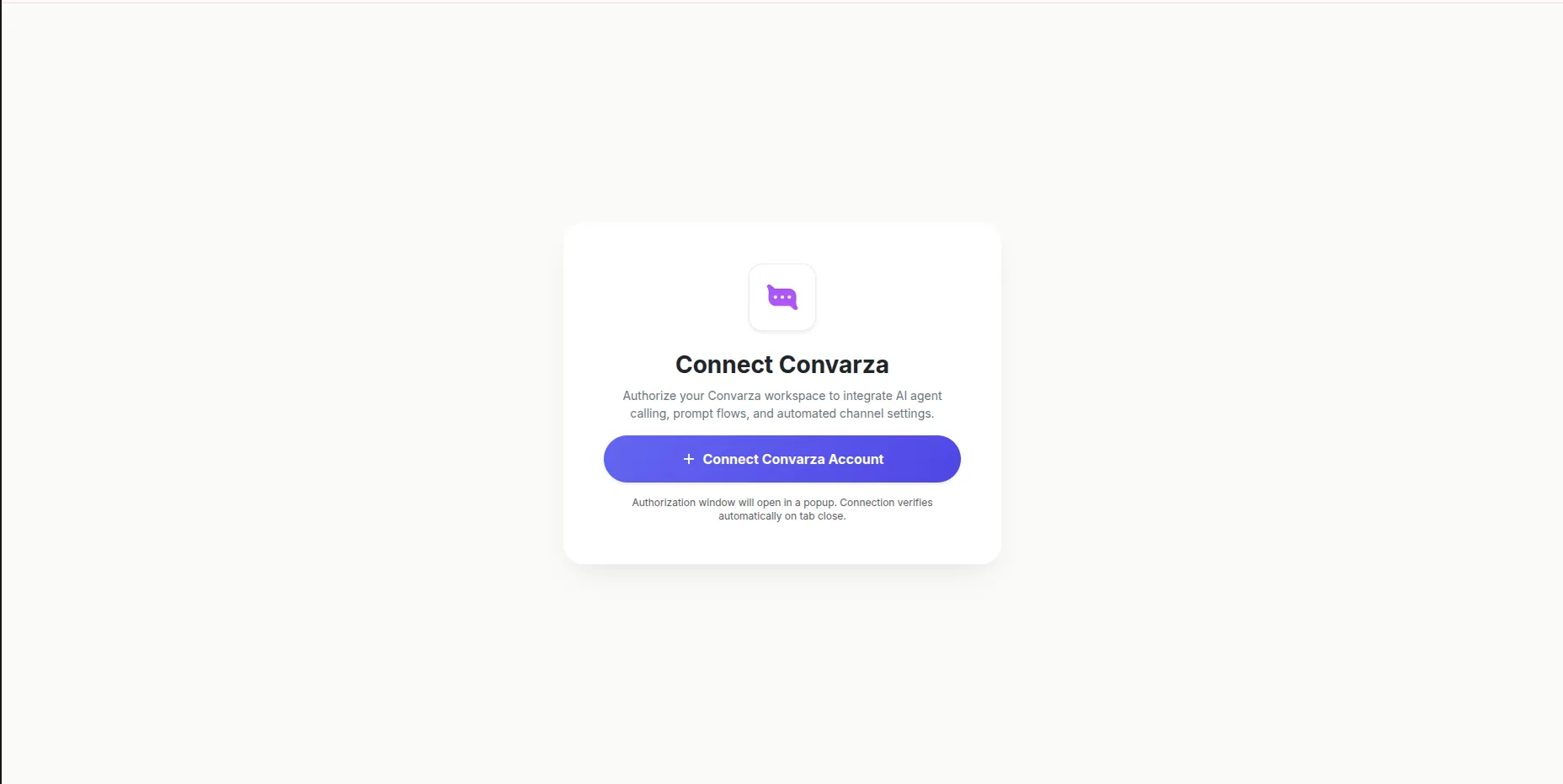
This is a one-time step per HubSpot account. After it, Convarza opens already connected.
Add a channel
Convarza connects over SIP — choose SIP Outbound for a SIP trunk with your own number, or SIP Inbound if you are routing calls through an on-premise gateway device.
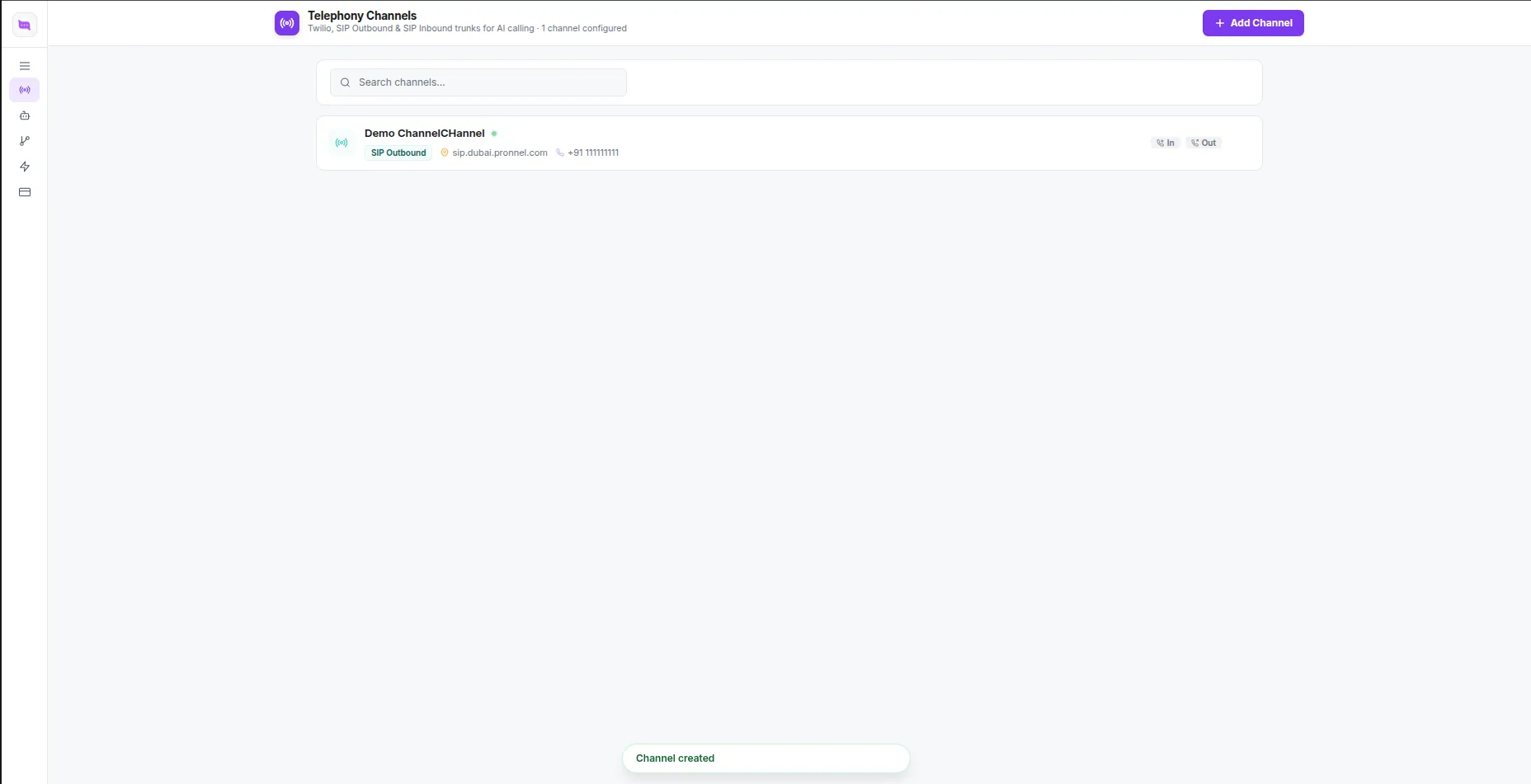
Open Telephony Channels and click + Add Channel, then pick the one that matches your setup.
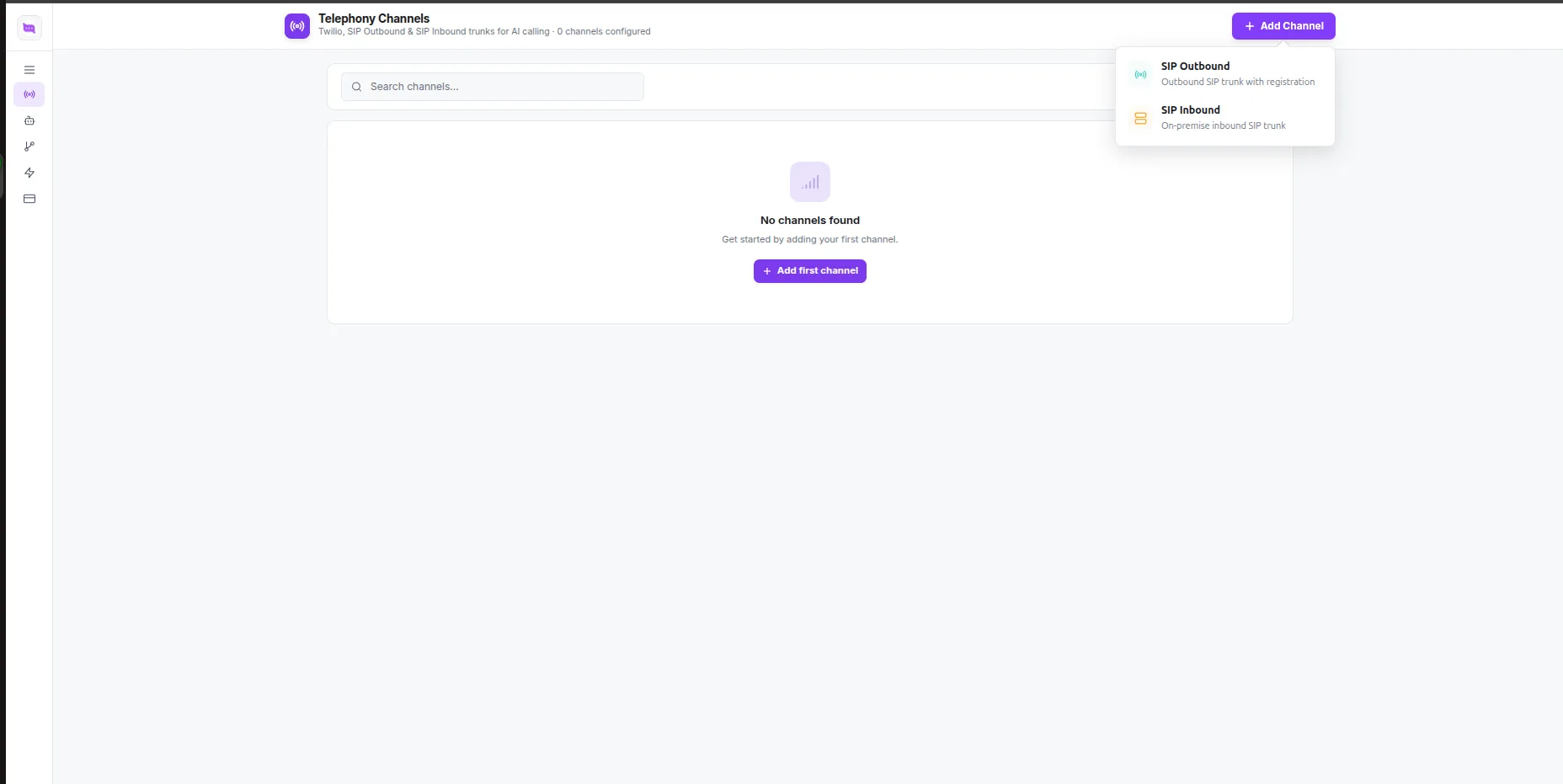
Fill in the connection details your carrier or gateway gave you — server domain, port, protocol, username and password — and set the direction (incoming, outgoing, or both).
Under Incoming Call Settings, choose how an inbound call on this channel is handled: Dialer rings it through to your team, exactly like a HubSpot call. AI Bot answers it automatically with the bot you select. You can leave this on Dialer for now and switch it once you have built a bot.
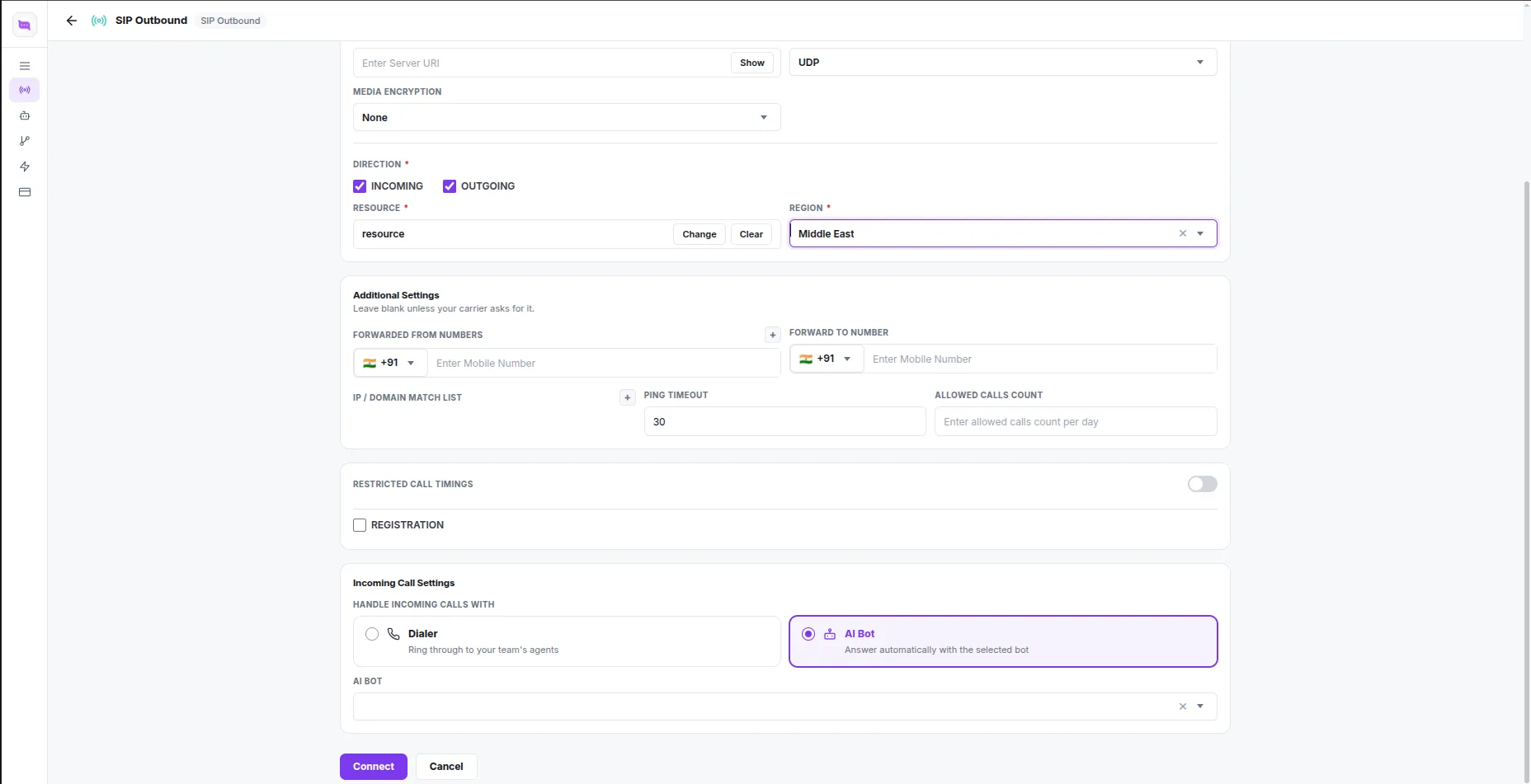
Click Connect. The channel now appears in your list and is ready to use from HubSpot.
Optional: build an AI bot to answer or place calls
Click-to-call does not need this step — skip to the last step if your team is just going to dial out and take calls themselves.
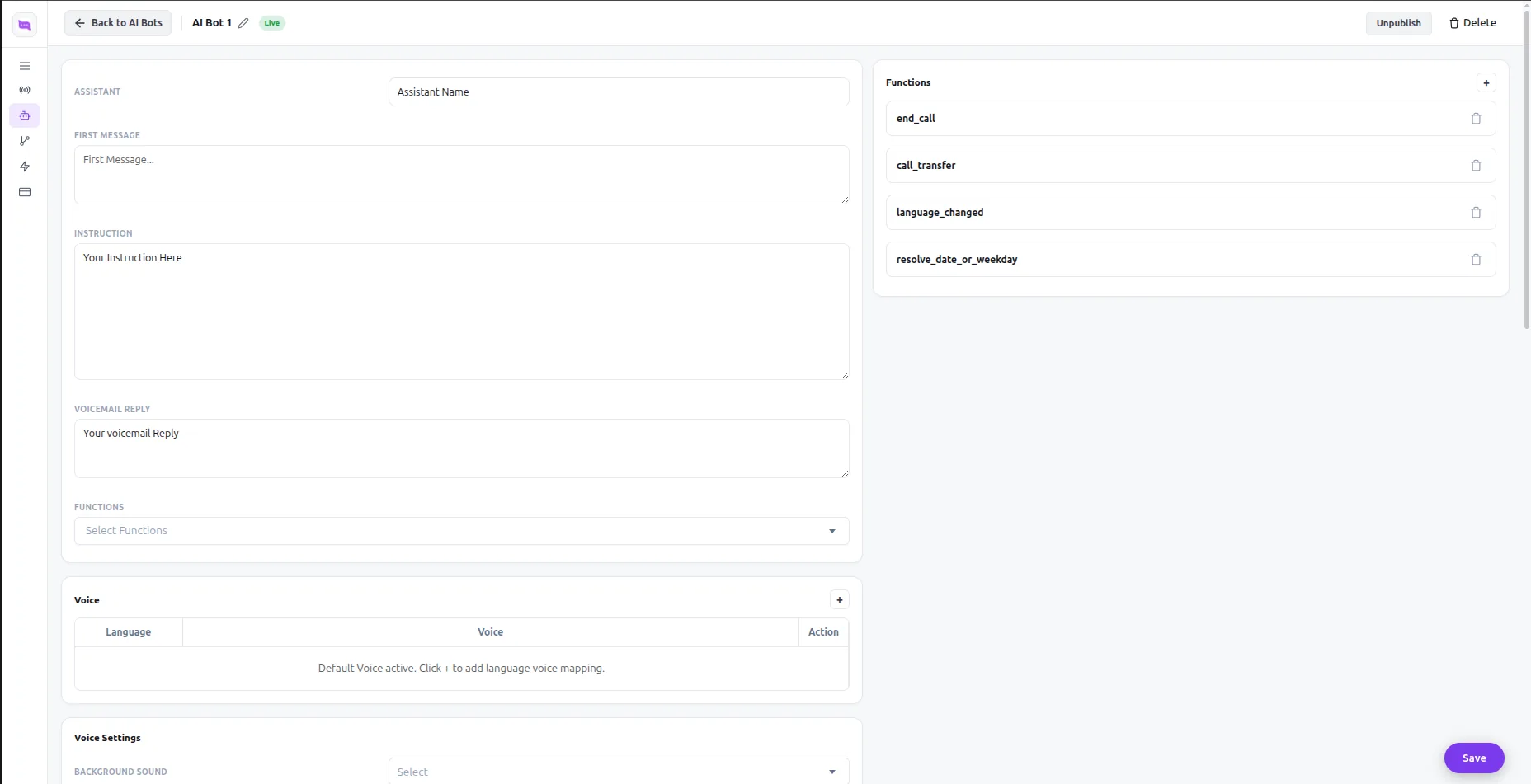
To have Convarza answer or join calls instead, open AI Bots → New AI Bot and set its name, first message, instructions and voicemail reply. Attach any functions it should be able to call, and publish it.
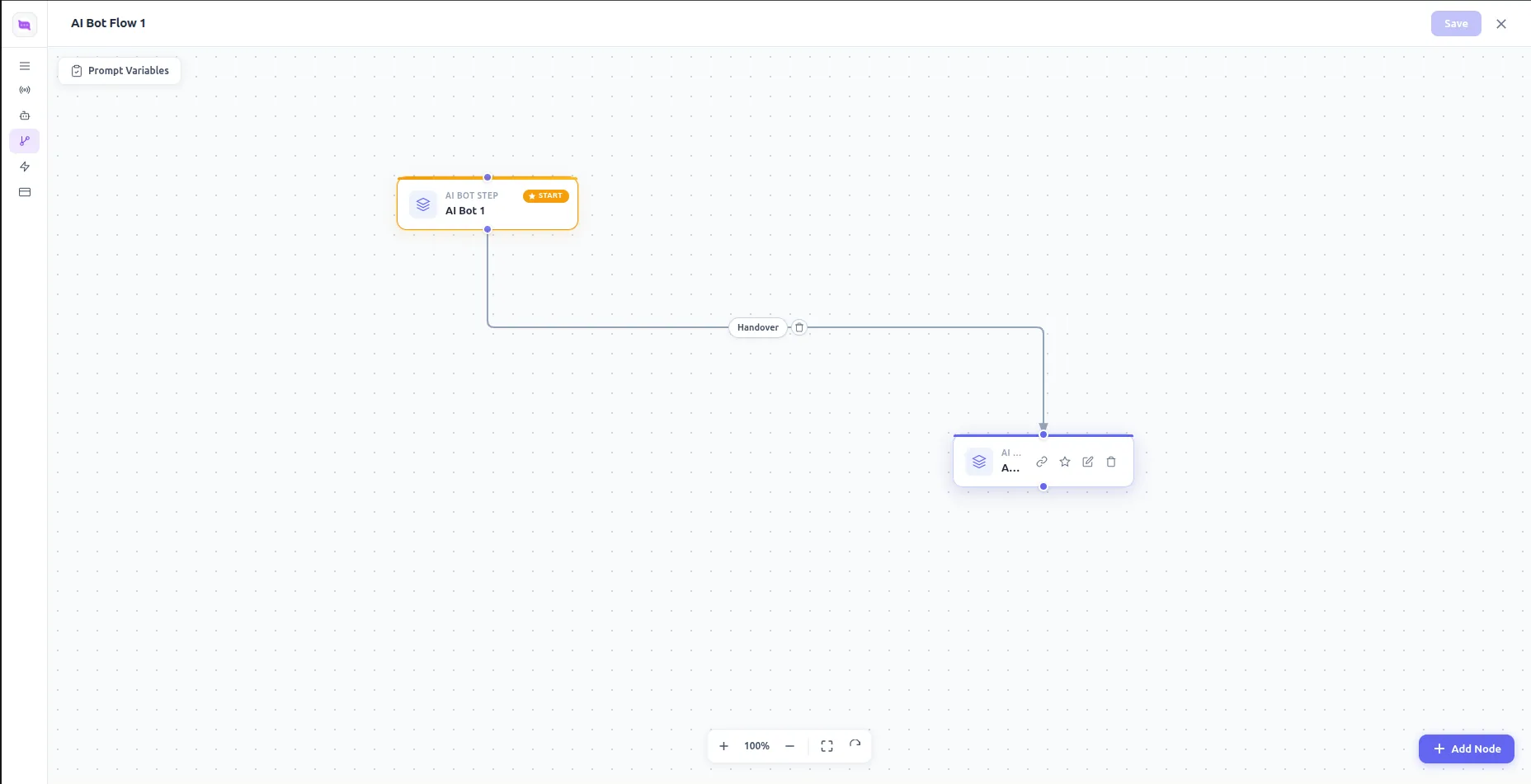
For anything beyond a single response, build an AI Bot Flow: chain AI bot steps together and hand over between them, then save the flow.
Go back to the channel from the previous step and set its Incoming Call Settings to AI Bot, selecting the bot you just built.
Optional: have Convarza call out on a CRM event
Open Workflow, pick the AI Bot and Telephony Channel that should handle the call, and choose the CRM Trigger Event — a contact is created, added to a list, its lead status or lifecycle stage changes, or it submits a form.
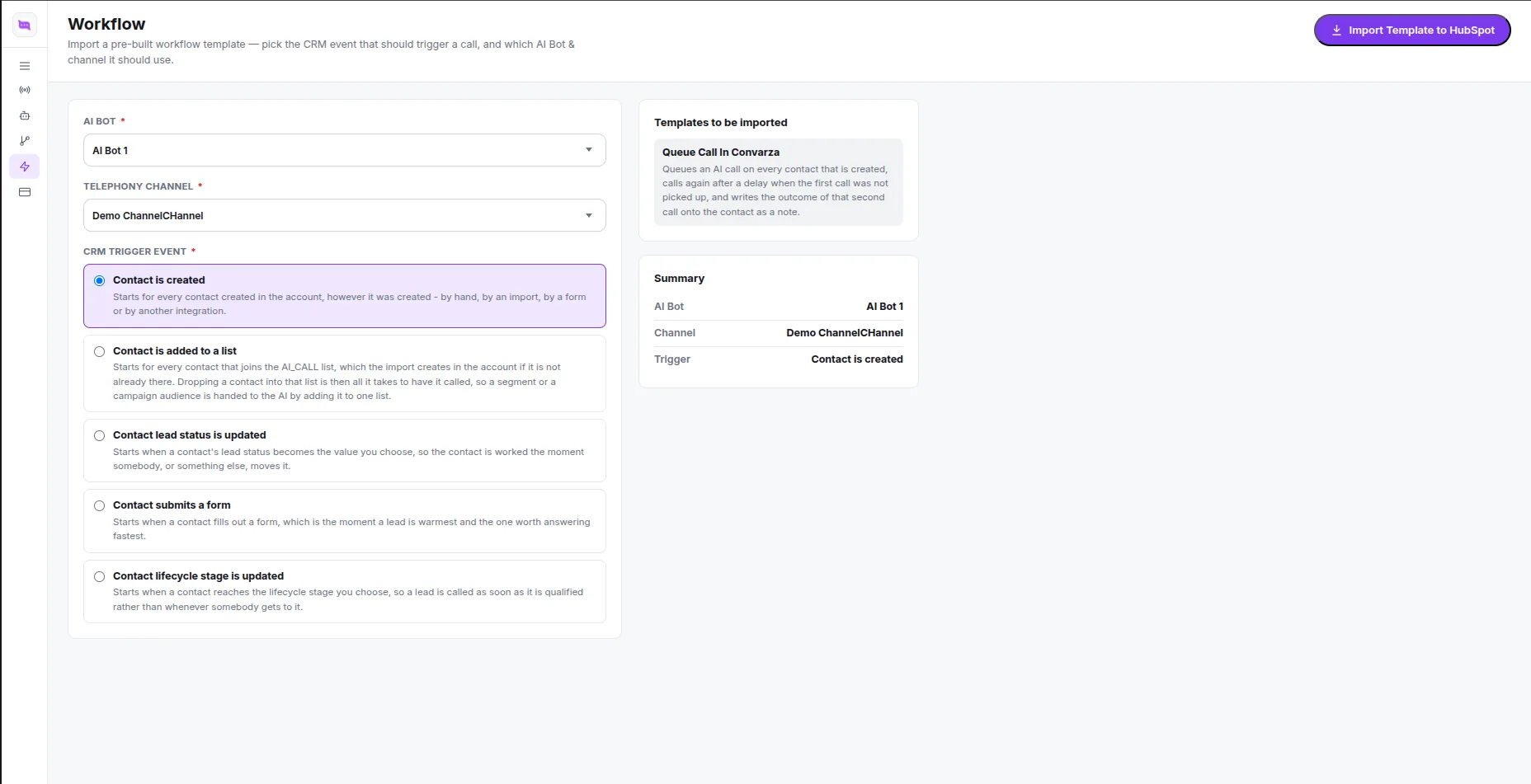
Click Import Template to HubSpot. This creates the matching workflow directly inside your HubSpot account, wired to queue an AI call on that event and retry it once if the first attempt is not picked up.
It is imported as a draft. Open the workflow in HubSpot and click Publish — nothing calls out until you do.
Make and receive calls from HubSpot
Open any contact, company or deal with a phone number and click to call — the Convarza dialer opens with the number already filled in, and you choose which channel to call from.
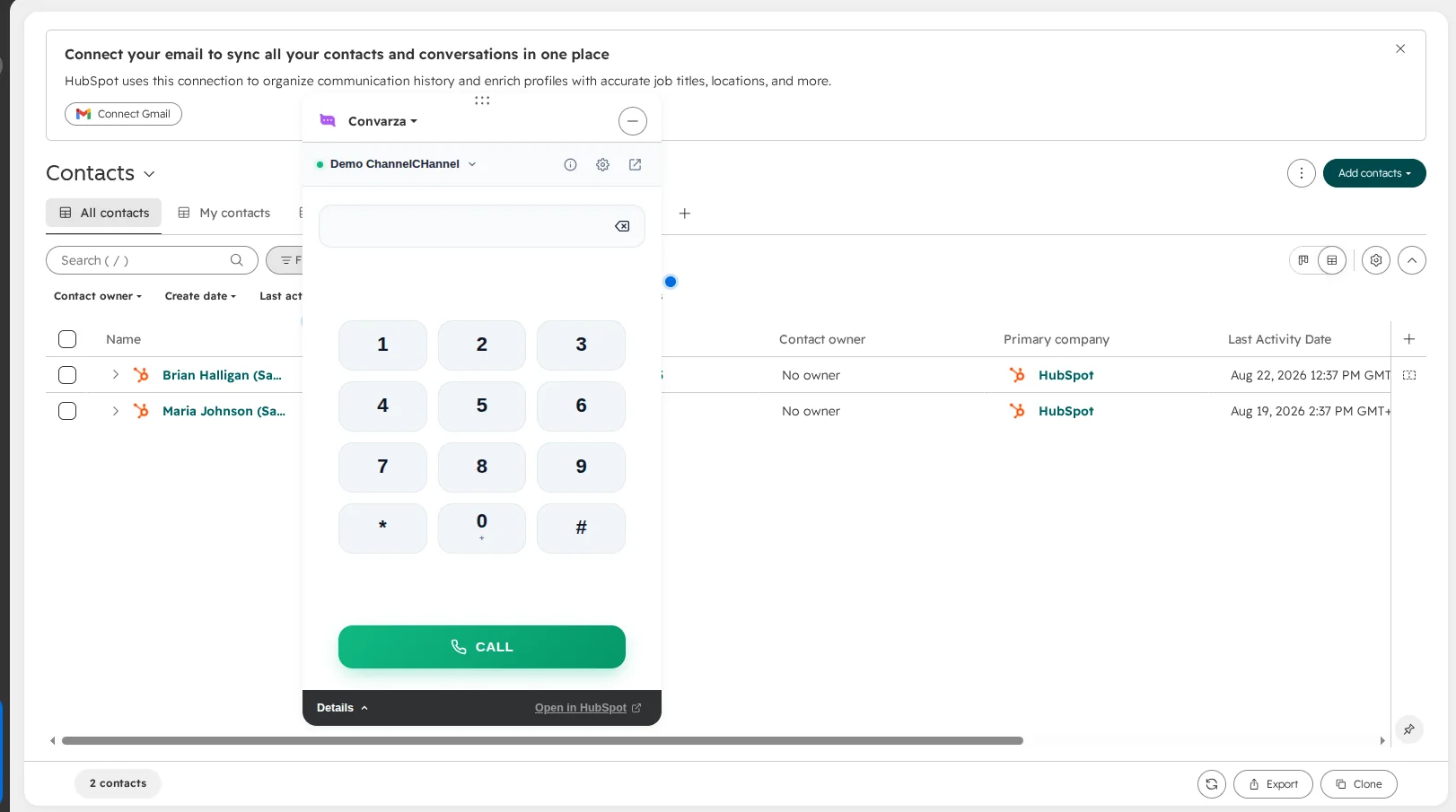
To receive calls inside HubSpot as well, set the channel's Incoming Call Settings to Dialer (for your team) or AI Bot (to answer automatically). Inbound calls then ring in the same dialer widget, whether or not it is currently open.
Every call — outbound or inbound, human-handled or AI-handled — is logged back onto the HubSpot record as a call engagement, with duration and outcome, automatically.
Check it worked
Open a HubSpot contact record with a real phone number you can answer, and click to call. Confirm the Convarza dialer opens with the number and your channel already selected, that the call connects, and that once you hang up a call engagement appears on that contact's timeline with a duration. If the channel is set to receive calls, call that same number from another phone and confirm it rings inside the HubSpot dialer widget.
The ones people actually ask
Do I need an AI bot just to make calls?
No. A channel is the only requirement for click-to-call and for receiving calls inside HubSpot. Building an AI bot, an AI bot flow, or importing a workflow are only needed if you want Convarza itself answering or placing calls — they are optional.
Can I receive calls inside HubSpot, not just place them?
Yes. On the channel, set Incoming Call Settings to Dialer to ring it through to your team, or AI Bot to answer automatically. Inbound calls ring in the same HubSpot dialer widget, which expands automatically when a call comes in.
Does the AI bot take over every call on a channel?
Only if its channel's Incoming Call Settings are set to AI Bot. A channel left on Dialer behaves as a plain click-to-call and receive line for your team.
What does "Import Template to HubSpot" on the Workflow page do?
It creates a real HubSpot workflow in your account, configured to queue a Convarza AI call — using the AI bot and channel you picked — whenever the CRM trigger event you chose happens, such as a contact being created. It lands as a draft; open it in HubSpot and click Publish, or it will never fire.
Where do calls get logged?
On the HubSpot contact, company or deal record's timeline, as a call engagement with duration and outcome — the same place a call logged by HubSpot's own dialer would appear.
I don't have a Convarza account yet.
Sign up free at convarza.com, then come back to step 2 and install the app from the HubSpot Marketplace.
HubSpot and the sprocket logo are trademarks of HubSpot, Inc. Convarza is an independent HubSpot App Marketplace integration and is not affiliated with or endorsed by HubSpot.