Connect your first channel
Adding a channel starts from an icon grid of all thirteen types, not a form. Pick one and its config pane opens immediately, ready to configure.
All thirteen channel types are the same shape once connected: a connection card holding the credentials, one routing decision, and a set of extras that depend on whether it is a chat channel or a calling channel. Learn the pattern on one and the other twelve are variations.
The advice most people ignore: start with the web widget. It needs no external credentials, no carrier account and no Facebook sign-in — an embed snippet and a domain allow-list. You can have it live on one low-traffic page in ten minutes, which lets you learn routing, bots and the Inbox against real traffic you control. Connecting WhatsApp first means debugging Meta's business account model and Convarza at the same time.
Before you start
- Admin access — credential fields and the connected-account row are admin-only.
- Whatever that type needs: a Facebook login, a token you generate, or carrier details.
- A free channel slot: 3 on Starter, 4 on Growth, 7 on Scale, 12 on Enterprise.
Steps
Open Channels and add one
You get an icon grid of all thirteen types rather than a dropdown: nine chat types (WhatsApp, Instagram, Facebook, Telegram, Viber, LINE, web widget, SMS, email) and four calling types (Twilio, Maqsam, SIP outbound, SIP inbound).
Picking a type creates the channel there and then and opens its config pane. Nothing asks you to name it first, so you are always configuring something real rather than filling in a form that might fail at the end.
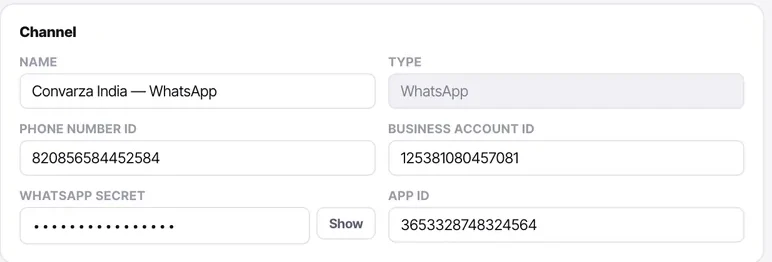
Fill in the connection card
This is where credentials live, and it is the only admin-only part of a channel. Secrets are masked with a Show toggle.
Note what is not a free text box. Where a value has to match something exactly — a Twilio resource, a SIP protocol — it is a picker with Change and Clear. You cannot typo a value that will fail silently three days later.
Watch the connection state, and refresh it
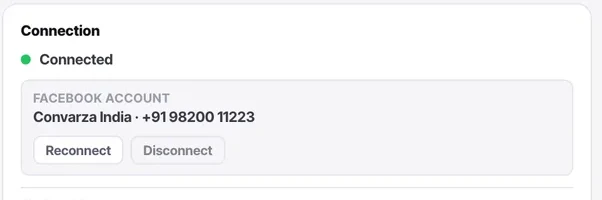
The Connection card shows the connected account and, on calling channels, trunk status with a refresh button.
Refresh rather than trusting what the page loaded with — a status rendered two minutes ago is not evidence the channel is up now. Do not move on from a channel that has not gone green.
Copy the webhook if you set the channel up manually
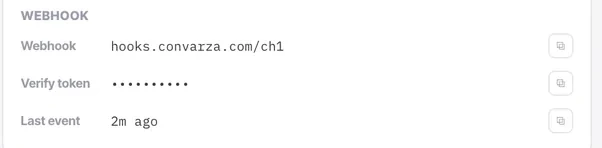
The webhook is how a provider tells Convarza that a message arrived. On channels connected with Facebook sign-in it is handled for you. On manually configured channels it is your responsibility, and forgetting it produces the classic symptom: outbound messages send perfectly and nothing ever arrives.
The card also shows a verify token and the time of the last event received, which is the fastest way to tell whether inbound is working.
Choose what answers it
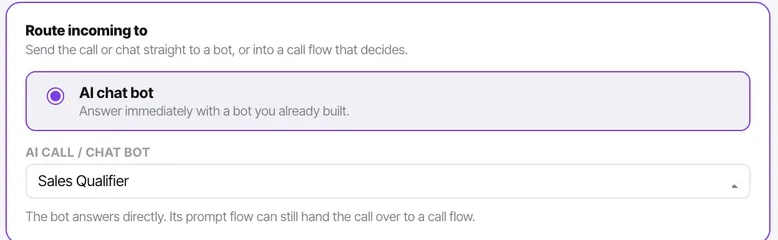
Every channel answers with exactly one thing. Never both, never neither — it is the only reason you can ever say for certain what picked up.
For a chat channel that is an AI bot or your agents. For a calling channel it is an AI voice agent or a call flow. You can leave it on your agents for now and add a bot later; an unrouted channel drops conversations into an unassigned queue.
Set the type-specific extras
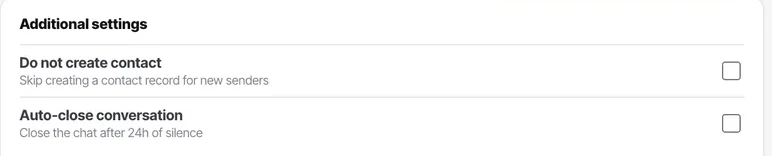
Chat channels get Do not create contact and Auto-close conversation. Calling channels instead get resource, region, direction, restricted call timings and advanced settings.
The two sets never borrow each other's controls. If you are hunting for calling hours on a web widget, they were never there — a chat has no calling hours, and a widget has no trunk.
Send yourself a test message
From your own phone, on the real channel. It should appear in the Inbox within seconds, unassigned, and carrying an AI badge if you pointed it at a bot.
Then reply to it. Inbound and outbound fail independently, and testing only one of them is how a channel goes live half-working.
Check it worked
A channel is properly connected when all four of these are true:
- The connection card is green after a manual refresh.
- A message you sent in appeared in the Inbox.
- A reply you sent out arrived on your phone.
- The routing says what you expect — a bot by name, or your agents.
If inbound works and outbound does not, suspect credentials. If outbound works and inbound does not, suspect the webhook. They are different failures with different fixes.
The parts people get wrong
- All thirteen types are available on every plan. Only how many you can connect at once changes with the plan.
- A calling channel with incoming switched off reads "Outgoing only" and shows no routing at all. That is correct rather than a missing control — nothing will arrive on it to route.
- A manager can change routing, hours, additional settings, and enable or disable the channel, and can read its health. Only an admin can touch the credentials.
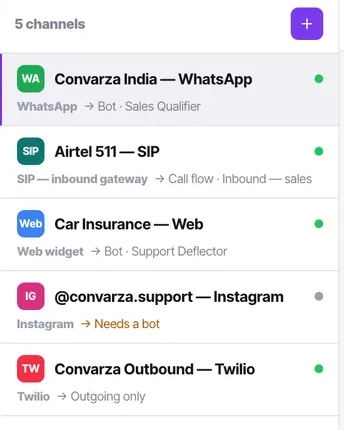
- A channel that shows "Needs a bot" in the list is connected but unrouted. Conversations will still arrive; nothing will answer them.
The ones people actually ask
Which channel should I connect first?
The web widget, unless you have a strong reason not to. It needs no external account, no credentials and no approval — just an embed snippet and a domain allow-list — so you can be live on one page in ten minutes and learn routing, bots and the Inbox against traffic you control. Connecting WhatsApp first means debugging Meta's business account model and Convarza at the same time.
The channel shows as connected but nothing is arriving.
Almost always the webhook, on a manually configured channel. Check last event on the connection card while you send yourself a message: if that time does not update, your provider is not calling the webhook and the fix is on their side. Outbound working proves nothing about inbound — they fail independently.
I abandoned a setup halfway. What happens to that channel?
It stays in the list showing as not connected, and it consumes one of your channel slots. Delete it rather than leaving it — a half-configured channel confuses whoever looks next and costs you capacity you may need.
Are all thirteen channel types on every plan?
Yes. Every plan includes all thirteen channel types; only how many channels you may connect at once changes — 3 on Starter, 4 on Growth, 7 on Scale and 12 on Enterprise.