Set up Convarza AI calling in Zoho CRM
Install the extension, connect your Convarza account, and set up a channel and an AI bot. After that, any Zoho CRM workflow rule can queue an AI voice call to a Lead or Contact with one action: Queue Call.
Convarza - Calling and AI Voice Agents adds a new instant action to Zoho CRM's workflow rules. When a rule fires — a new lead comes in, a status changes, a field is updated — the record is added to your Convarza call queue and an AI voice agent calls it.
You decide which records get called by the rule's module and condition, which line the call goes out on, and which AI bot does the talking. The outcome comes back onto the Zoho record as a logged call.
Before you start
- A Convarza account — free to create if you do not have one.
- A Zoho CRM org, and a Zoho user with administrator rights to install extensions and create workflow rules.
- A SIP trunk with the number you want to call from, to set up as an outbound channel.
- An idea of what the AI bot should say — its first message and instructions.
Steps
Create or sign in to your Convarza account
If you do not have one yet, sign up free at convarza.com. You will connect this account to Zoho CRM in the next step, so use the workspace you actually want your Zoho calls placed from.
Install the extension from the Zoho Marketplace
Find Convarza - Calling and AI Voice Agents on the Zoho Marketplace and install it into your Zoho CRM org. You need to be a Zoho CRM administrator to do this.
During the install, Zoho asks you to authorise the connection. Approve it, then sign in with your Convarza account when prompted. This links your Zoho CRM org to your Convarza account — a one-time step per org.
If your org is hosted in a Zoho data centre other than the US one (India, EU, Australia, Japan, Canada and so on), nothing extra is needed: Convarza picks up the data centre your org lives in automatically.
Open the extension settings
In Zoho CRM, go to Settings → Convarza - Calling and AI Voice Agents. This is where you set up everything Convarza needs to place calls: the line calls go out on, and the AI voice agent that makes them.
If the page says Zoho CRM or Convarza is Not Connected, click the matching Connect button and authorise again.
Create an outbound channel
A channel is the number or line your calls are made from. Convarza connects over SIP — choose SIP Outbound for a SIP trunk with your own number.
Open Telephony Channels and click + Add Channel.
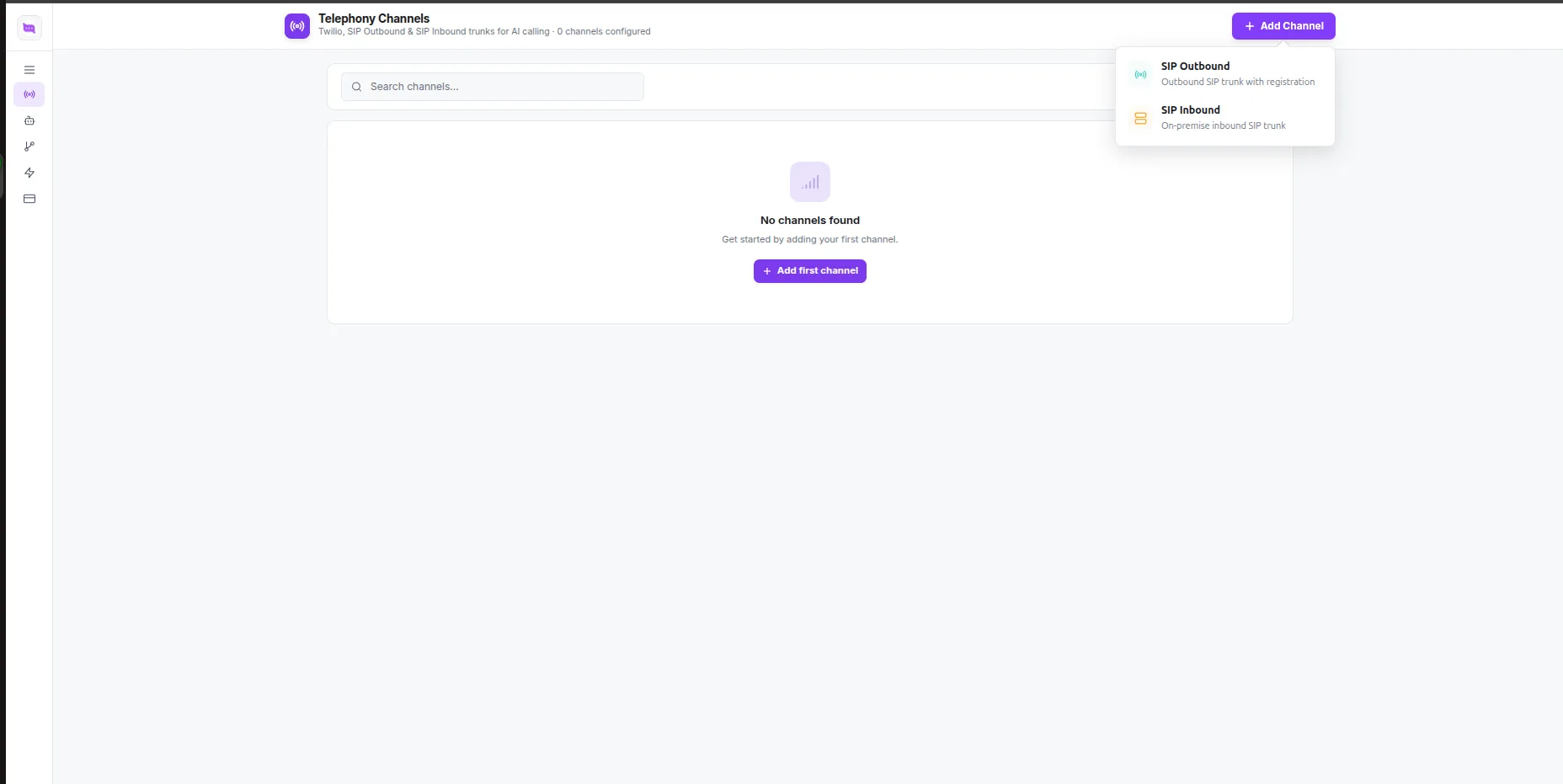
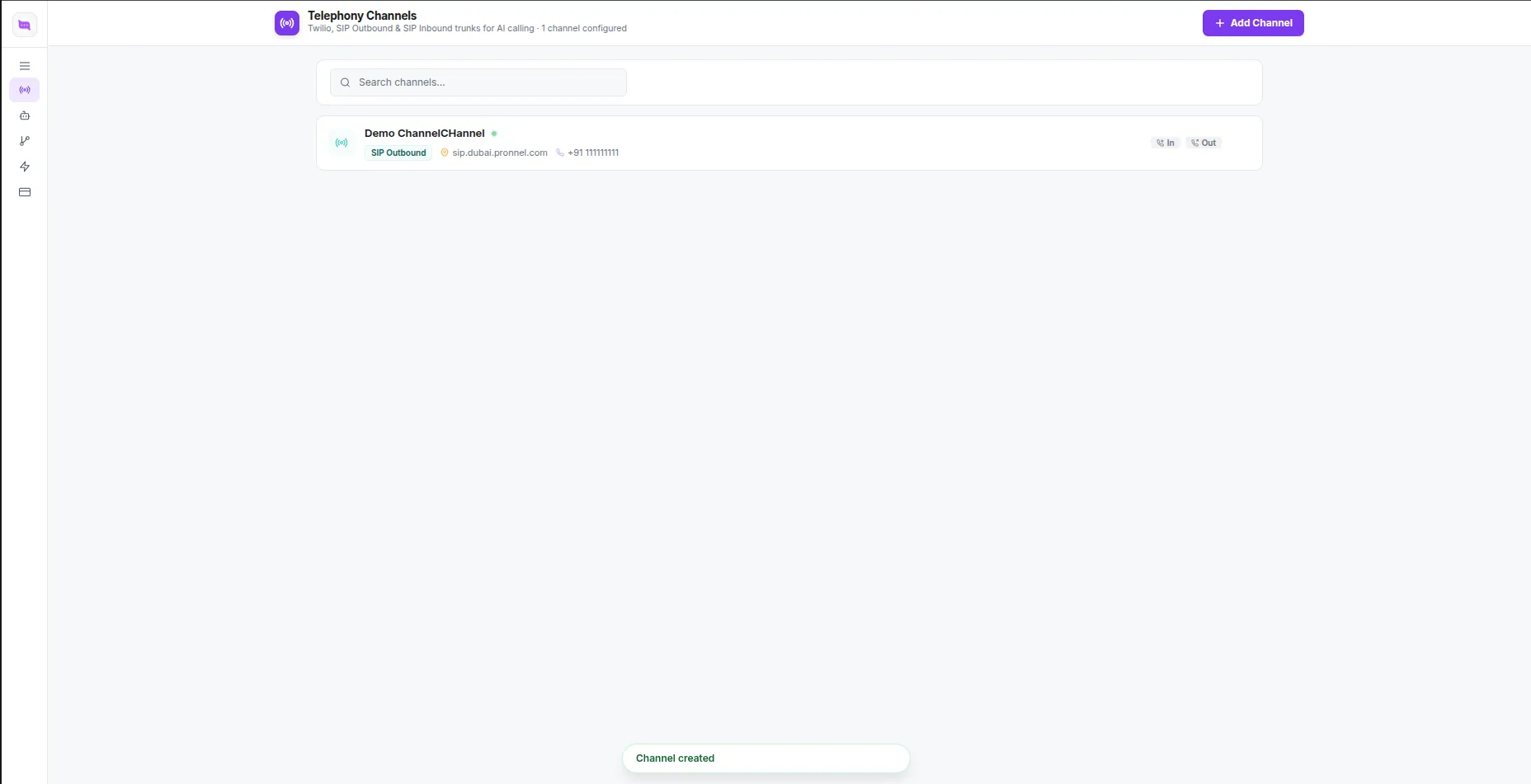
Fill in the connection details your carrier gave you — server domain, port, protocol, username and password — and set the direction to outgoing (or both). Click Connect. The channel appears in your list, ready to pick in a workflow rule.
Create an AI bot
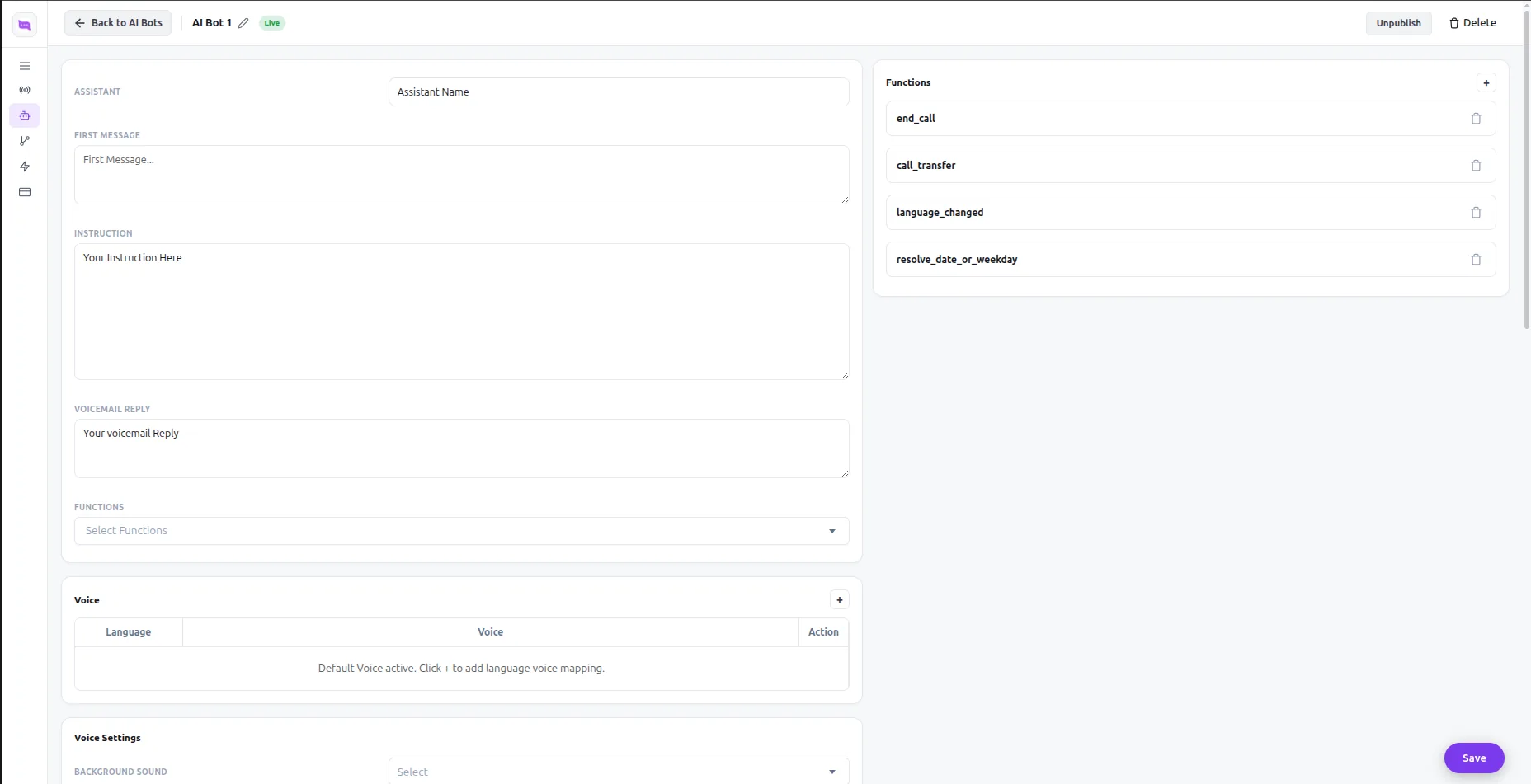
The AI bot is the voice agent that actually talks to your lead or contact. Open AI Bots → New AI Bot and set its name, first message, instructions and voicemail reply. Attach any functions it should be able to use — ending the call, transferring it to a person, switching language — and publish it so it can be picked in a workflow rule.
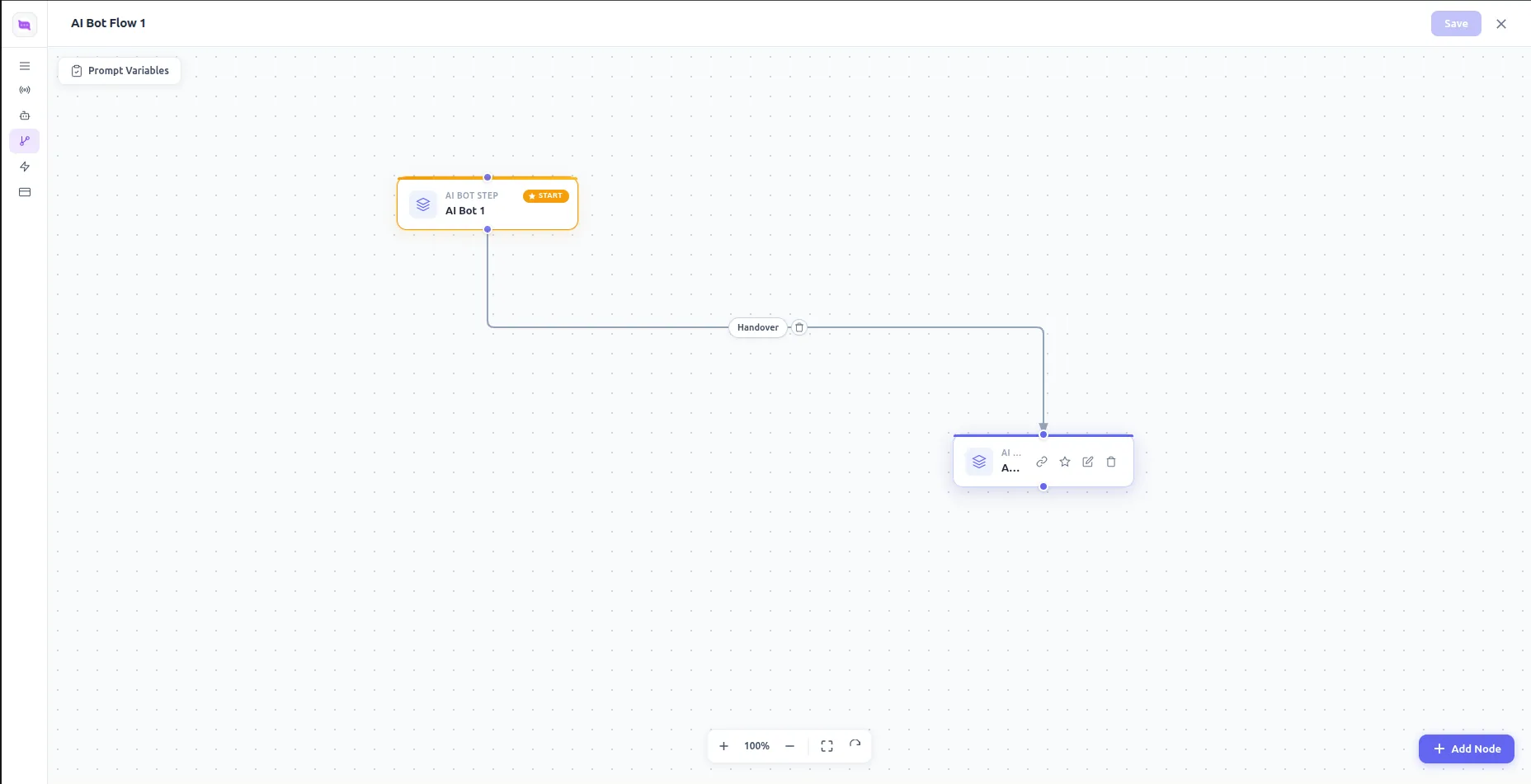
For a conversation with more than one stage, build an AI Bot Flow instead: chain AI bot steps together, hand over between them, and save the flow.
Create a workflow rule with the Queue Call action
Go to Settings → Automation → Workflow Rules → Create Rule.
- Choose the module — Leads or Contacts.
- Set when the rule runs (for example On Create, or when a field such as Lead Status is updated) and the condition a record has to meet.
- Under Instant Actions, click + Action and pick queuecall (convarza-callingandaivoiceagents) — the Queue Call action added by Convarza - Calling and AI Voice Agents.
The action opens its Convarza Engine Parameters:
- Channel (required) — the outbound channel you created in step 4. The call is placed on this line.
- AI Agent (required) — the AI bot you created in step 5, which does the talking.
- Call Priority (optional) — where the call sits in the Convarza queue. Leave it empty and it defaults to High.
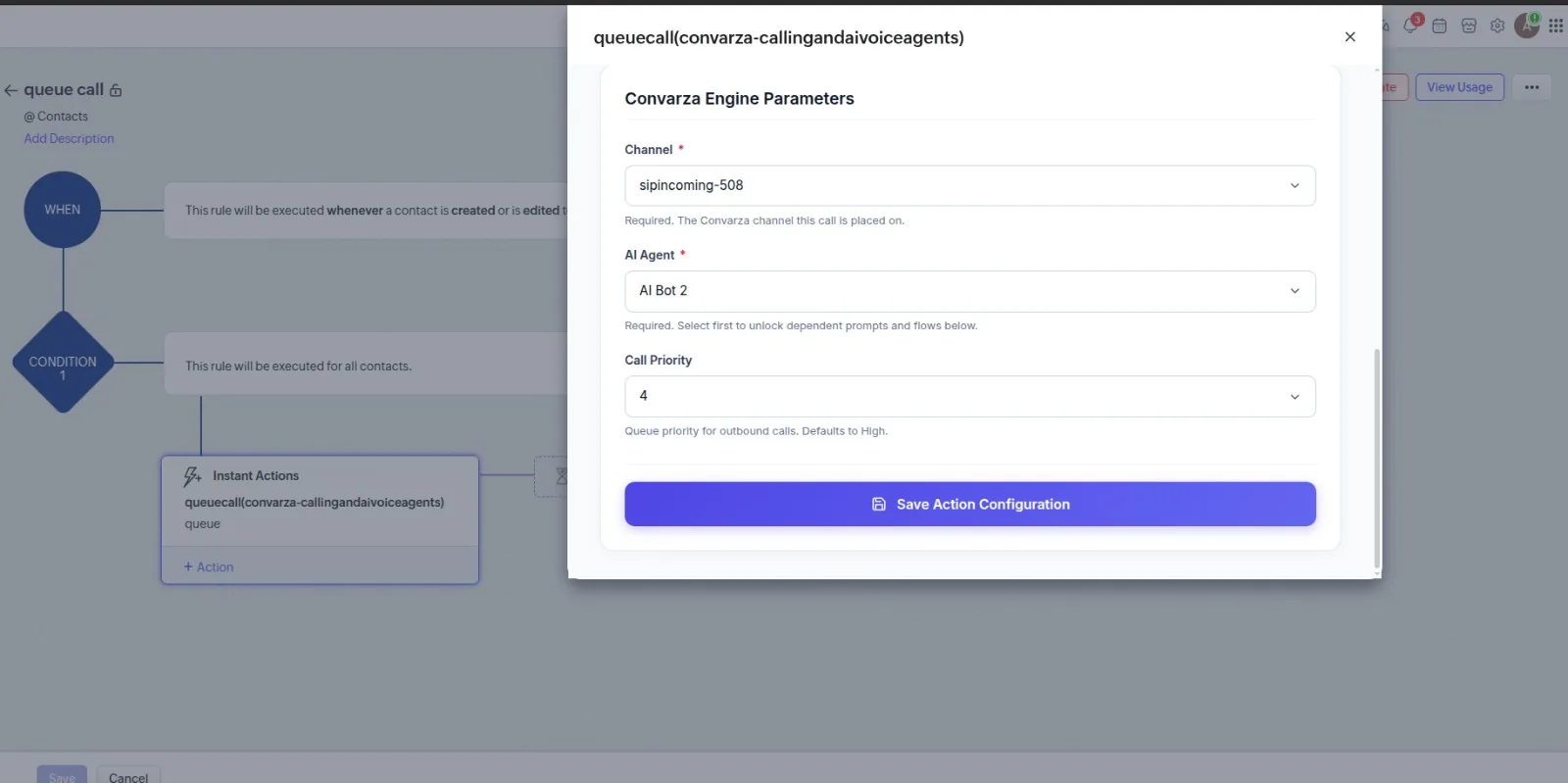
Click Save Action Configuration. The action now shows under Instant Actions on the rule — click Save at the bottom of the page to save the rule itself.
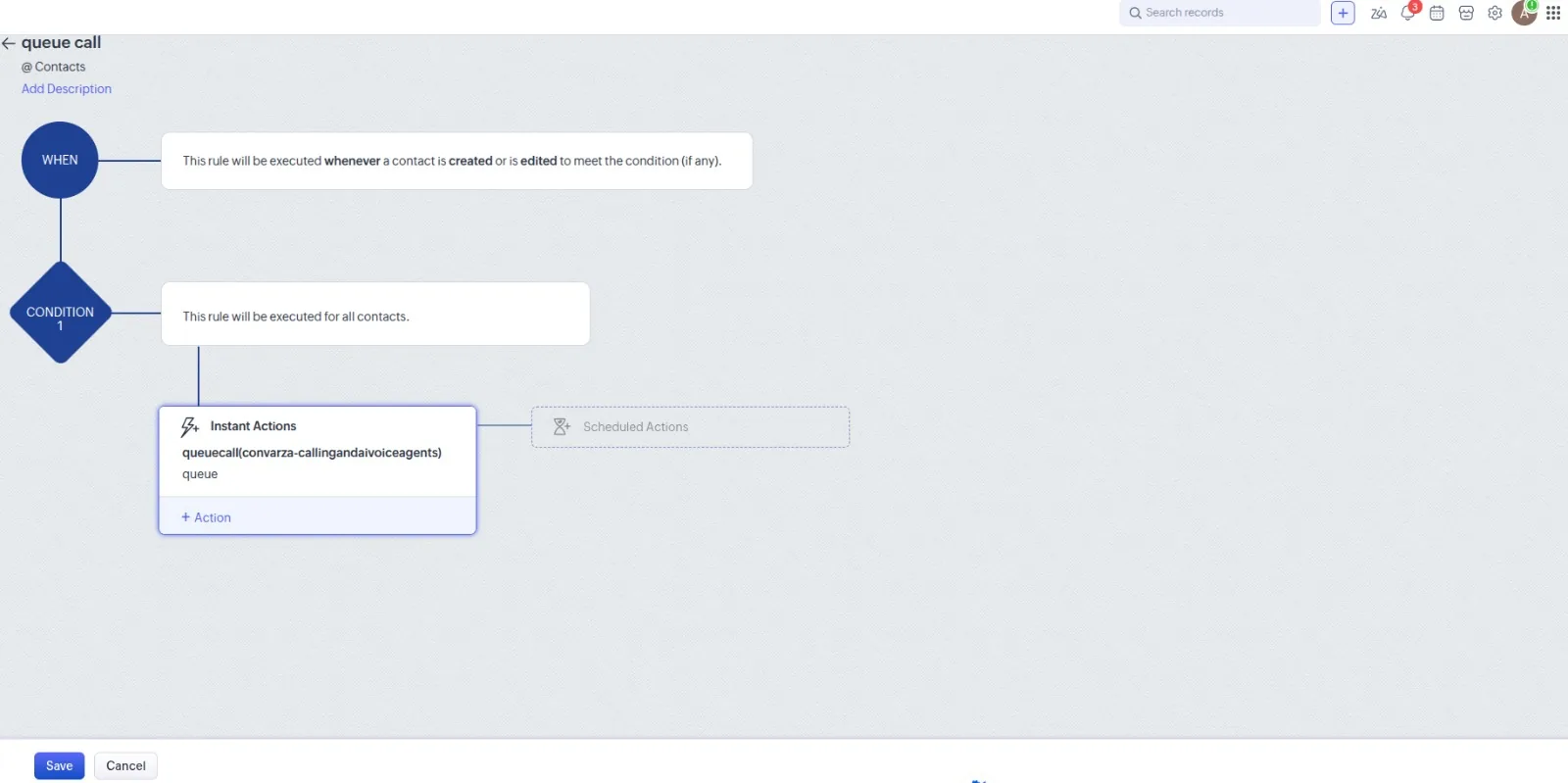
You do not need to map the phone number, name or email: Queue Call reads them straight off the record that triggered the rule, using its Phone field and falling back to Mobile.
Trigger it and follow the call
Create or update a Lead or Contact that matches the rule's condition. The rule fires, the Queue Call action adds that record to the Convarza call queue, and your AI bot calls the record's phone number.
When the call ends, Convarza logs it onto the Zoho record as a Call activity under Closed Activities, with the call result, duration and the conversation transcript. The call recording is added to the record's Attachments as an MP3 and linked from the call, so your team sees everything on the record like any other Zoho call.
Check it worked
Create a Lead in Zoho CRM that matches your rule's condition, with your own phone number in its Phone field. Within a few moments your phone should ring with the AI bot on the line. Once you hang up, open the Lead in Zoho and check that a Call activity with the result, duration and transcript has been added under Closed Activities, and the recording under Attachments.
No call? Open Settings → Convarza - Calling and AI Voice Agents and check both connections show as connected, the channel is set to outgoing, and the AI bot is published.
The ones people actually ask
Which Zoho CRM modules does Queue Call work with?
Leads and Contacts. Create the workflow rule on either module and the action calls the record that triggered it.
Which phone number does the AI bot call?
The Phone field of the record that triggered the rule. If Phone is empty, it uses Mobile, so make sure at least one of the two is filled in.
Where do I see what happened on the call?
On the Zoho record itself. Once the call ends, the record gets a Call activity under Closed Activities carrying the result (for example Connected, No response/Busy or Left voicemail), the duration and the transcript, and the recording is added to the record's Attachments.
The Channel or AI Agent list in the Queue Call action is empty.
Both lists are read from your connected Convarza account. Make sure you created a channel and published an AI bot in the extension settings (steps 4 and 5), and that the settings page shows both Zoho CRM and Convarza as connected.
My Zoho account is on the India / EU / Australia data centre.
That is supported. Convarza detects which data centre your org is on when you authorise it and talks to that one from then on.
I don't have a Convarza account yet.
Sign up free at convarza.com, then install the extension from the Zoho Marketplace (step 2).
Zoho and Zoho CRM are trademarks of Zoho Corporation Pvt. Ltd. Convarza is an independent Zoho Marketplace extension and is not affiliated with or endorsed by Zoho.