
Set up Convarza calling in Pipedrive
Install the app, connect Pipedrive and Convarza, and add a channel. Your team can then call any phone number in Pipedrive and take calls there. An AI voice agent, sent by a Pipedrive automation or answering a line, is optional and added afterwards.
Convarza - Calling and AI Voice Agents becomes a caller app in Pipedrive. Click a phone number and the Convarza dialer opens in a floating window; when the call ends, it is logged on the record as a Call activity with the outcome, transcript and recording.
Who is on the line is up to you: your team, or an AI voice agent from Convarza. The agent can answer a line for you, or call people when a Pipedrive automation tells it to.
Before you start
- A Convarza account — free to create if you do not have one.
- A Pipedrive account that can install Marketplace apps.
- A SIP trunk with your number, or an on-premise gateway — outbound, inbound or both. This alone is enough for calling from Pipedrive.
- Only for AI calls from automations: access to Pipedrive Automations with the Send webhook action, and an idea of what the AI bot should say.
Steps
Create or sign in to your Convarza account
If you do not have one yet, sign up free at convarza.com. You will connect this account to Pipedrive in step 3, so use the workspace you actually want your Pipedrive calls placed from.
Install the app from the Pipedrive Marketplace
Find Convarza - Calling and AI Voice Agents on the Pipedrive Marketplace and click Install. Pipedrive shows the access the app needs — your people, deals, leads, activities and files — so it can find who you are calling and log the call on their record. Allow it, and Pipedrive brings you back to your company account.
Depending on your company's settings, a Pipedrive admin may need to approve the install.
Connect Pipedrive, then Convarza
Open the app's settings in Pipedrive (Tools and apps → Marketplace apps → Convarza - Calling and AI Voice Agents). The first time, it asks for two connections, in this order:
- Connect Pipedrive — click Connect Pipedrive Account and approve in the popup. The connection verifies itself when the popup closes, and the screen then shows Pipedrive Connected with your Company ID.
- Connect Convarza — click Connect Convarza Account and sign in to the workspace from step 1.
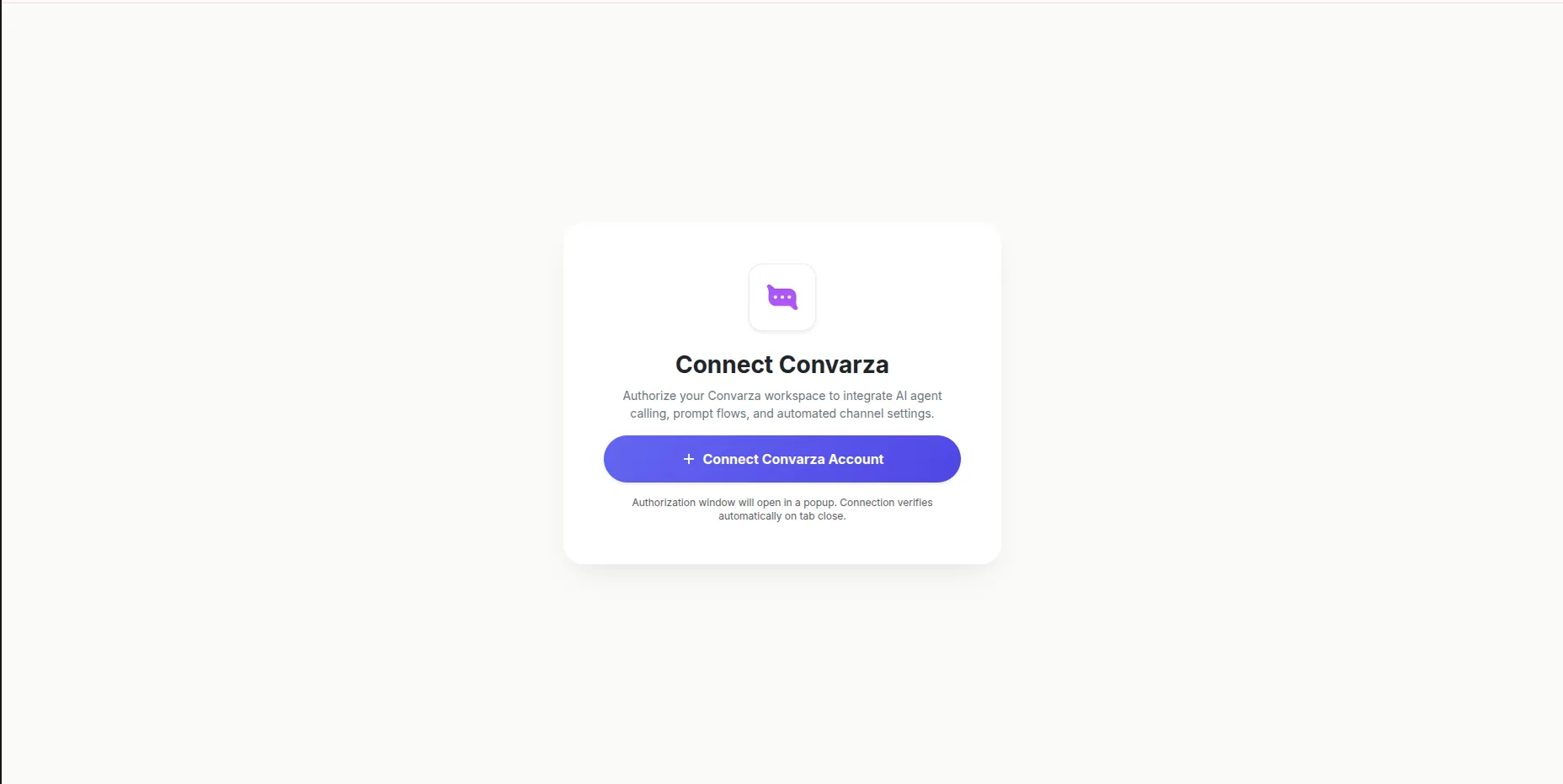
Both are one-time steps per Pipedrive company. Once both are connected, the settings page opens, with Channels, AI Bots and AI Bot Flows in its sidebar.
Add a channel
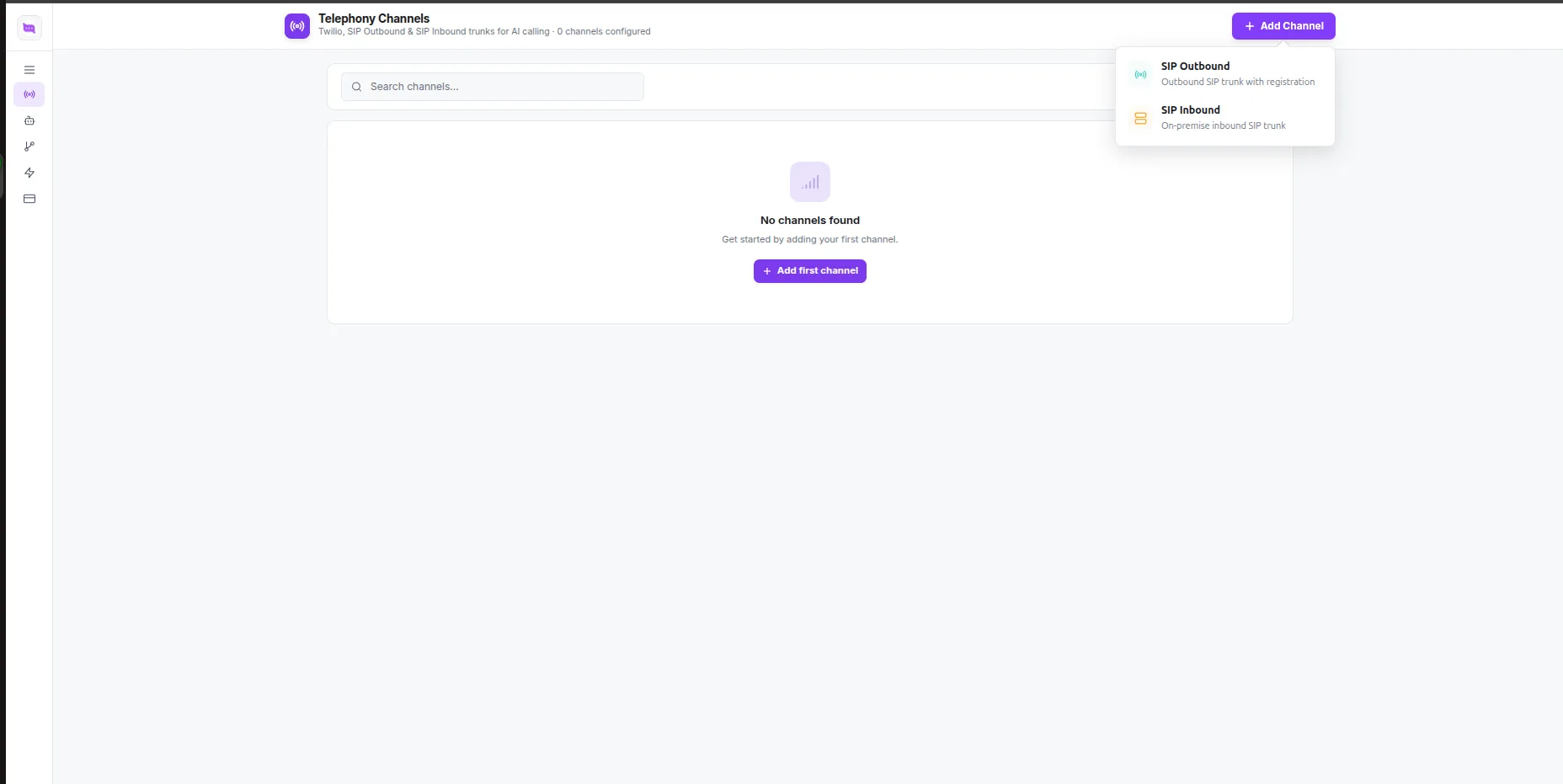
A channel is the phone line your calls go out on and come in on. Convarza connects over SIP — choose SIP Outbound for a SIP trunk with your own number, or SIP Inbound if you route calls through an on-premise gateway.
Open Channels and click + Add Channel, then pick the one that matches your setup.
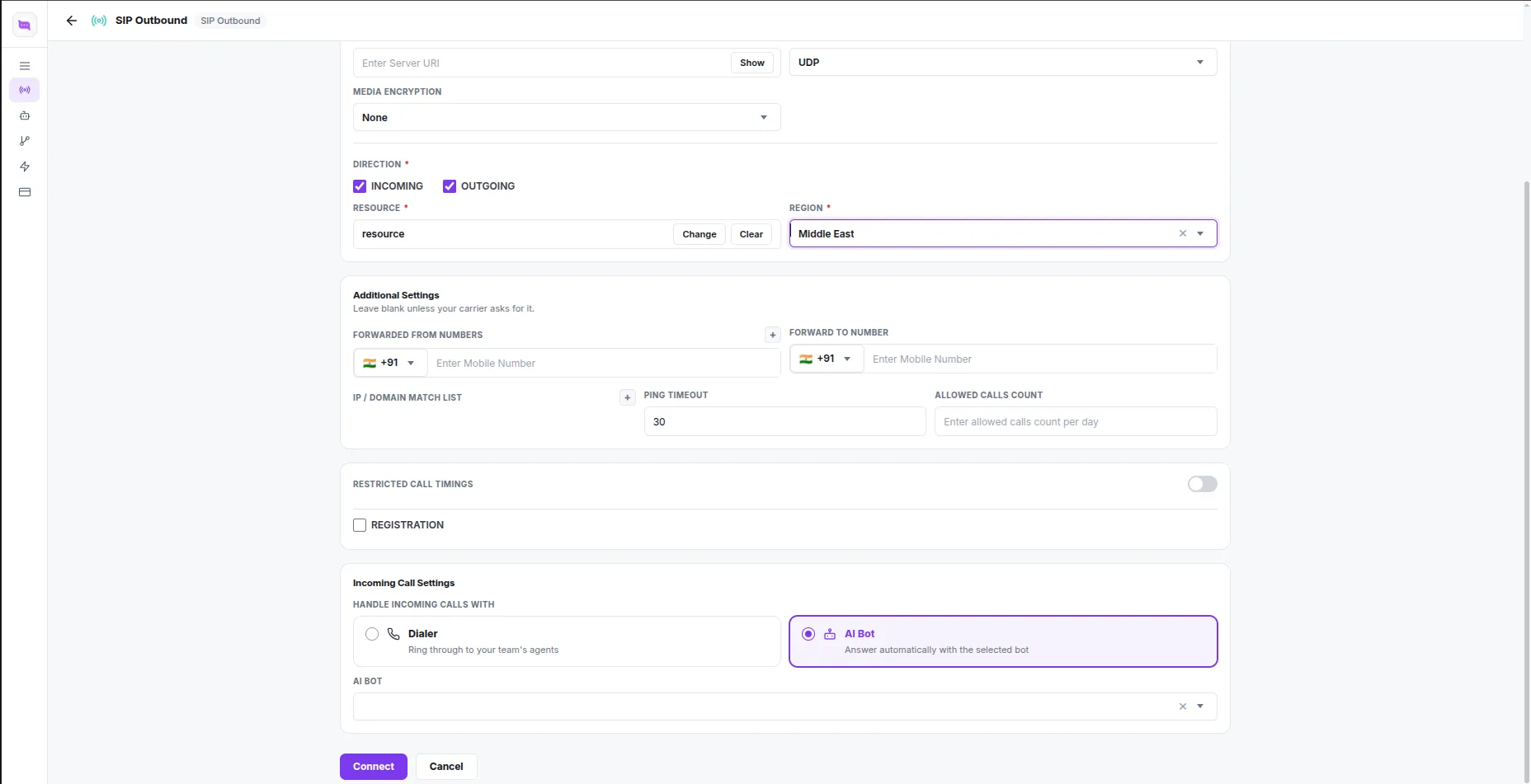
Fill in the details your carrier or gateway gave you — mobile number, server domain, port, protocol, username and password — and set the direction: Outgoing to call out, Incoming to receive calls, or both. Leave Additional Settings blank unless your carrier asks for them.
Under Incoming Call Settings, choose who handles calls that come in on this line: Dialer rings them through to your team in Pipedrive, and AI Bot answers them automatically with the bot you select. Leave it on Dialer until you have built a bot.
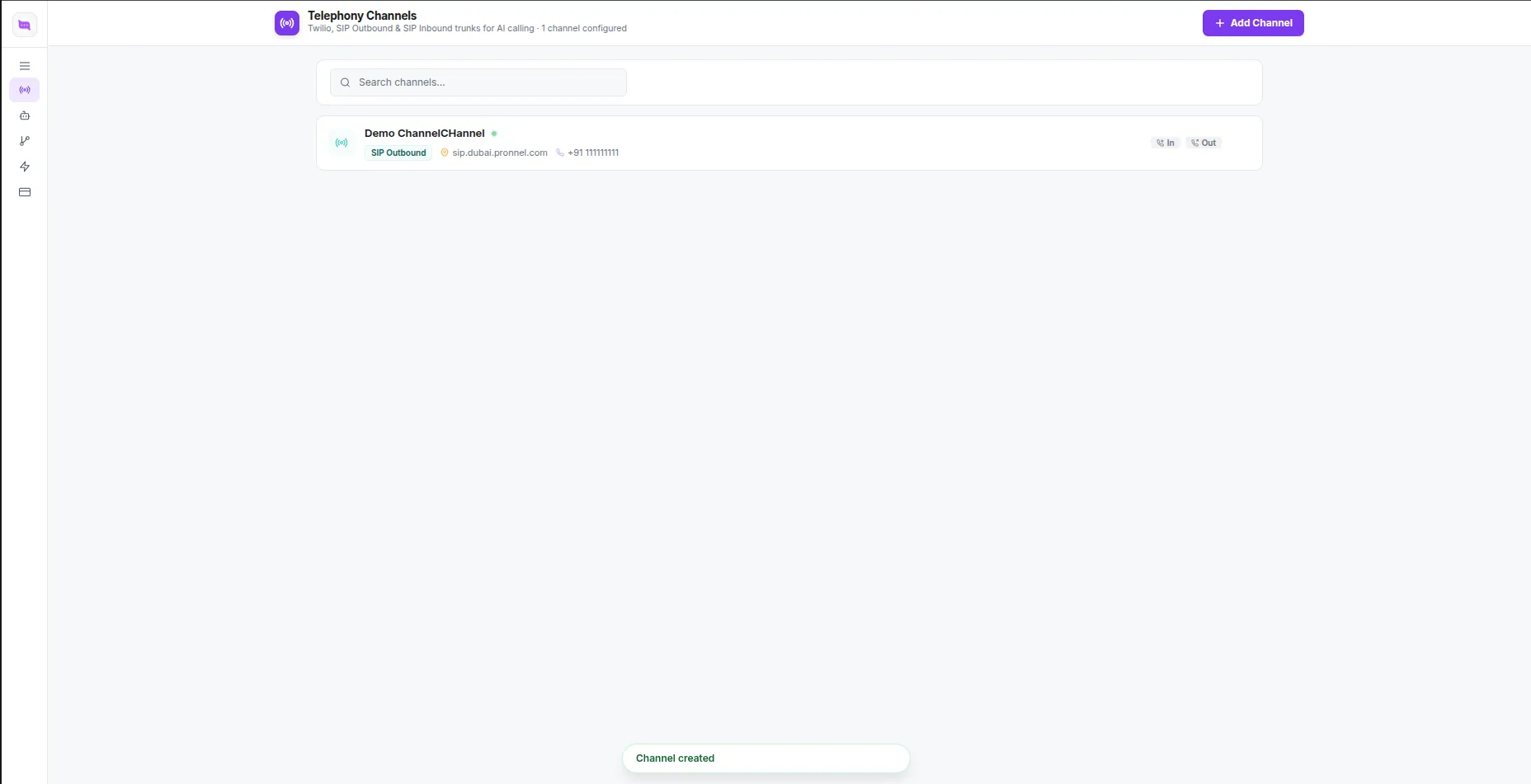
Click Connect. The channel appears in your list, ready to call from.
Make and receive calls from Pipedrive
Click any phone number on a person, deal, organization or lead and choose Convarza as the app to call with. The Convarza dialer opens in a floating window with the number already filled in: pick the channel and press call.
Inbound calls on a channel set to Dialer ring in the same floating window, even when it is closed. It pops open, and a badge appears on the phone icon in Pipedrive's top bar until the call is answered or declined.
That is the whole setup for your team. The next two steps are only needed if you want an AI voice agent on the phone.
Optional: build an AI bot
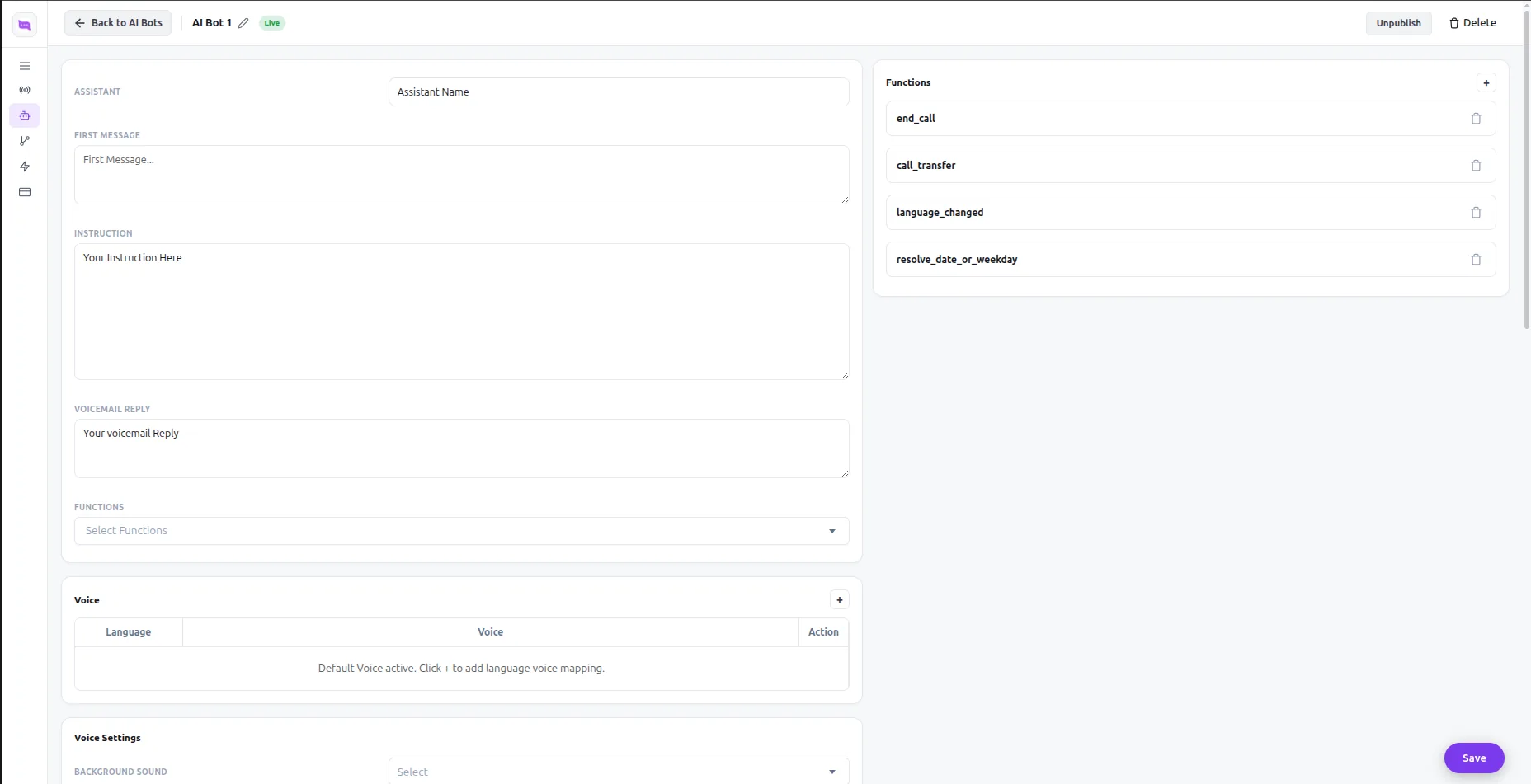
The AI bot is the voice agent that talks to your customer. Open AI Bots → New AI Bot and set its name, first message, instructions and voicemail reply. Pick a language and voice, attach any functions it should be able to use — ending the call, transferring it to a person, booking a meeting — and publish it.
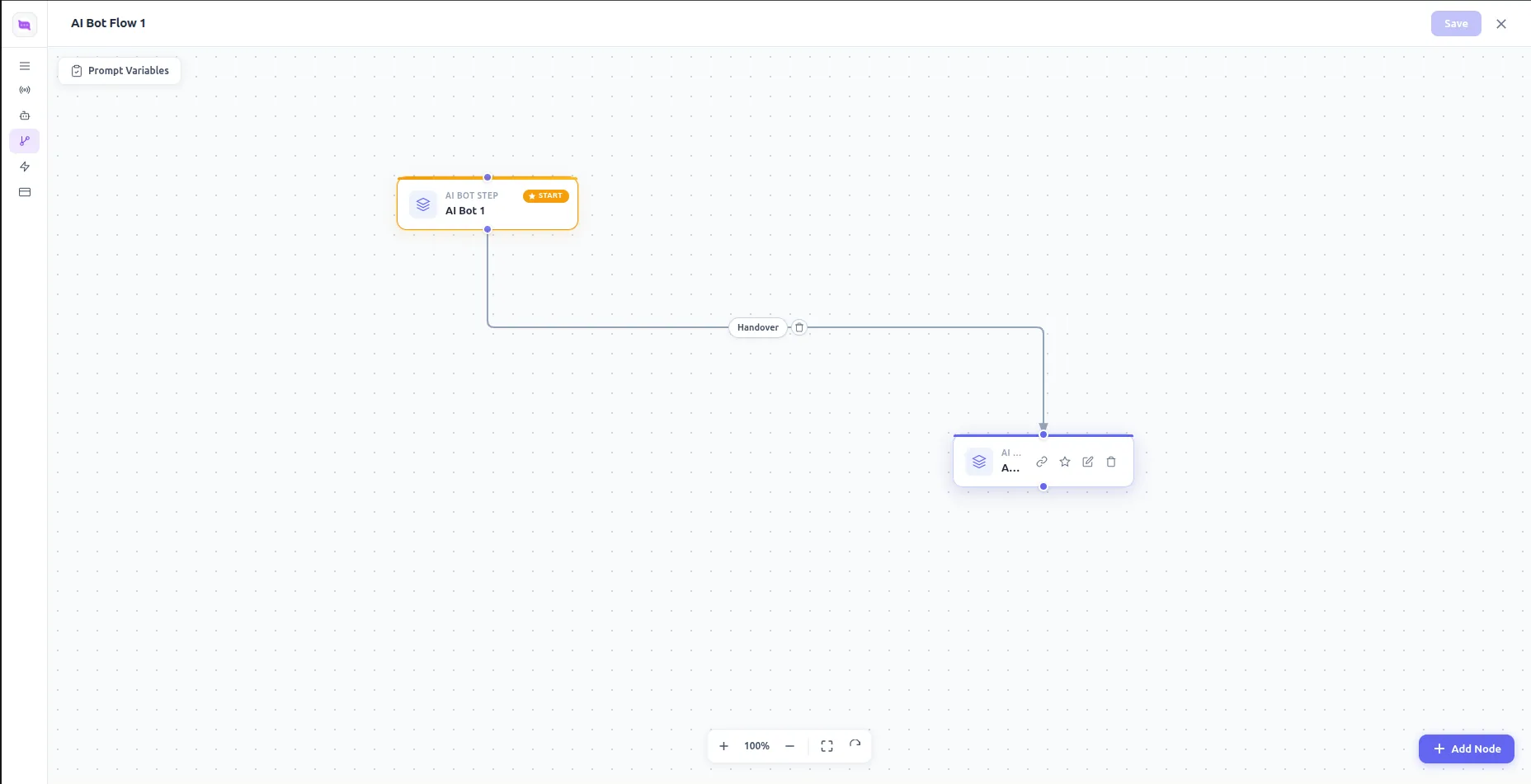
For a conversation with more than one stage, build an AI Bot Flow instead: chain AI bot steps together, hand over between them, and save the flow.
To have the bot answer a line, go back to the channel and set its Incoming Call Settings to AI Bot, selecting the bot you just built.
Optional: have a Pipedrive automation place AI calls
Pipedrive Automations can send your AI bot to call someone whenever something happens in Pipedrive: a deal is created, a deal moves stage, a lead is added, and so on. Convarza gives you a webhook URL for this.
- In Convarza, open Channels and click the channel the calls should go out on. Make sure its direction includes Outgoing.
- In the Pipedrive Automation Webhook card, pick the AI Bot that should talk, click Generate Webhook URL, then Copy.
- In Pipedrive, go to Automations and create an automation with the trigger you want, for example Deal created or Deal stage updated.
- Add the Send webhook action. Set the method to POST,
paste the URL, and in the body send the ID of the record to call:
person_id,deal_idorlead_id. - Save and turn the automation on.
For example, on a deal trigger the body can be {"deal_id": "<Deal ID>"},
inserting the Deal ID field from Pipedrive. You do not need to send the phone number or name:
Convarza reads them from Pipedrive. For a deal or a lead, the call goes to the person on it.
Each webhook URL is tied to one channel and one bot. To call from a different line or with a different bot, generate another URL from that channel.
See every call on the record
Every call — outbound or inbound, by your team or by an AI bot — is logged in Pipedrive as a Call activity on the person, and on the deal, lead and organization it belongs to. The activity carries the direction, the numbers, the outcome (Connected, Busy, No answer, Left voicemail and so on), the duration and the transcript, and is marked done when the call ends.
The recording is uploaded to Pipedrive's Files on the same records and linked from the activity, so anyone in your Pipedrive company can play it.
Check it worked
Open a person in Pipedrive with a phone number you can answer, click the number and call it with Convarza. Confirm the floating dialer opens with the number filled in, that the call connects, and that once you hang up a Call activity appears on that person with the outcome and duration.
If you set up an automation, trigger it on a test deal whose person has your number. Your phone should ring with the AI bot on the line, and the call should be logged on the deal and the person when it ends.
The ones people actually ask
Do I need an AI bot just to make calls?
No. A channel is all click-to-call and inbound calls need. Build an AI bot only if you want Convarza answering a line or placing calls from a Pipedrive automation.
Which records can a Pipedrive automation call?
Persons, deals and leads. Send person_id, deal_id or
lead_id in the webhook body. For a deal or a lead, Convarza calls the person
linked to it. If you send more than one ID, the deal is used first, then the lead, then the
person.
The automation ran but nobody was called.
Check that the channel behind the webhook URL has Outgoing in its
direction, that the AI bot is published, and that the person you are calling has a phone
number in Pipedrive. Also check the webhook body names a record with
person_id, deal_id or lead_id.
Where do I find the call afterwards?
In the record's activities in Pipedrive, as a Call activity with the outcome, duration and transcript. The recording is in the record's Files and linked from the activity.
Can I receive calls inside Pipedrive?
Yes. Set the channel's direction to include Incoming and its Incoming Call Settings to Dialer. Calls then ring in the Convarza floating window in Pipedrive. Set it to AI Bot instead to have the bot answer.
I don't have a Convarza account yet.
Sign up free at convarza.com, then install the app from the Pipedrive Marketplace (step 2).
Pipedrive is a trademark of Pipedrive OÜ. Convarza is an independent Pipedrive Marketplace app and is not affiliated with or endorsed by Pipedrive.