
Choose the columns in the contact grid
The column picker is built from your schema, so the grid can show anything a contact holds.
The column picker is generated from your schema, so every attribute you have defined is available. That makes it tempting to show everything, which produces a grid nobody can read on a laptop.
The useful discipline is to choose columns for a job rather than for completeness, and save each set as a view.
Before you start
- A clear idea of the job this view is for. A calling view and a reporting view want different columns.
Steps
Open the column picker
It sits in the toolbar and shows how many columns are currently on.
Show the four or five you scan
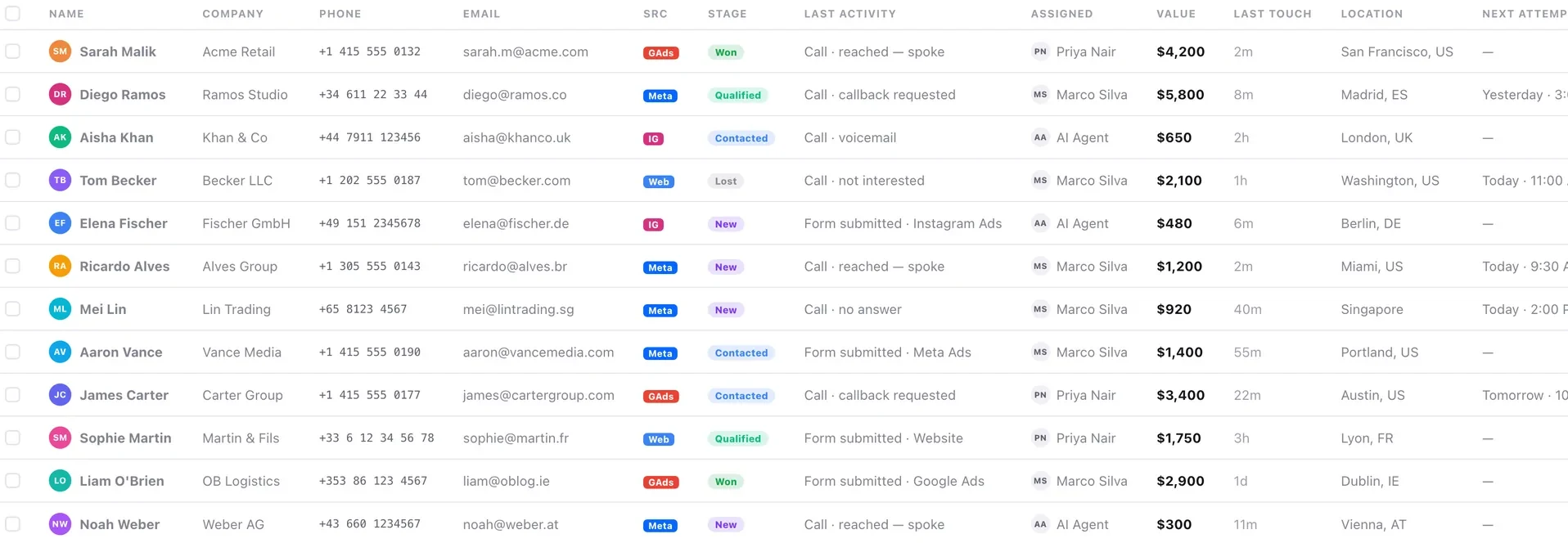
Name, stage, owner, last activity, and the one field your business genuinely runs on. More than about seven and you are scrolling sideways.
Match columns to the job
A calling view wants stage, owner and last activity. A reporting view wants value, source and dates. Save each rather than reconfiguring twice a day.
Use last activity and last touch
These two answer "has anybody spoken to this person recently", which is the question behind most list reviews.
Remember columns follow the schema
A new attribute appears in the picker automatically. Nobody has to configure it twice.
Check it worked
Look at your grid on a laptop rather than a large monitor. If you cannot read a row without scrolling sideways, you have too many columns for daily use.
The parts people get wrong
- Column choice is a display preference. The export has its own column selection, so a minimal grid does not limit what you can export.
- Saving a column set as a view is the fastest way to switch between a calling layout and a reporting layout.
The ones people actually ask
How many columns should I show?
Four or five: name, stage, owner, last activity, and the one field your business genuinely runs on. More than about seven and you are scrolling sideways, which defeats the purpose of a grid.
I need different columns for different jobs.
Save each as a view rather than reconfiguring twice a day. A calling view wants stage, owner and last activity; a reporting view wants value, source and dates.